
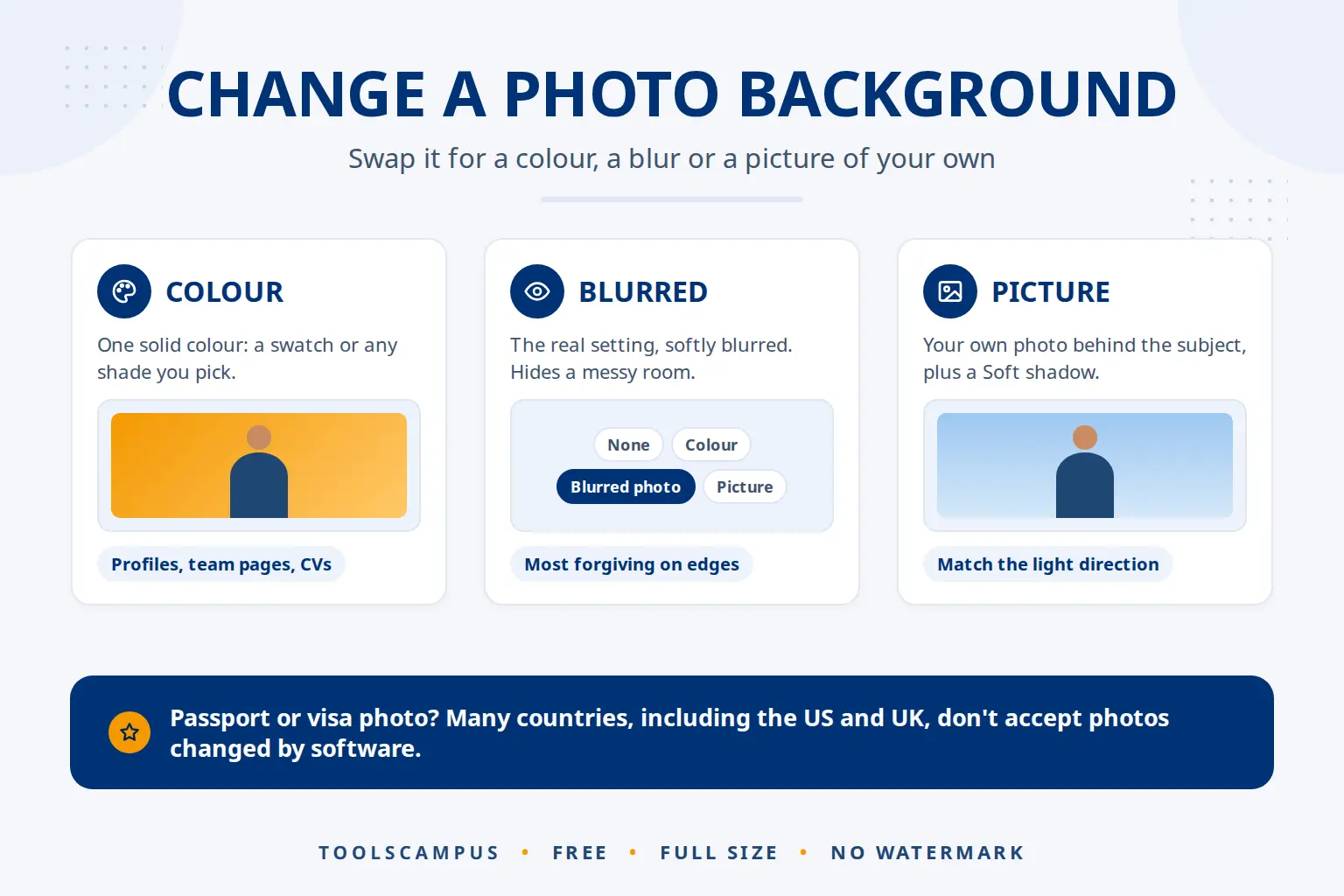
To change the background color of a photo, cut out the subject with an AI background remover, then fill the empty area with a new colour, a blurred version of the original background, or a picture of your own. With ToolsCampus this takes a few seconds per photo, runs in your browser, and gives you a full-size result with no watermark.
This guide shows each way to change a picture background, step by step, suggests colours for common uses, and explains when you should not change a background at all, such as for passport photos.
Change a photo’s background now: free, no sign-up, and your photos stay on your device.
How to change the background colour of a photo (step by step)
- Open Remove background and add your photo. JPG, PNG, WebP and iPhone HEIC all work, up to 30 photos at a time.
- Let the AI find the subject. On your first visit the AI model downloads once; after that each photo takes a few seconds.
- Pick an edge style: Natural for most photos, Soft hair for people and pets, Sharp for products.
- Under New background, choose Colour, then click a swatch or use the colour picker to choose any shade.
- Check the edges in the Compare view and fix mistakes with the Keep and Erase brushes.
- Save as JPG for a solid colour background (smallest file, accepted everywhere), then click Download.
The file is named like photo (no background).jpg, and the original photo is not changed.
Four kinds of new background
Under New background, the tool works as a photo background changer with four choices:
| New background | What you get | Good for | Save as |
|---|---|---|---|
| None | A see-through background | Logos, stickers, cut-outs to place in a design | PNG or WebP |
| Colour | One solid colour of your choice | Profile photos, team pages, product photos, CVs | JPG |
| Blurred photo | The original background, softly blurred | Portraits, pet photos, busy or messy rooms | JPG |
| Picture | Any photo of your own behind the subject | Fun edits, event flyers, brand backgrounds | JPG |
How to blur the background of a photo
Blurring keeps the real setting but makes the subject stand out, a bit like the portrait mode on a phone. It also hides clutter such as a messy room or people walking past.
- Remove the background as above, using Soft hair for people and pets.
- Under New background, choose Blurred photo.
- Move the blur slider. A light blur looks natural; a strong blur gives a studio-like look.
- Save as JPG.
A blurred background is the most forgiving option, because the edges of the subject blend into similar colours. If your cut-out has small flaws around the hair, try it before reaching for the brushes. Our guide to clean edges on hair and fur covers the harder cases.
How to put your own picture behind the subject
- Under New background, choose Picture and select your background photo.
- Pick a background with light coming from the same direction as in your photo. Mismatched light is the main reason an edit looks fake.
- Add a little Soft shadow so the subject sits on the scene instead of floating above it.
- Save as JPG.
Which background colour should you choose?
- Profile and team photos: light grey, soft blue or a muted brand colour. Use the same colour for the whole team so the photos match.
- CVs and job applications: plain white or light grey, unless the employer asks otherwise.
- Product photos: pure white for marketplaces. See white background product photos for Amazon and Shopify.
- Social media: a bold colour that contrasts with the subject’s clothes, so the photo stands out in a feed.
Avoid a background colour close to the subject’s hair or clothing; the edges become harder to see and the subject seems to melt into it.
Passport, visa and ID photos: check the rules first
Many official photos need a plain background, so a photo background editor seems like an easy fix. It often isn’t allowed. The US passport photo rules, for example, ask for a white or off-white background and say not to change the photo with software, apps, filters or artificial intelligence. The UK government’s guidance also asks for photos that are not altered by computer software.
So for passport and visa photos, take a new photo in front of a plain wall of the right colour, or use a photo booth or studio that knows the rules. Always follow the official instructions of the country or office you are applying to.
For other forms, such as a gym card, a school portal or an internal company badge, a changed background may be fine. Read the form’s own instructions; if it doesn’t forbid editing, a plain colour background made here is usually accepted. Our guide to photo sizes for online forms helps with the pixel size afterwards, and Resize image and Compress image help you meet upload limits.
How the AI separates you from the background
The background remover uses an AI model that runs in your browser. It has learned from a very large number of example photos what a main subject looks like, and for every pixel it estimates how much belongs to the subject. The new background is then placed behind everything the AI removed, and edge colours are cleaned so the old background doesn’t show as a coloured fringe.
On computers with a recent graphics card and a browser that supports WebGPU, the tool uses the Best model, which gives cleaner edges. Other devices, including phones, use Standard, which leaves more small bits to tidy up.
The AI can get things wrong when the subject and the old background have similar colours, with glass or see-through fabric, with very fine hair, and with busy backgrounds. Turn on Show removed parts to see what was removed in red, then paint with Keep or Erase. Because nothing is uploaded, your personal photos stay on your device.
Common problems
There is a thin line of the old colour around the subject
Move the Shrink or grow the edge slider slightly towards shrink, or erase the line with a small, soft brush.
The new background looks fake
Add a little Soft shadow, pick a background with similar lighting, or switch to Blurred photo, which always matches the original light.
The colour I picked looks different on my phone
Screens show colours slightly differently. If an exact brand colour matters, check it on more than one device.
Frequently asked questions
How do I change a photo background to white?
Remove the background, choose New background: Colour, pick white, and save as JPG. Saving a see-through result as JPG also gives white automatically.
Can I change the background of a passport photo online?
Usually not. Many countries, including the US and the UK, do not accept photos altered with software. Take a new photo against a plain wall and follow the official rules.
How do I blur the background of a photo without portrait mode?
Remove the background, choose New background: Blurred photo, and adjust the blur slider. It works on any photo, including old ones.
Can I change the background of many photos at once?
Yes, up to 30 photos at a time. Check each result, then download them all together as a ZIP.
Change a photo’s background now. Pick a colour, a blur or your own picture, and download in full size.
Comments
No comments yet. Ask a question or share a tip that helped you.