Private by design
Your files never leave your device. Everything happens in your browser, so nothing is uploaded or stored on our servers.
 ToolsCampus
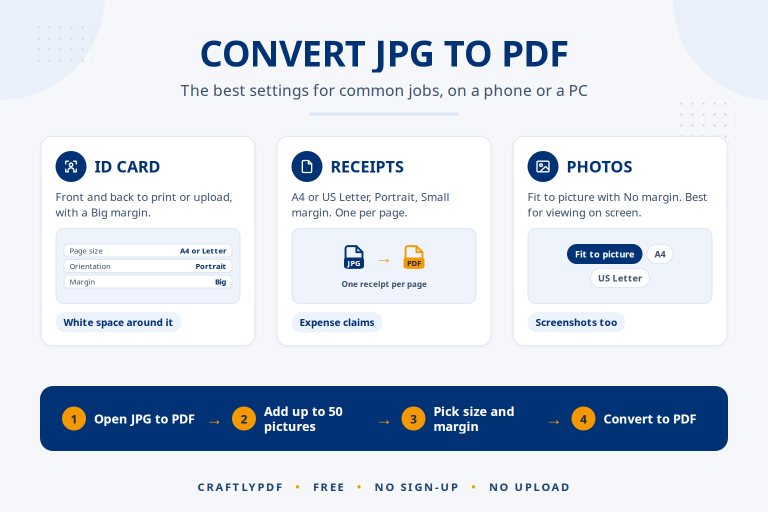
Make one tidy PDF from phone photos, screenshots or scanned pages. Each picture becomes a page, in the order you choose.
JPG, PNG or WebP, up to 50 pictures
Your files are processed on your device and are never uploaded.
How it works
Why use it
Your files never leave your device. Everything happens in your browser, so nothing is uploaded or stored on our servers.
Photos stay JPG so the PDF stays small, and screenshots stay PNG so text stays sharp. Huge photos are reduced to print quality (300 dpi).
Choose A4 or Letter pages with a margin, and every picture is centred and scaled to fit.
Questions, answered
JPG (JPEG), PNG and WebP. HEIC photos from iPhones can be shared as JPG from the Photos app first.
Up to 50 pictures, up to 50 MB each. They all go into one PDF, one picture per page.
No. Each picture is scaled to fit inside the page and its margin, keeping its shape. With "Fit to picture" the page takes the picture's shape.
Yes. Run the new PDF through our OCR tool and it adds a hidden text layer you can search and copy.
Convert JPG to PDF free on phone or PC. Simple steps, the best page size and margin for each job, plus iPhone…