
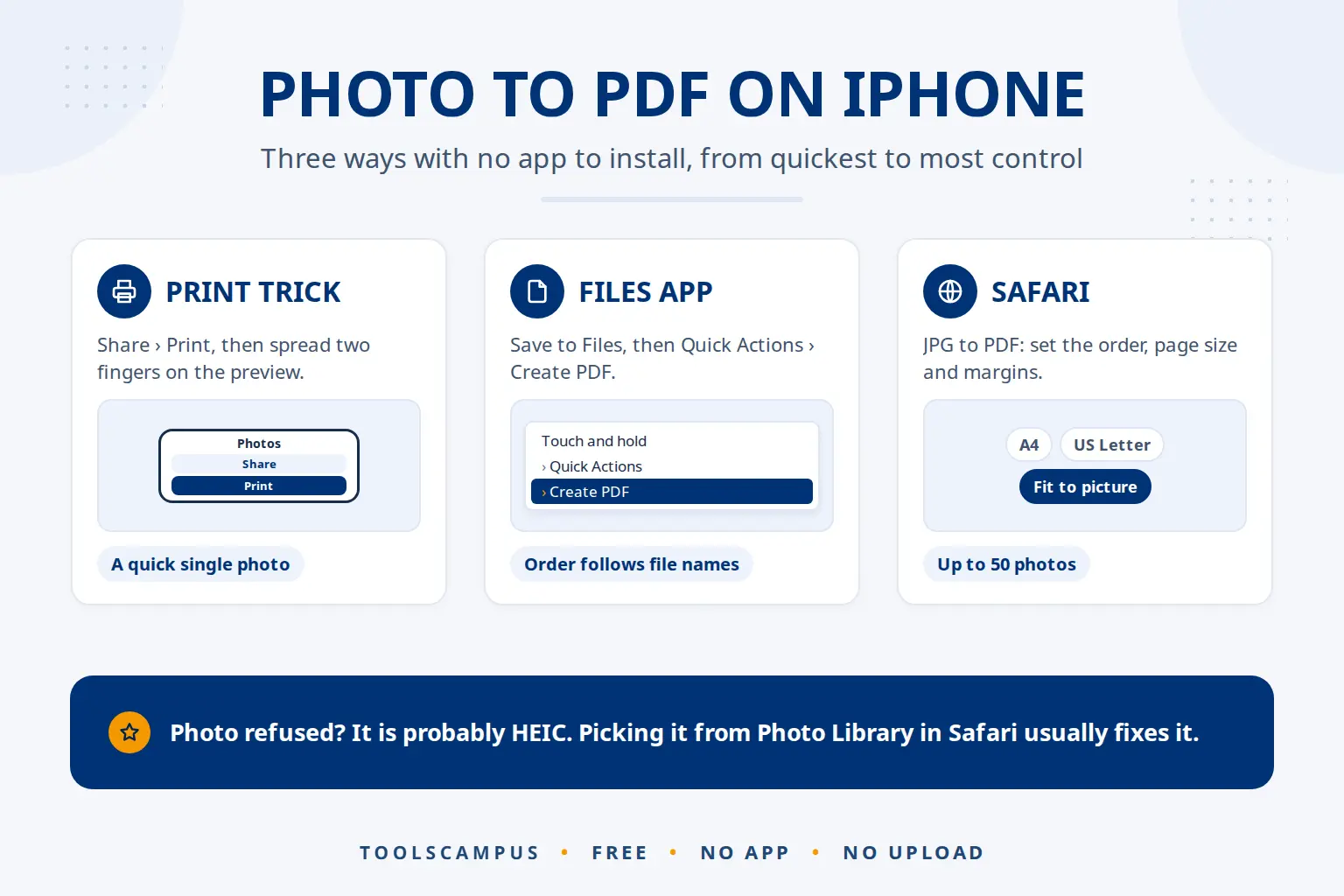
To convert a photo to PDF on iPhone without an app, open it in Photos, tap Share, then Print, and save the print preview as a PDF in Files. You can also use Create PDF in the Files app, or a free JPG to PDF tool in Safari to control page size, margins and order.
Below are step-by-step instructions for all three ways, a quick comparison, and a simple explanation of the HEIC format iPhones use for photos.
Turn your iPhone photos into a PDF now: free, no sign-up, and your file stays on your device.
Way 1: The Print trick in the Photos app
The iPhone’s print screen can make a PDF even if you have no printer. It is built in and works for one photo or several.
- Open the Photos app and open the photo. For several photos, tap Select and tap each one.
- Tap the Share button (the square with an arrow pointing up).
- Scroll down the list and tap Print.
- On the print options screen, spread two fingers apart on the preview of the page. It opens full screen as a PDF.
- Tap the Share button again and choose Save to Files, or send it straight to Mail or Messages.
On some iOS versions a Share button appears directly at the top of the print options screen, which skips step 4. The PDF uses a standard paper size and the iPhone’s own layout, which can leave wide white borders around the photo.
Way 2: Create PDF in the Files app
The Files app can turn pictures into a PDF with its Create PDF action. The photo has to be in Files first.
- In Photos, open the photo, tap Share, then Save to Files. Pick a folder, for example On My iPhone, and tap Save.
- Open the Files app and go to that folder.
- One photo: touch and hold it, tap Quick Actions, then Create PDF.
- Several photos: tap the More button (three dots in a circle), tap Select, tick the photos, tap More at the bottom right, then Create PDF.
The new PDF appears in the same folder. Each page takes the shape of its photo. When you combine several photos, the order follows the file names rather than the order you tap them, so rename them first (1 page.jpg, 2 page.jpg) if order matters. Menu names can vary slightly between iOS versions.
Way 3: JPG to PDF in Safari
A browser tool gives you the most control: page size, margins and the exact order of the photos, without installing anything.
- Open JPG to PDF in Safari.
- Tap the button to choose files, then tap Photo Library and pick your photos (up to 50).
- Put the photos in order with the up and down arrows.
- Choose a Page size: A4 or US Letter for documents that will be printed, or Fit to picture so each page takes the photo’s shape.
- Choose a Margin: No margin, Small or Big.
- Tap Convert to PDF, then Download. Safari saves the PDF to the Downloads folder in the Files app.
Photos are turned upright automatically and never cropped. They stay JPG inside the PDF, so the file stays reasonably small. The conversion happens on your iPhone, so your photos are not uploaded.
Which way to convert a photo to PDF on iPhone?
| Print trick | Files app | JPG to PDF in Safari | |
|---|---|---|---|
| Needs an app or install | No | No | No |
| Extra steps | Pinch gesture | Save to Files first | None |
| Choose page order | Limited | By file name | Yes, with arrows |
| Choose page size | No | No | A4, Letter or Fit to picture |
| Choose margins | No | No | None, Small or Big |
| Best for | A quick single photo | Photos already in Files | Documents, receipts, several photos |
Making one file from a whole batch of receipts or pages? See how to put many pictures into one PDF. Screenshots are saved as PNG, and our guide to keeping PNG screenshots sharp in a PDF explains why they stay crisp.
HEIC photos, explained simply
Most iPhones save photos as HEIC files instead of JPG. HEIC looks the same but takes up less space. The catch: many websites and programs can’t open it, and JPG to PDF accepts JPG, PNG and WebP only.
- In Safari, choosing photos from the Photo Library usually converts them to JPG for you, so you don’t have to do anything.
- If a photo is refused, it is probably still HEIC. Picking it from Photo Library instead of from a file in the Files app usually solves it.
- To take JPG photos from now on, go to Settings > Camera > Formats and choose Most Compatible. Apple’s page on HEIF and HEVC also notes that photos may be shared as JPEG automatically when the other device can’t open HEIC.
HEIC files are smaller, so switching to JPG makes each photo take more space. If a photo is too big to send, see how to make a photo smaller on iPhone.
Photos, PDFs and AI apps on your iPhone
AI apps like ChatGPT, Claude, Gemini and Copilot can read PDFs as well as photos. One PDF often works better than a handful of separate pictures:
- One attachment, clear order. A five-page letter photographed page by page, saved as one PDF in the right order, is easier for the AI to follow than five loose photos.
- Searchable text. If the photos are of a document, run the PDF through OCR PDF to add real text. You can then search it yourself too.
- Sharp photos. Shoot in good light, straight above the page. AI misreads blurry text just like people do. Our tips to scan paper documents with your phone help here.
Always check what the AI tells you against the original document, and check the AI service’s privacy settings before uploading personal or work documents.
Common problems
I can’t find the Print option
Scroll down the share sheet; Print is in the list of actions below the apps. If it still isn’t there, use the Files app or Safari method instead.
I can’t find the downloaded PDF
Open the Files app, tap Browse and look in Downloads. You can also tap the downloads icon in Safari’s address bar right after downloading.
The photo is sideways in the PDF
Turn the page with Rotate PDF, choosing only that page’s number.
I need to add the photo to an existing PDF
Convert the photo first, then merge both files. See how to combine a PDF and a JPG, and our guide to merging PDFs on iPhone.
Frequently asked questions
How do I save a picture as a PDF on my iPhone for free?
Open the photo, tap Share, then Print, spread two fingers on the preview and save it to Files. Or use JPG to PDF in Safari for more control over size and margins.
Can I combine several iPhone photos into one PDF?
Yes. All three ways handle several photos. JPG to PDF in Safari lets you set the exact order with arrows, up to 50 photos at a time.
Do I need to convert HEIC to JPG first?
Usually not. When you choose photos from Photo Library in Safari, they are normally converted to JPG for you.
Where are PDFs saved on iPhone?
In the Files app: in the folder you chose with Save to Files, or in Downloads for files downloaded in Safari.
Convert your iPhone photos to PDF. Pick from your Photo Library, set the order and download in seconds.
Comments
No comments yet. Ask a question or share a tip that helped you.