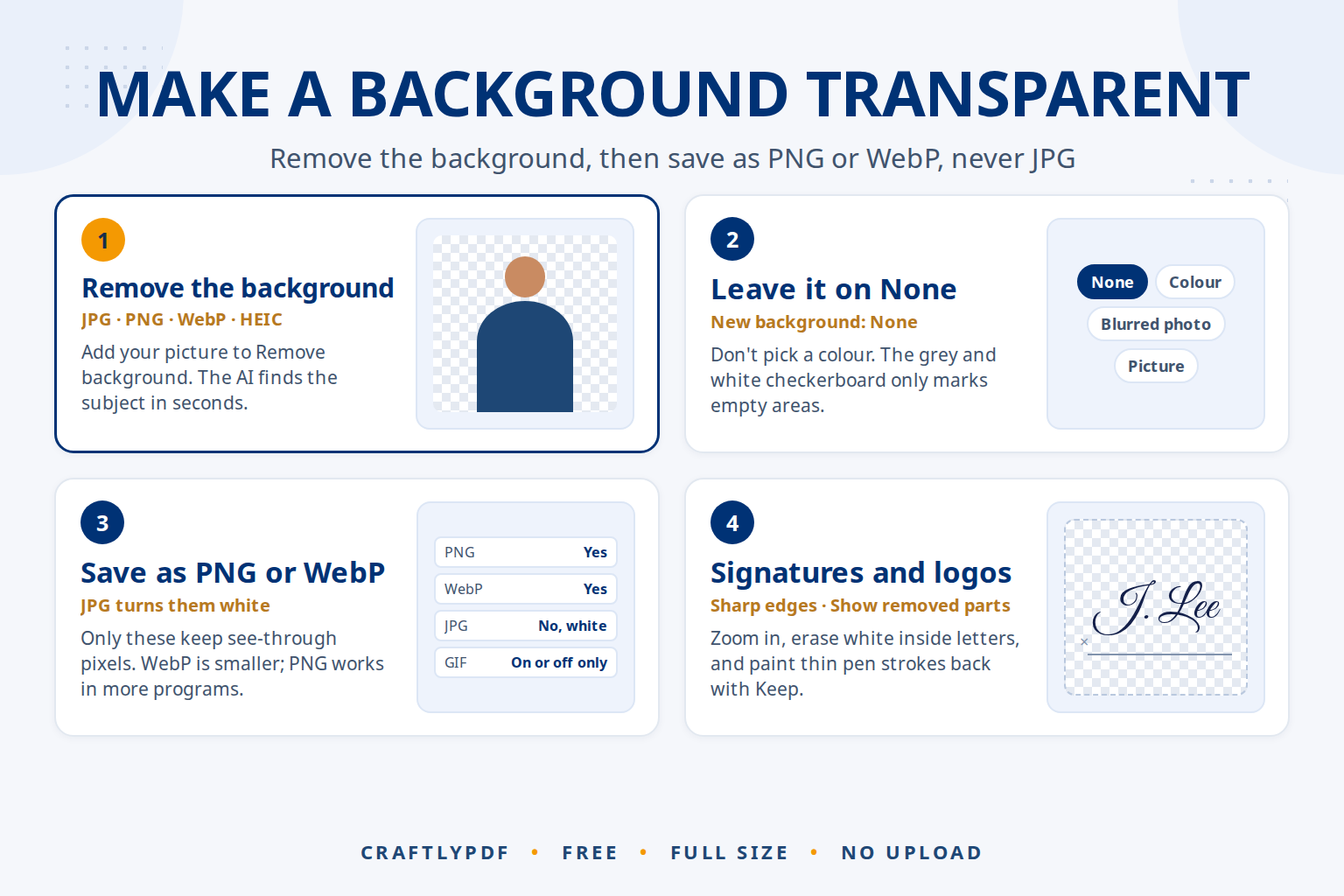
To make a picture’s background transparent, remove the background and save the result as a PNG or WebP file. Those two formats can store see-through pixels; JPG can’t, so a transparent area in a JPG always turns into a solid colour. With a transparent background maker that uses AI, the whole job takes a few seconds.
This guide shows how to make a background transparent step by step, explains why only some formats keep transparency, and covers the two most common uses: logos and signatures.
Make a background transparent now: free, no sign-up, and your pictures stay on your device.
How to make a background transparent (step by step)
- Open Remove background and add your picture. JPG, PNG, WebP and iPhone HEIC files work, up to 30 at a time.
- Let the AI find the subject. The first visit downloads the AI model once; after that each picture takes a few seconds.
- Pick the edge style: Sharp for logos and objects, Natural for most photos, Soft hair for people and pets.
- Under New background, leave None selected, so it stays see-through.
- Under Save as, choose PNG or WebP. Not JPG.
- Click Download. The file is named like
logo (no background).png, and your original is not changed.
In most picture apps, a see-through area is shown as a grey and white checkerboard. That pattern is not part of the picture; it just marks where nothing is.
Which formats keep a transparent background?
Transparency is stored in an extra piece of information for each pixel, called the alpha channel, which says how see-through that pixel is. Combining a see-through picture with whatever is behind it is called alpha compositing. Only formats with an alpha channel can keep transparency.
| Format | Keeps transparency? | Soft edges (hair, shadows)? | File size | Best for |
|---|---|---|---|---|
| PNG | Yes | Yes | Larger | Logos, signatures, anything you will edit again or send to others |
| WebP | Yes | Yes | Smaller | Cut-outs for your own website |
| JPG | No, see-through areas become white | No | Small | Photos with a solid background |
| GIF | Only fully on or off | No, edges look jagged | Varies | Simple animations |
Our comparison of JPG vs PNG vs WebP covers file sizes in more detail.
Why JPG can’t be transparent
JPG was designed for photos and stores only colour, with no alpha channel at all. When a program saves a see-through picture as JPG, it has to fill the empty areas with something. ToolsCampus fills them with white, which is often what you want for a product photo, but never what you want for a logo that must sit on a coloured header.
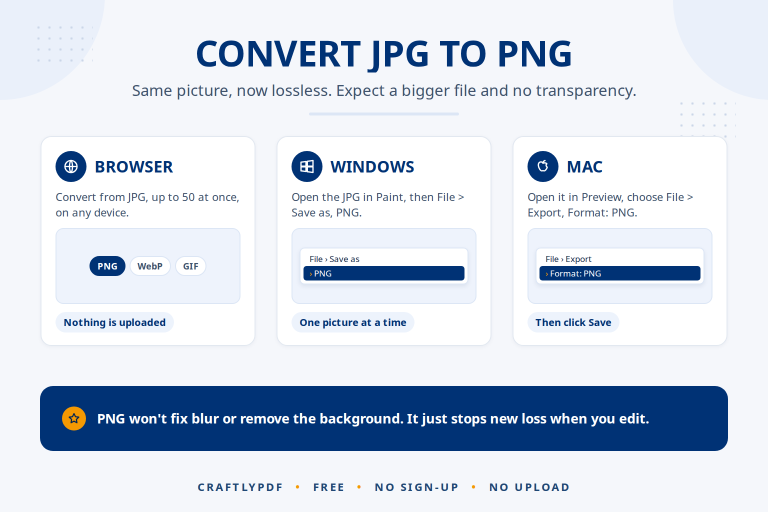
A common mistake is converting a JPG to PNG and expecting the background to vanish. Converting only changes the file format; the white or coloured background is still there, now stored in a PNG. Our Convert from JPG tool even shows a note about this. You need to remove the background first, then save as PNG. The guide to JPG to PNG with a see-through background walks through exactly that.
Making a logo background transparent
Logos are often only available as a JPG with a white box around them, which looks wrong on any coloured background. To fix it:
- Use the largest, sharpest version of the logo you have.
- Choose Sharp edges, so letters and lines stay crisp.
- Turn on Show removed parts and zoom in. Check the inside of letters like o, a and e, and paint away any white you don’t want with the Erase brush.
- Set Size to Fit to subject to trim empty space, with a little Space around it if you want a margin.
- Save as PNG.
Logos, icons and clip art on white have a few extra traps, such as white rims and letters with holes. Our guide to removing a white background from a picture or logo covers them.
A transparent logo is exactly what you need for branding your photos with Watermark image, which accepts a logo picture and works best with a see-through PNG. See adding your logo to photos for the full method.
Making a signature background transparent
A transparent signature lets you place it on a document without a white box covering the lines underneath.
- Sign with a dark pen on plain white paper, and photograph it in good daylight without shadows.
- Crop the photo close to the signature with Crop image, so the AI sees the signature as the main subject.
- Remove the background with Sharp edges, then turn on Show removed parts and zoom in. Thin pen strokes are easy for the AI to miss, so paint missing parts back with the Keep brush.
- Save as PNG.
If the signature is going into a PDF, the PDF editor can also let you draw a signature directly or type one in a handwriting-style font, which skips the photo entirely.
How AI makes the background transparent
The background remover uses an AI model that runs inside your browser. It has learned from many example images what a main subject looks like, and it decides for every pixel whether it belongs to the subject or the background. Edge pixels can be partly see-through, which is how hair and soft shadows blend naturally onto a new background.
The AI is very good at people, animals and products, and less sure about flat graphics, thin lines and objects with holes. It can also struggle with glass, which is see-through in real life, and with subjects that share the background’s colour. Check every result with Show removed parts, and fix mistakes with the Keep and Erase brushes. Edge colours are cleaned automatically, so a white background doesn’t leave a pale fringe when you put the result on a dark page.
Pictures made by AI image generators often have a plain background already, which makes them easy to cut out. Because the AI runs on your device, nothing is uploaded; with other online services, check the privacy settings before uploading personal pictures.
Common problems
My transparent picture has a white background when I open it
It was saved as JPG, or the app you opened it in shows see-through areas as white. Save as PNG or WebP, then test it by placing it on a coloured background.
There is a light halo around the edges
Move the Shrink or grow the edge slider slightly towards shrink, or erase the halo with a small, soft brush.
The holes inside letters are still white
The AI kept them as part of the logo. Zoom in and erase them with a small Erase brush.
The website won’t accept my WebP file
Some upload forms only take JPG or PNG. Save the cut-out as PNG instead.
Frequently asked questions
How do I make a PNG background transparent?
A PNG is only transparent if its background was removed; a PNG with a white or coloured background is not see-through. To remove the background of a PNG, follow the same steps: add it to Remove background, keep New background on None, and save as PNG again.
Can a JPG have a transparent background?
No. JPG has no way to store see-through pixels, so transparent areas always become a solid colour. Use PNG or WebP.
Is PNG or WebP better for transparent images?
WebP gives smaller files with the same transparency, which is ideal for websites. PNG works in more programs and upload forms, so it is the safer choice for sending to others.
Why is my transparent image so large?
PNG keeps every pixel exactly, which makes cut-out photos big. Save as WebP, or reduce the colours as described in how to shrink a PNG and keep transparency.
Make a background transparent now. Free, full size, and saved as a see-through PNG or WebP.