
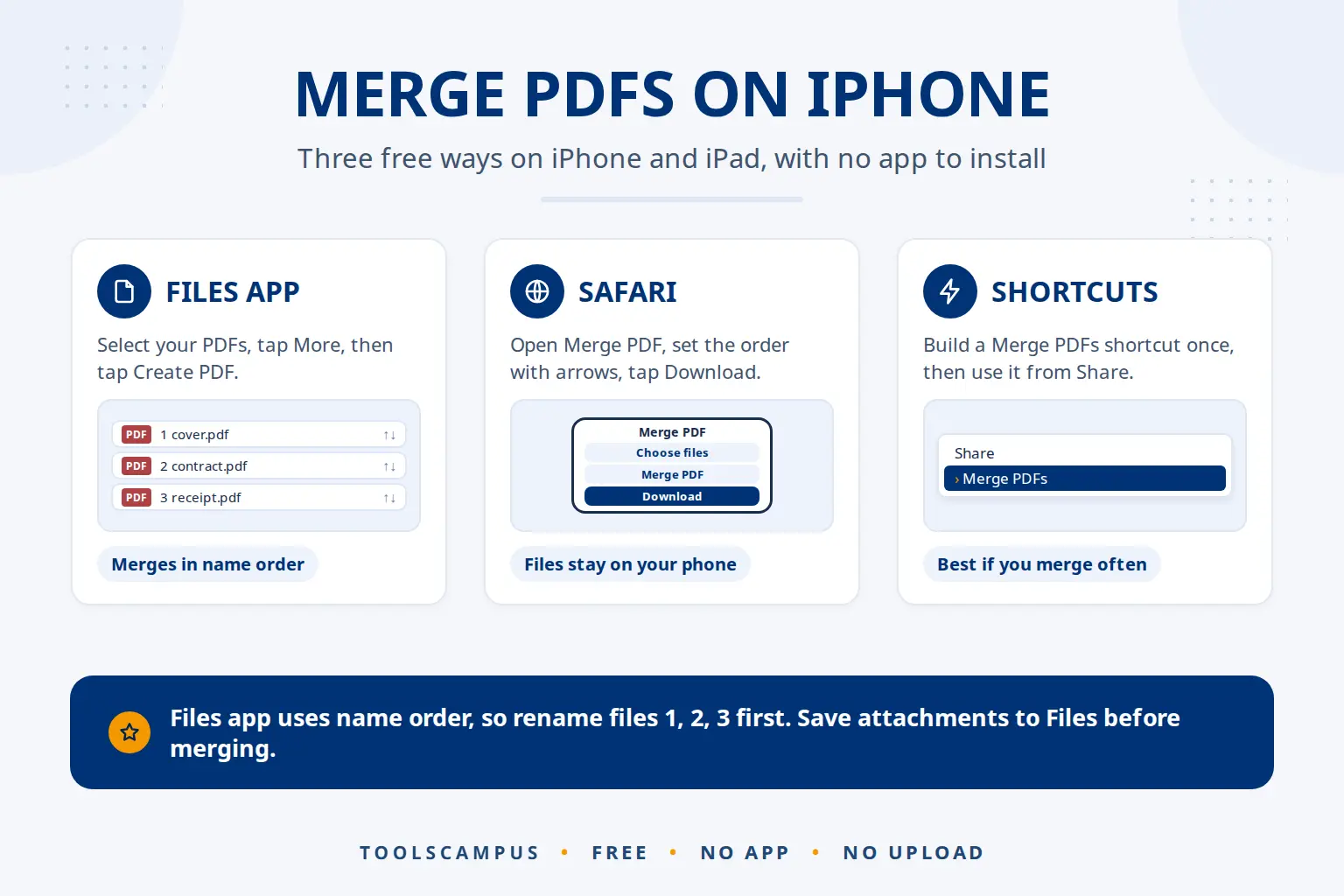
You can merge PDFs on an iPhone or iPad for free in three ways: the built-in Files app, a shortcut in the Shortcuts app, or a browser tool in Safari. The Files app is quickest when your PDFs share one folder; a browser tool is best when you want to set the file order first.
Below are step-by-step instructions for all three, a quick comparison, and fixes for the problems iPhone users hit most.
Merge PDFs on your iPhone now: free, no app to install, and the files stay on your phone.
Way 1: Merge PDFs in the Files app
The Files app has a hidden Create PDF option that joins several files into one. It is built into iOS and iPadOS, so there is nothing to download.
- Open the Files app and go to the folder with your PDFs (for example iCloud Drive or On My iPhone).
- Tap the More button (the three dots in a circle at the top right), then tap Select.
- Tap each PDF you want to combine. A tick appears on each one.
- Tap More at the bottom right of the screen, then tap Create PDF.
The merged PDF appears in the same folder, usually named after one of the files. Rename it with a long press, then Rename.
Control the order with file names
The Files app combines the files in alphabetical order of their names, not in the order you tap them. To get the order you want, rename the files first, for example 1 cover.pdf, 2 contract.pdf, 3 receipt.pdf, then merge.
Way 2: Merge PDFs in Safari with a free tool
A browser tool lets you pick files from anywhere in Files, put them in any order and merge them, all without installing an app.
- Open Merge PDF in Safari.
- Tap Choose files and pick your PDFs in the window that opens. Tap Browse to see all your folders, and Select to pick several files at once.
- Put them in order with the up and down arrows next to each file. The file at the top becomes the first pages.
- Tap Merge PDF, then Download.
Safari saves the merged PDF to the Downloads folder in the Files app, as Apple explains in where to find downloads on iPhone or iPad. You can change where Safari saves downloads in Settings > Apps > Safari > Downloads (on older iOS versions, Settings > Safari > Downloads).
The tool works inside Safari on your phone. Your PDFs are not uploaded to a server, which matters for bank statements, ID scans and contracts.
Way 3: Build a “Merge PDFs” shortcut
If you merge PDFs often, a shortcut puts a merge button right in the Share menu. It takes a few minutes to set up once.
- Open the Shortcuts app and tap + to make a new shortcut. Name it Merge PDFs.
- Tap the shortcut’s info button and turn on Show in Share Sheet, so it accepts files you share to it.
- Add the action Make PDF. It takes the files you share and makes one PDF from them.
- Add the action Save File and turn on Ask Where to Save.
- To use it, select your PDFs in Files, tap Share, then tap Merge PDFs.
Menu names change a little between iOS versions, so if a step looks different, search for the action name in the Shortcuts app. As with the Files app, check the page order of the result.
Which way should you use?
| Method | Set-up | Choose the order | Best for |
|---|---|---|---|
| Files app | None | By renaming files | PDFs already in one folder |
| Safari tool | None | Yes, with arrows | Files in different places, exact order |
| Shortcuts | A few minutes, once | Check afterwards | Merging often |
Merging PDFs on an iPad
All three ways work the same on an iPad. The bigger screen makes the Files app easier to use: switch to List view to see the full file names and sizes before you select them. In Safari, the iPad shows the merge tool in its desktop layout. If you also work on a Mac, Preview and Finder can merge PDFs on a Mac for free.
PDFs in Mail, WhatsApp or Messages
The Files app can only combine files that are saved in Files. If your PDFs are attachments, save them first:
- Mail: touch and hold the attachment, tap Save to Files, and pick a folder.
- WhatsApp or Messages: open the PDF, tap Share, then Save to Files.
Save them all to the same folder, then merge with any of the three ways above.
Common problems on iPhone
“Create PDF” is missing from the menu
Make sure you selected at least two files and that they are all in the Files app, not in a third-party app’s own storage. If the option still doesn’t show, use the Safari tool instead.
The merged PDF has pages in the wrong order
Rename the files with numbers and merge again, or open the result in Organize PDF and drag the pages into place.
The file says it is protected with a password
A password-protected PDF can’t be merged until the protection is removed. Ask the sender for an unprotected copy, or open it with the password in the app that made it and save a copy without the password.
A photo or screenshot needs to go in the PDF too
Turn the photo into a PDF first with JPG to PDF, then merge it with the others. Here is how to turn an iPhone photo into a PDF. If a page then comes out sideways, rotate the PDF on your iPhone before you send it.
Merging is slow
Very large PDFs, such as long scans, need a lot of memory. Close other apps and tabs, or merge on a computer, for example with these steps to merge PDF files on Windows. The full guide to combining PDF files on any device covers Windows and Mac.
Merge first, then ask an AI app on your iPhone
The ChatGPT, Claude and Gemini apps on iPhone can read PDFs you attach from the Files app. Merging first makes them more useful:
- One file instead of many. Merge a month of receipts or bills into one PDF, attach it once, and ask for a summary or a list of totals.
- Keep related pages together. A contract and its appendix in one file means the AI sees the full picture when you ask a question.
- Photos of paper need text. If your PDF is made of photos, run it through OCR PDF so the words are real text the AI can read reliably.
- Double-check the numbers. AI can misread amounts and dates, especially on blurry scans. Compare anything important with the original.
Only attach documents you are comfortable sharing with the AI service, and check its privacy settings first. The merge itself happens in Safari on your phone, so your files stay with you until you decide to send them.
Frequently asked questions
Can I combine PDFs on iPhone without an app?
Yes. The Files app’s Create PDF option, the Shortcuts app and a browser tool in Safari all work without downloading anything from the App Store.
How do I change the order of PDFs in the Files app?
The Files app merges in alphabetical order, so rename the files with numbers at the start (1, 2, 3) before you merge. A browser tool lets you set the order with arrows instead.
Where does the merged PDF go on my iPhone?
With the Files app, it appears in the same folder as the originals. When you merge in Safari, it goes to the Downloads folder in Files unless you changed Safari’s download location.
Is it safe to merge PDFs online on my phone?
It depends on the tool. ToolsCampus merges your files inside Safari on your phone, so they are never uploaded. Many other sites send your files to their servers.
Merge your PDFs now. It’s free, it works in Safari, and your files stay on your iPhone.
Comments
No comments yet. Ask a question or share a tip that helped you.