
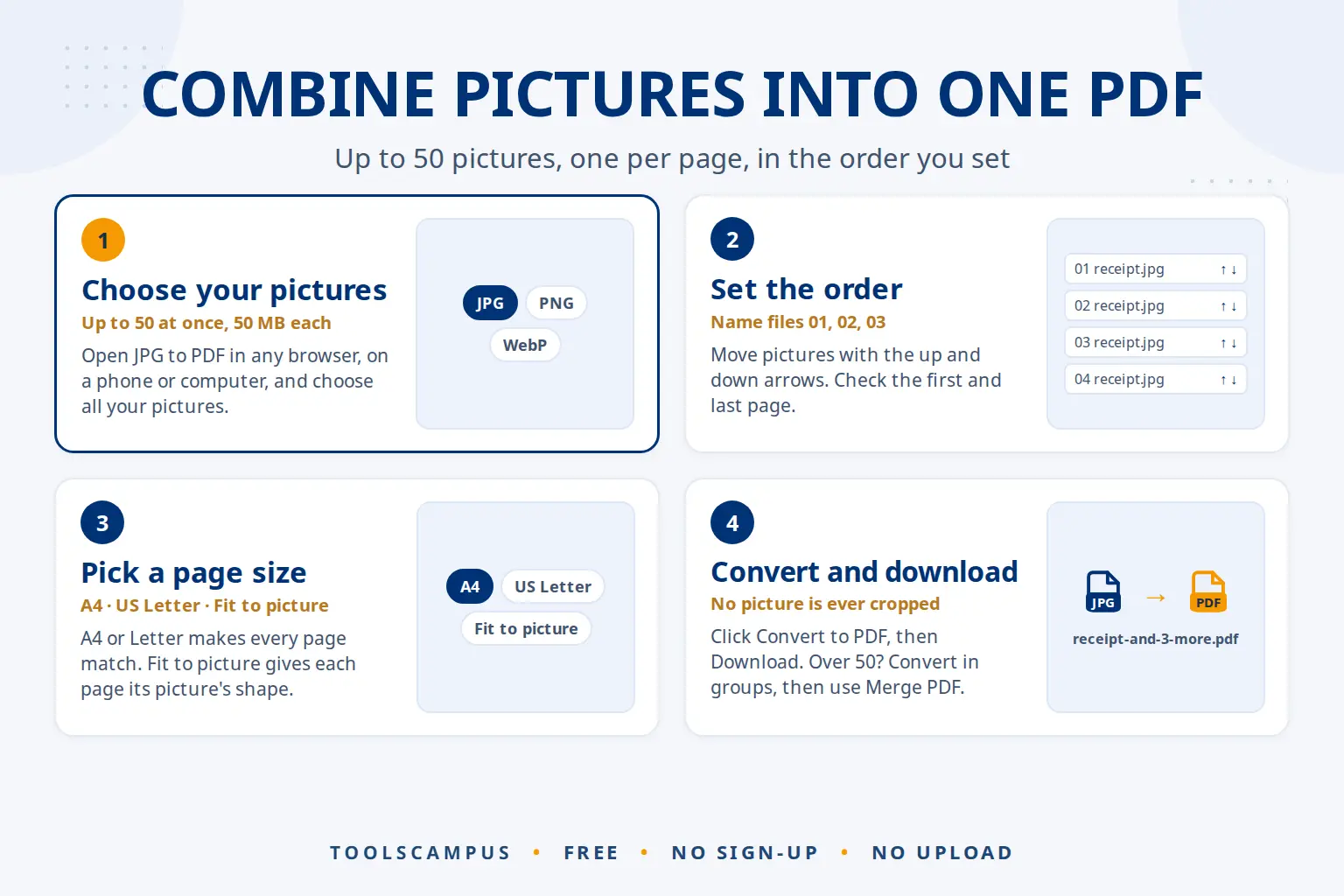
To combine images into one PDF, open a free JPG to PDF tool, choose all your pictures at once, put them in order and click convert. You get a single PDF with one picture per page, in the order you set. It works in any browser on a phone or computer, and nothing needs to be installed.
This guide covers common uses, how to get the order right, how to choose a page size, and what to do when you have more than 50 pictures.
Combine your pictures into one PDF now: free, no sign-up, and your file stays on your device.
When one PDF beats a pile of pictures
Sending ten separate photos is messy: they arrive out of order, some apps shrink them, and the person on the other end has to scroll through a gallery. One PDF keeps everything together. Typical uses:
- Receipts for an expense claim. Photograph each receipt and send one file to your finance team.
- Homework or assignments. Photos of handwritten pages become one document a teacher can open and print.
- ID front and back. Two photos on two pages, in one file, as many forms ask.
- A portfolio. Drawings, designs or product photos in a set order, ready to email.
- A paper document photographed page by page. A contract or letter you photographed with your phone becomes a proper multi-page PDF.
For paper documents, a phone’s built-in scanner can give flatter, cleaner pages than plain photos. On iPhone, the Notes and Files apps have a Scan Documents option, described in Apple’s guide to scanning on iPhone. Our guide on how to scan documents to PDF with a phone has more tips.
How to combine images into one PDF (step by step)
- Open JPG to PDF in your browser.
- Choose your pictures. Select several at once, up to 50. JPG, PNG and WebP all work, up to 50 MB each.
- Check the order. Use the up and down arrows next to each picture to move it.
- Pick a page size: Fit to picture, A4 or US Letter (see the table below).
- Pick a margin: No margin, Small or Big.
- Click Convert to PDF, then Download.
The file is named after the first picture and the number of others, for example receipt-and-3-more.pdf. Phone photos taken sideways are turned upright automatically, and no picture is ever cropped: each one is scaled to fit inside the margins and centred on its page.
Getting the order right
The order of the pages is the order of the list, so it pays to sort before you convert.
Name your files in order
If you can rename the pictures first, start each name with a number: 01 receipt.jpg, 02 receipt.jpg and so on. Use two digits (01, not 1), otherwise 10 can sort before 2. The pictures then sort correctly in your file picker, and a wrong one is easy to spot in the list.
Fix the rest with the arrows
Before you click convert, look down the list and move any picture that is out of place with its up or down arrow. For a photographed document, check the first and last page especially, since those are easiest to mix up.
Already converted?
No need to start again. Open the PDF in Organize PDF, drag the pages into place and save.
A4, Letter or Fit to picture?
The page size decides whether your PDF looks like a printed document or like a photo album.
| Page size | What you get | Best for |
|---|---|---|
| A4 | Every page is the same A4 size, picture centred | Receipts, homework, documents to print (Europe, Asia, Africa) |
| US Letter | Every page is the same Letter size, picture centred | The same jobs in the US and Canada |
| Fit to picture | Each page takes its picture’s shape, so pages can differ | Portfolios, photos, screenshots, wide charts |
With A4 or Letter, Orientation set to Automatic turns each page to match its picture: wide photos get landscape pages, tall ones portrait. Choose Portrait if you want every page upright for printing. A Small margin keeps pictures clear of the printer’s edge.
Photos stay JPG inside the PDF, so the file stays small. PNG and WebP pictures, like screenshots, are kept as PNG so text in them stays sharp. Very large photos are reduced to print quality, about 300 dpi on A4. If the finished PDF is too big to email, shrink the pictures first with Compress image; our guide to compressing images without visible quality loss explains which level to pick.
For every option in detail, see how to convert JPG to PDF for free.
More than 50 pictures
The tool takes up to 50 pictures at a time. For more:
- Split your pictures into groups of 50 or fewer, for example pictures 1 to 50 and 51 to 90.
- Convert each group into its own PDF.
- Open Merge PDF, add the PDFs, put them in order with the arrows and merge.
If you also need to add photos to a PDF you already have, such as a signed contract plus photos of its attachments, see how to combine a PDF and a JPG.
One PDF of receipts, one AI question
AI assistants like ChatGPT, Claude, Gemini and Copilot can read PDFs. Combining a month of receipts into one file means you can ask once instead of uploading photos one by one:
- Ask for a list. For example: “List each receipt in this PDF with the date, shop and total, then add up the totals.”
- Make the text searchable first. Photos are pictures, not text. Run the PDF through OCR PDF to add real text. It also lets you search the file yourself.
- Take clear photos. Faded thermal receipts and dark photos are misread by AI just as by people. Shoot in good light, flat and straight on.
- Check the totals yourself. AI can misread a 1 as a 7 or skip a receipt. Compare its list with the page count and add up the figures before you submit a claim.
Receipts can show card details and addresses, so check the AI service’s privacy settings before uploading personal or work documents. Converting with ToolsCampus happens in your browser, so your pictures are not uploaded.
Common problems
The pictures are in the wrong order
Fix it with the arrows before converting, or reorder the finished PDF in Organize PDF. Numbering file names before you start saves the most time.
“Not a JPG, PNG or WebP picture”
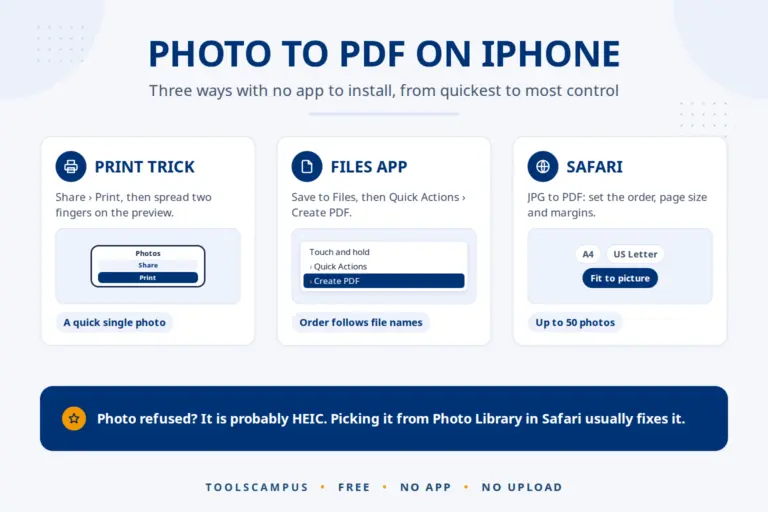
The tool checks what each file really is, not just its name, so a renamed file is refused. iPhone photos in HEIC format also need converting: share or export them as JPG from the Photos app first. Our guide to making a PDF from iPhone photos explains HEIC simply.
The pages are different sizes
That is what Fit to picture does. Convert again with A4 or US Letter so every page matches.
A page is sideways
Most phone photos are turned upright automatically. If one still isn’t, turn that page with Rotate PDF by typing its page number.
Frequently asked questions
How do I combine multiple JPGs into one PDF for free?
Open JPG to PDF, choose all the pictures at once, set the order with the arrows and click Convert to PDF. It is free, needs no account and works in any browser.
Can I put more than one picture on a page?
No. The tool places one picture per page, scaled to fit without cropping. To add several pictures to one page, open the PDF in our PDF editor and place the extra pictures yourself.
Will merging photos into a PDF reduce their quality?
Photos are kept as JPG and only very large ones are reduced, to about 300 dpi on A4, which is print quality. Screenshots and PNGs stay sharp.
Can I combine photos into a PDF on my phone?
Yes. The tool works in Safari, Chrome and other mobile browsers. Choose the photos from your gallery, set the order and download the PDF.
Combine your images into one PDF. Choose the pictures, set the order, and download a single tidy file.
Comments
No comments yet. Ask a question or share a tip that helped you.