
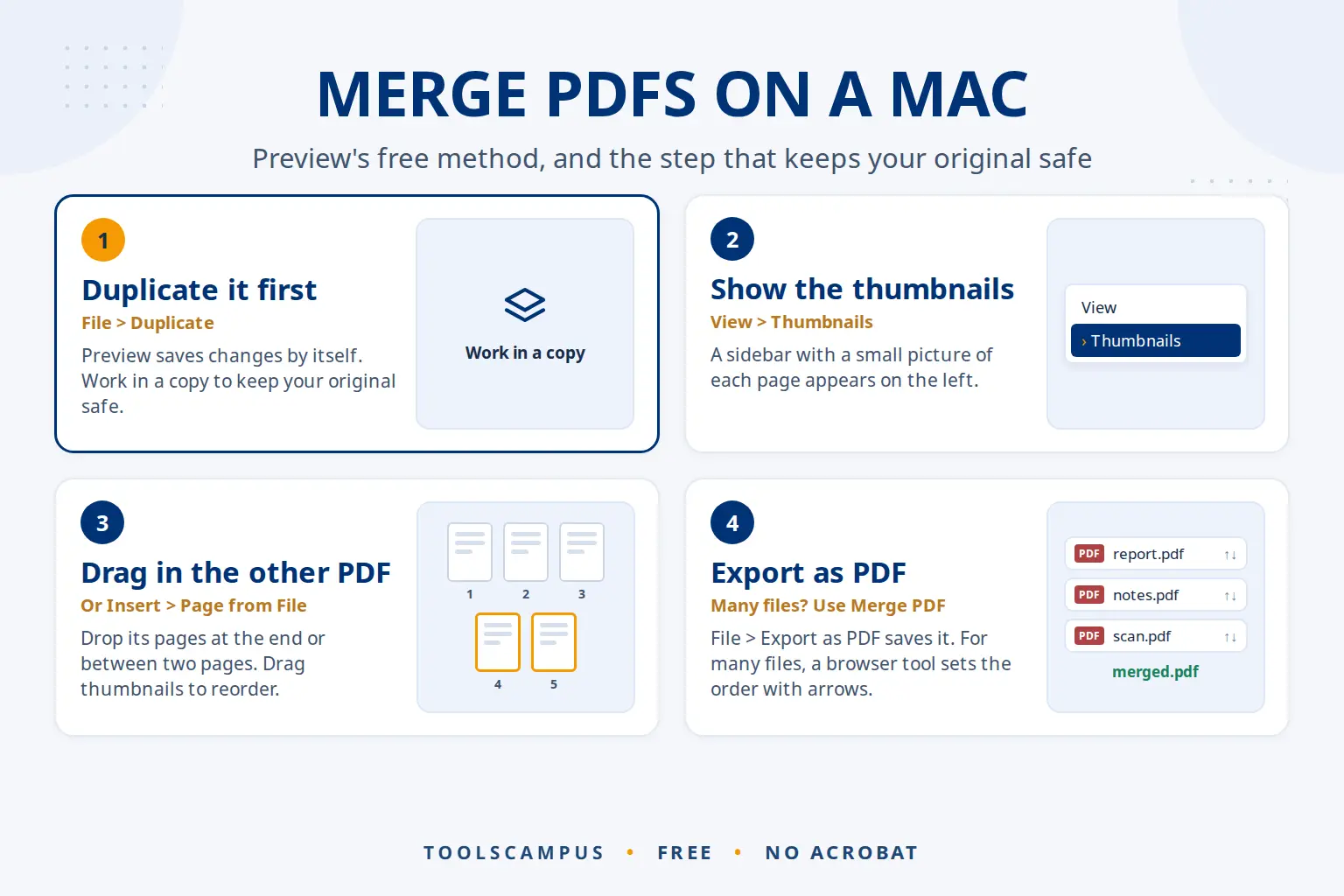
The quickest free way to merge PDFs on a Mac is Preview, the app that already opens your PDFs: show the page thumbnails, drag in the other files and export a new PDF. For more than three files, or to set the order of whole files first, a one-click tool in Safari or Chrome is faster.
Here are both, plus Finder’s built-in Create PDF action, with the one Preview setting that catches people out: it changes your original file unless you save a copy.
Merge PDFs on your Mac in one click: free, nothing to install, and your files are not uploaded.
How to merge PDFs in Preview
Apple’s own method, described in its guide to combining PDFs in Preview, is to drag page thumbnails from one PDF into another. Before you start, protect your originals.
Step 1: Make a copy first
Preview saves changes automatically. If you drag pages into a PDF, that file is changed. To keep the original, open it and choose File > Duplicate, then work in the copy.
Step 2: Show the thumbnails
In the copy, choose View > Thumbnails. A sidebar with a small picture of each page appears on the left.
Step 3: Add the other PDF
You have two ways to do this:
- Drag and drop: open the second PDF too, show its thumbnails, select the pages you want (press Command+A in the sidebar for all of them), and drag them into the first PDF’s sidebar. Drop them at the end, or between two pages.
- Insert from file: in the first PDF’s sidebar, click the page that should come before the new pages, then choose Edit > Insert > Page from File and pick the second PDF.
Step 4: Reorder and save
Drag thumbnails up or down to change the order. When it looks right, choose File > Export as PDF, give the new file a name and click Save.
Repeat step 3 for each extra file. With two or three PDFs this is quick; with ten it becomes a lot of dragging.
How to merge PDFs from Finder (Create PDF)
Finder has a Quick Action that combines files without opening any app.
- In Finder, select the PDFs. Hold Command and click each one.
- Control-click (or right-click) one of the selected files.
- Choose Quick Actions > Create PDF.
The new PDF appears in the same folder. Apple’s guide to combining files into a PDF in Finder says the files appear in the order you select them, so click them in the order you want, then check the page order afterwards.
If you don’t see Create PDF, you may have more Quick Actions than fit in the menu: choose Quick Actions > Customize and make sure Create PDF is turned on.
How to merge PDFs on Mac in one click
When you have many files, or files in different folders, a browser tool is the fastest route.
- Open Merge PDF in Safari, Chrome or Firefox.
- Drag your PDFs from Finder onto the box, or click Choose files.
- Use the up and down arrows to put the files in order.
- Click Merge PDF, then Download. The file goes to your Downloads folder.
If one of your files is a photo or scan saved as a picture, first combine the JPG with your PDF by turning it into a PDF page.
Your originals are never changed, there is no copy to remember to make, and the merging happens in your browser on your Mac. Nothing is uploaded.
Preview vs. Finder vs. a one-click tool
| Preview | Finder Create PDF | One-click tool | |
|---|---|---|---|
| Set the file order first | Page by page | By the order you click | Yes |
| Changes your original | Yes, unless you duplicate | No | No |
| Pick single pages | Yes | No | Merge, then Organize PDF |
| Best for | 2 or 3 files, page-level edits | Quick merge of a folder | Many files, exact order |
Common problems on Mac
Preview changed my original PDF
Preview keeps older versions. Open the file and choose File > Revert To > Browse All Versions, then pick a version from before your changes. Next time, use File > Duplicate first, or a tool that never touches the originals.
The dragged pages landed in the wrong place
Drag the thumbnails again; in Preview the order is only final when you export. If you already exported, open the merged file in Organize PDF and rearrange the pages there. This guide on how to move pages within a PDF shows each step.
Some pages are sideways after merging
In Preview, select the page thumbnail and press Command+R to rotate it. Or fix all sideways pages at once with Rotate PDF.
The merged file is too big
A merged PDF is about as big as all the files together. If it is too large to email, split it into parts with Split PDF, or share it through iCloud Drive.
One file is password-protected
A locked PDF can’t be merged until the lock is removed. Ask the sender for an unlocked copy, or open it with the password in the app that created it and save a copy without one.
Merging on other devices too? The complete guide to combining PDF files covers Android, and there are separate guides for merging PDFs on Windows 10 and 11 and merging PDFs on iPhone and iPad.
Merging PDFs for AI research on a Mac
AI assistants like ChatGPT, Claude and Gemini can read uploaded PDFs, which makes them handy for research, coursework and reports. A merged PDF can help:
- Ask across sources. Merge a few related papers or reports into one file, upload it, and ask the AI where they agree and where they differ.
- Label each part. Before merging, put a short title page or clear file name at the start of each document, so you can say “in the second report…” and the AI knows what you mean.
- Keep it a sensible size. Uploads have size limits, and very long files make it easier for the AI to miss details. If a merged file gets too big, split it into themed parts.
- Check scanned pages. If you can’t select text in Preview, the page is a picture. Use OCR PDF so the AI reads it as text.
Treat AI answers as a starting point: check quotes and figures against the original pages. And check the AI service’s privacy settings before uploading anything confidential.
Frequently asked questions
Can I merge PDFs on a Mac for free?
Yes. Preview and Finder’s Create PDF action are both built into macOS, and a browser tool like ToolsCampus Merge PDF is free too.
How do I merge PDFs in Preview without changing the original?
Open the first PDF, choose File > Duplicate, and make your changes in the copy. Then use File > Export as PDF to save the merged file.
Why are the pages in the wrong order after Create PDF?
Finder adds the files in the order you selected them. Select them again in the right order, or use a tool where you set the order with arrows.
Do I need Adobe Acrobat to merge PDFs on a Mac?
No. Preview, Finder and free browser tools all merge PDFs without Acrobat.
Merge your PDFs now. Drag them in, set the order, download. Your originals stay untouched.
Comments
No comments yet. Ask a question or share a tip that helped you.