
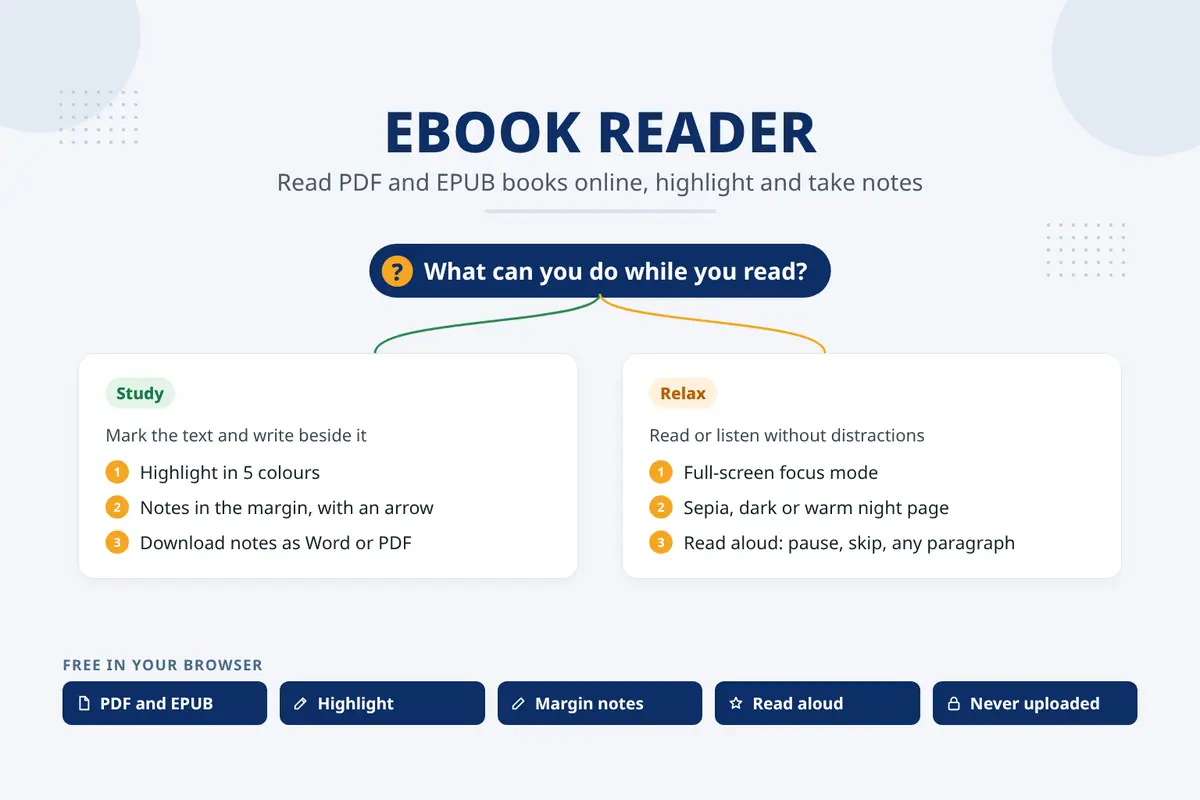
To read a PDF or EPUB online and take notes on it, open a free ebook reader in your browser, choose the book, select any sentence to highlight it in one of five colours, and click Add note to write in the margin. An arrow joins each note to its sentence. Switch to focus mode to read full screen, press the headphones button to have the book read aloud, and download your notes as Word or the PDF with every highlight in it when you are done.
This guide shows how to do each of those steps, how to study a long paper or textbook with colours and margin notes, and how to keep your notes when you move to another computer.
Open the free Ebook Reader: no sign-up, nothing to install, and your book never leaves your device.
Why read in an online ebook reader
Most PDF viewers are made for looking at a file, not for studying it. You can scroll and zoom, but highlighting is hidden in a menu, notes are tiny sticky icons you have to click to read, and EPUB books often do not open at all. An online reader made for reading puts the tools you use while you read on the page itself: colours, notes beside the text, a quiet full-screen mode and a voice that reads to you.
| What you want to do | In the Ebook Reader |
|---|---|
| Mark important sentences | Select text and pick one of 5 highlighter colours |
| Write your thoughts next to the text | Add note: a card in the margin with an arrow to the sentence |
| Read without distractions | Focus mode: full screen, no menus, dark, sepia or night page |
| Listen instead of reading | Read aloud: play, pause, skip paragraphs, start anywhere |
| Find a word or phrase | Search the whole book and jump to each result |
| Keep or share your work | Notes as Word, Markdown or text, or the PDF with highlights and margin notes |
How to read and annotate a PDF or EPUB online (step by step)
- Open Ebook Reader and choose a PDF or EPUB file, or drop it on the box. Large books show a progress bar while the pages are read.
- Select a sentence. A small menu appears: click a colour to highlight it, Add note to write about it, or Copy.
- Type your note in the card that appears in the margin. Drag the card up or down, or to the other side of the page; the arrow follows it.
- Press Focus to read full screen, or the headphones button to listen.
- Open Download to save your notes as Word, Markdown or text, or (for a PDF) the PDF with your highlights and notes in it.
Close the tab whenever you like. Your highlights, notes and the page you stopped at are saved in your browser, and they come back the next time you open the same file there.
Highlighting in five colours
Five colours are enough to give each one a meaning, and a simple system makes your notes much easier to use later. For example:
- Yellow: main ideas and definitions.
- Green: evidence, data and examples.
- Blue: methods or how something works.
- Pink: things you disagree with or want to question.
- Orange: quotes to use in your own writing.
If you highlight a lot, turn on the highlighter (the pen button, or press H): every sentence you select is highlighted straight away in the chosen colour, like a real highlighter pen. Keys 1 to 5 switch colours. Click any highlight to change its colour, add a note or delete it, and if you delete one by mistake, press Undo.
Scanned PDFs are pictures of pages, so there is no text to select. Use the area tool to drag a box over the part you want to mark, or make the scan searchable first with OCR PDF (see how to make a scanned PDF searchable).
Notes in the margin, with an arrow to the text
On paper, the best notes are written in the margin right next to the sentence they are about. The reader works the same way: each note is a card beside the page, and a curved arrow points from the card to its highlight, so you can see at a glance which note belongs to which line, even when a page has several.
- Drag a card up or down to tidy the margin, or across to the other side of the page.
- Cards never cover each other: they move down to make room.
- On a phone there is no room for margins, so a small pin marks the highlight and the note opens when you tap it.
- The Highlights and notes panel lists everything page by page; filter it by colour or show only highlights with notes, and click one to jump to it.
Focus mode: read without distractions
Focus mode fills the screen with the page and nothing else: no site menus, no ads, no pop-ups. The toolbar slides away while you read and comes back when you move to the top of the screen (on a phone, tap the menu button in the corner; the cross next to it leaves focus mode).
- Page colours: white, sepia (easier on the eyes for long reading), dark, and a warm night page for reading in bed.
- Reading timer: set 15, 25, 45 or 60 minutes and a soft chime tells you when to take a break.
- Screen stays on while you read, so a laptop or phone does not dim halfway through a page.
A website cannot silence other apps, so for a really quiet session also turn on Do not disturb: press Win + N on Windows, use a Focus in Control Centre on a Mac or iPhone, or swipe down and tap Do not disturb on Android.
Have the book read aloud
Press the headphones button and the reader starts reading from the paragraph you are looking at. Each sentence is marked on the page as it is read, and the page scrolls along with the voice.
- Pause any time and carry on from the same sentence.
- Skip paragraphs forwards or back with the arrow buttons (or the arrow keys).
- Start anywhere: point at a paragraph and press the play button that appears beside it, or select text and choose Read aloud from here.
- Speed and voice: from 0.75× to 2×, with any voice your device has.
- Skip citation numbers such as [10] or [13, 42], so research papers sound natural.
The voices are the ones built into your device, so nothing is uploaded. Microsoft Edge on Windows and most phones have very natural voices; in Chrome on Windows, choose one of the Google voices in the voice menu for the best sound.
Saving your highlights and notes
- PDF with highlights and notes: the original PDF with real PDF highlights, which Adobe Acrobat, Edge, Chrome and other PDF apps show and can edit. Each note is printed in a margin added beside its page, with an arrow to the text, just like on screen.
- Notes as Word (.docx), Markdown or text: every highlight and note, page by page or chapter by chapter, ready for an essay, a literature review or revision.
- Back up highlights (.json): a small file to move your notes to another browser or computer. Open the same book there and choose Restore from a backup.
Your highlights are kept in this browser only. Clearing your browsing data deletes them, so download a backup or your notes before you do.
How to study a long paper or textbook
- Skim first. Open the contents list and read the headings, the introduction and the conclusion before anything else.
- Read with one question in mind, and highlight only what answers it. If everything is yellow, nothing stands out.
- Write notes in your own words. A margin note that says why a sentence matters is worth more than ten highlights.
- Listen to the hard parts. Hearing a dense paragraph read slowly (try 0.9×) often makes it click.
- Finish with your notes. Download them as Word, and you already have the outline of your summary, review or essay.
Your reading notes and AI assistants
AI assistants such as ChatGPT, Claude and Gemini are good at summarising a long document, but a summary of the whole book is not the same as knowing which parts mattered to you. Your highlights and notes are exactly that. Download them as Word or Markdown and paste them into an assistant to turn them into a structured summary, flashcards or a revision quiz, or to compare your notes on two papers. Check every quote and number against the book itself: assistants sometimes rephrase a quote or mix up details, while your highlights are the original words.
Frequently asked questions
Is the Ebook Reader free?
Yes. It is free, with no sign-up and no limit on books or highlights.
Which files can I open?
PDF files and EPUB ebooks. EPUBs bought in stores such as Apple Books or Kobo are often locked with copy protection (DRM) and can only be read in their own apps; free EPUBs and your own files open normally.
Is my book uploaded?
No. The book is opened by your browser on your device and is never sent to our servers. Highlights and notes are saved in your browser too.
Can I read on my phone?
Yes. The reader works on Android and iPhone: select text to highlight it, tap a pin to read a note, and use the Focus button for full screen.
Will my highlights show in other PDF apps?
Yes. Download the PDF with highlights and notes: the highlights are standard PDF highlights, and the notes are printed in the margin and also stored in each highlight, so they appear in the comments panel of apps such as Adobe Acrobat.
Can I highlight a scanned PDF?
Yes, with the area tool, which marks any part of a page with a box. To select words, search the text or have it read aloud, run the scan through OCR PDF first.
Open your book in the Ebook Reader. Free, private, and your notes are waiting for you next time.
Comments
No comments yet. Ask a question or share a tip that helped you.