To make a heart photo collage for free, open a collage maker with a shape layout, choose the heart, and add your photos: they fill the heart as many small tiles, or as one photo inside the heart outline. In ToolsCampus’s Collage maker it takes about a minute, works with 2 to 500 photos, and nothing is uploaded.
This guide walks through the steps, explains how many photos you need, and gives ideas for anniversaries, birthdays and gifts, including a collage in the shape of a name or a short word.
Make your heart collage now: free, no sign-up, and your photos stay on your device.
How to make a heart-shaped photo collage
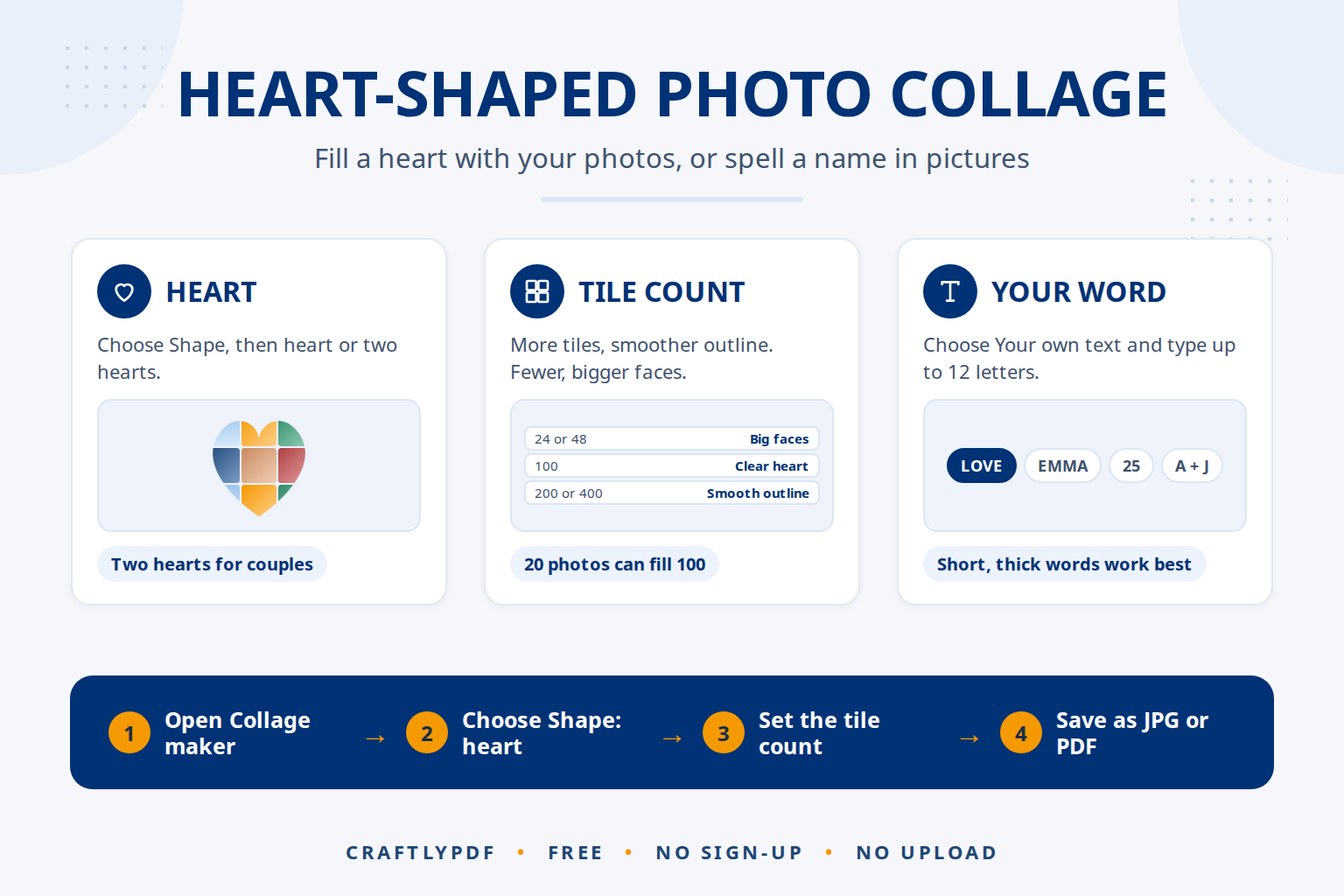
- Open Collage maker and add your photos. JPG, PNG, WebP and iPhone HEIC photos all work.
- Choose the Shape layout and pick heart. There is also two hearts, which suits couples and anniversaries.
- Choose how to fill it: many small photos (the classic heart mosaic) or one photo inside the shape.
- For many small photos, set the tile count: Automatic, 24, 48, 100, 200 or 400. With only a few photos, turn on repeating so every tile is filled.
- Pick a page format. Square or Instagram portrait works for social media; 5 x 7 in or 8 x 10 in suits a frame.
- Set the background colour, for example white, soft pink or deep red, and adjust the spacing between photos.
- Save as JPG or PNG to share, or as PDF to print at the exact paper size.
How many photos do you need?
More tiles means a clearer heart outline, because small tiles follow the curves more closely. Fewer tiles means each photo is bigger and easier to recognise. Pick the balance that suits your photos.
| Tile count | What it looks like | Good for |
|---|---|---|
| Automatic | The tool picks the number of tiles for you | Most collages, a safe start |
| 24 or 48 | Big tiles, faces easy to see, rougher outline | A small set of favourite photos |
| 100 | Clear heart shape, photos still recognisable | Anniversary and birthday gifts |
| 200 or 400 | Smooth outline, very small photos | Large prints, a year of photos, wedding guests |
You don’t need 100 different photos for 100 tiles. With repeating turned on, 20 photos can fill a 100-tile heart. Repeats are harder to spot when photos that look alike are not side by side; click Shuffle pictures to move them to new places.
One photo inside a heart
The other fill option puts a single photo inside the heart outline, like a photo cut out with heart-shaped scissors. It works well for a couple portrait or a baby photo. Select the photo and drag inside it to choose which part shows, and use the zoom slider to frame faces in the centre of the heart.
Your own word or name in photos
Instead of a shape, choose Your own text and type up to 12 letters. The letters fill with your photos, just like the heart. Some ideas:
- A name for a birthday:
EMMA,GRANDPA - A number for an anniversary or age:
25,40 - A short message:
LOVE,MOM,THANKS - Initials for a wedding:
A + J
Short words with thick letters show photos best. With longer words, choose a wide page format so each letter gets enough room.
Gift ideas and finishing touches
The Shape layout has 25 shapes, so the heart is only the start: lips or two hearts for Valentine’s Day, birthday cake, balloon or gift box for birthdays, house for a new home, paw print for a pet, star or crescent moon for a baby’s room.
To give the photos one warm mood, open Light and colour and try the Rose, Warm or Golden hour look; Black and white makes mixed photos look like a set. In the Stickers tab, add a few heart emojis from the Love group or a text sticker with a date in the Handwritten font.
If you plan to frame it, read how to make a photo collage for printing before you choose the page size.
Where AI fits into a heart collage
The Shape layout follows the outline you pick, so it is not the AI part of the Collage maker. The AI arrangement is in the Mosaic layout: it tries many arrangements and keeps the one that fits all photos edge to edge with the least cropping. A nice gift idea is to make both: a heart of small tiles, and a second page with the best photos as an AI mosaic, where each one is big enough to enjoy. How the AI photo collage maker works explains it in detail.
AI can help in two other places. For one photo inside the heart, a busy background can distract; Remove background uses an AI model in your browser to cut out the people, and you can then place the cut-out on a plain colour. And if you ask an AI assistant to suggest a short word or message for the collage, check the spelling of names yourself before you print.
Common problems
The heart shape is hard to see
There are too few tiles for the curves. Choose 100 or more tiles, reduce the spacing, and use a background colour that contrasts with the photos.
Faces are cut off in the small tiles
Tiles are small, so photos are cropped to fit. Select a tile’s photo and drag inside it to show the face, or use close-up photos rather than wide group shots.
The same photo appears next to itself
Click Shuffle pictures to move photos to new places in the same shape, or add a few more photos.
My word doesn’t fit well
Shorten it, use capital letters, or switch the page to landscape so the letters are bigger.
Frequently asked questions
How many pictures do I need for a heart collage?
Two is enough to start, because photos can repeat. For a heart where every tile is a different photo, around 24 to 48 photos gives a good result; 100 or more gives a smoother outline.
Can I make a heart collage on my phone?
Yes. The Collage maker runs in the phone’s browser, accepts iPhone HEIC photos, and saves the result to your downloads.
Can I print a heart photo collage?
Yes. Choose a Print page format such as 8 x 10 in or A4 at 300 dpi, and save as PDF so the file has the exact paper size.
Can I make the collage in the shape of a name?
Yes. Choose Your own text in the Shape layout and type up to 12 letters, such as a name, a number or a short word.
Create your heart photo collage. Add your photos, pick the heart, and save it in a minute.