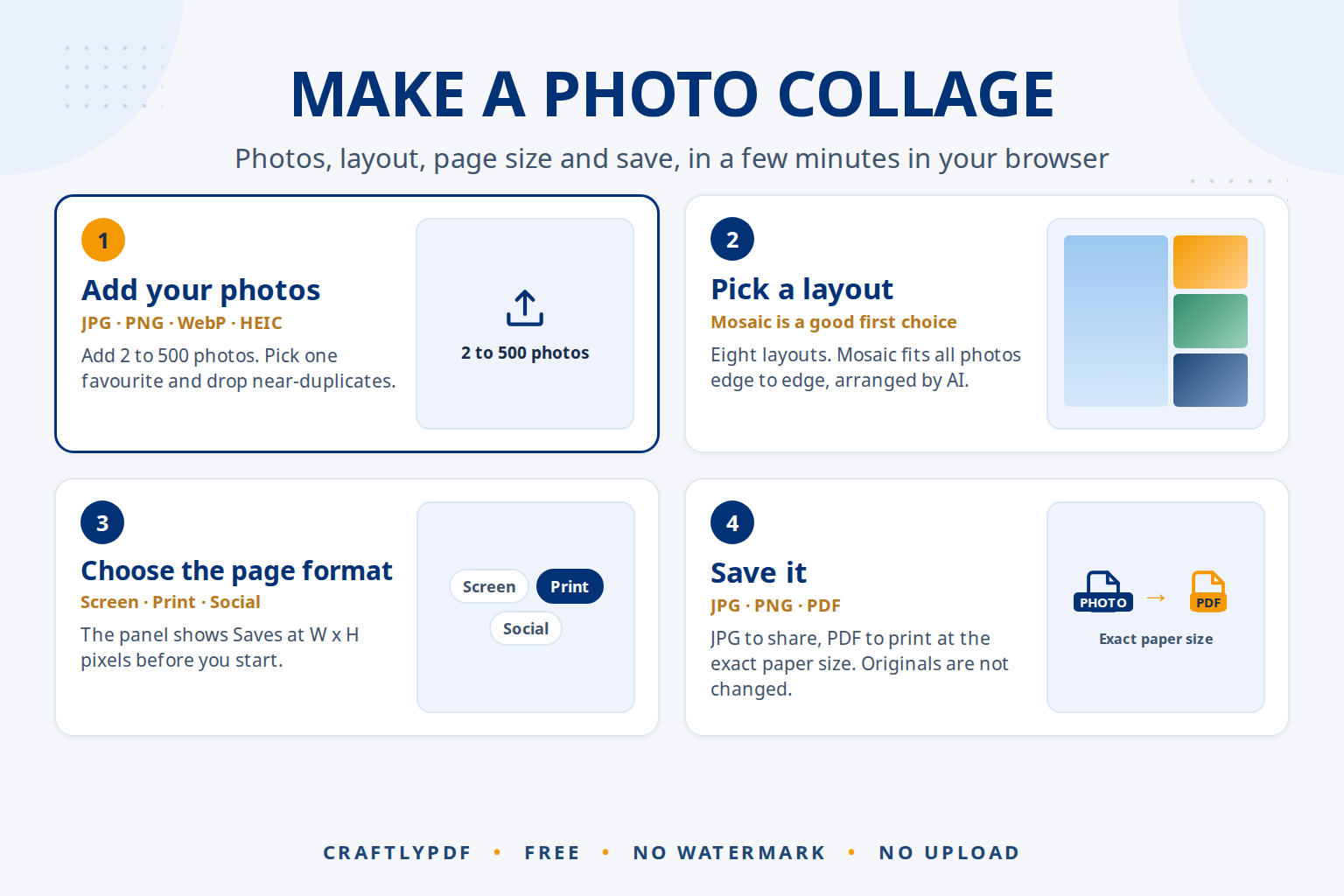
To make a photo collage, choose your photos, pick a layout, set the page size, adjust spacing and background, and save the result as JPG, PNG or PDF. With ToolsCampus’s free collage maker online, the whole process takes a few minutes in your browser, works with 2 to 500 photos, and your photos are never uploaded.
This guide covers which photos to pick, which settings matter, how to fix a photo that sits wrong, and which file type to save.
Create a collage online now: free, no sign-up, and your photos stay on your device.
How to make a photo collage, step by step
- Open Collage maker and add your photos. JPG, PNG, WebP and iPhone HEIC photos all work. It runs in any browser, including on phones.
- Pick a layout. Mosaic is a good first choice.
- Choose the page format: Screen, Print or Social, then landscape or portrait. The panel shows Saves at W x H pixels, so you know the final size before you start.
- Set spacing and background: the gap between photos, the outer margin, and a background colour or photo.
- Match the light and colour with one of the 13 looks.
- Add captions if you want them. Tick Show captions in the Style section.
- Fix the details. Drag photos to swap them and choose which part of each photo shows.
- Save as JPG, PNG or PDF. Your original photos are not changed.
Choosing good photos: a quick checklist
The photos matter more than any setting. Run through this list first:
- Pick one clear favourite and give it the best place.
- Mix close-ups and wide shots. Ten group photos look alike at small sizes; a face, a place and a detail tell a story.
- Drop near-duplicates. Keep the best of five similar shots, not all five.
- Use originals, not screenshots or copies from messaging apps, which are often reduced.
- Watch faces near the edge of a photo. Most layouts crop a little there.
- Fewer is often better for small sizes. On a phone screen, 4 to 9 photos stay easy to see; save big sets for print or a large screen.
Choosing a layout
The collage maker has eight layouts. In one line each:
- Mosaic: all photos edge to edge, no empty space, arranged automatically by AI.
- Frame Mosaic: one big photo in the middle, the others around it.
- Grid: equal cells in 1 to 20 columns (see how to make a photo grid).
- Rows: equal-height rows like a photo album, with an option to never crop.
- Picture Pile: scattered prints with white borders you can drag and turn.
- Contact Sheet: thumbnails with file names, a title and date, over several pages.
- Multiple Exposure: photos layered on top of each other.
- Shape: photos fill a heart, star, other shape or your own word.
For a full comparison, see the AI photo collage maker guide. You can switch layouts at any time.
Page format and size
Choose the format for where the collage will end up before you fine-tune anything: switching from wide to tall later means a new arrangement.
| Where it goes | Format to pick | Saves at |
|---|---|---|
| Laptop or TV screen, wallpaper | Screen, 16:9 | 2560 pixels on the long side (default), or 1600 or 3840 |
| Instagram feed | Social, Instagram portrait | 1080 x 1350 pixels |
| Instagram or Facebook Story | Social, Instagram story | 1080 x 1920 pixels |
| Framed print | Print, 8 x 10 in, 300 dpi | 3000 x 2400 pixels |
| Home printer | Print, A4, 300 dpi | 3508 x 2480 pixels |
| Small poster | Print, A3, 300 dpi | 4961 x 3508 pixels |
Need a shape that isn’t listed? Choose Add a custom aspect ratio and type two numbers, such as 4 : 5. Your browser remembers it, and it appears under Custom aspect ratios next time. Custom ratios save at 1600, 2560 or 3840 pixels on the long side. For social sizes and safe areas, read collage sizes for Instagram, Facebook and Stories.
One limit to know: the finished picture can be at most 40 megapixels. If you choose something larger, the tool asks you to pick a smaller size or 150 dpi.
Spacing, background, colour and captions
Spacing and background
No spacing gives a tight, modern look. A little spacing on white looks like a printed album; on black, colours stand out. A photo can also be the background, blurred, faded or as it is.
Light and colour
Photos taken on different days rarely match. The Light and colour panel has 13 looks, such as Warm, Golden hour, Vintage and Black and white, with a Strength slider and Fine-tune for brightness, contrast, saturation and warmth. Apply a look to all photos so they feel like a set, then select one dark photo and brighten only that one.
Captions
Tick Show captions in the Style section. Then select a photo and type its caption, up to 80 characters. The file name is shown as a placeholder until you type something, so check that no IMG_4021 is left before you save. For titles and emojis, the Stickers tab is better suited; adding text and stickers to a collage covers both.
Swapping and repositioning photos
- Swap two photos: drag one onto the other.
- Choose which part shows: click a photo to select it, click again and drag inside it.
- Zoom in or out: use the zoom slider or the mouse wheel on the selected photo.
- New places, same layout: Shuffle pictures.
- A completely new arrangement: Scramble collage.
- Change your mind: Undo, Redo and Reset.
Saving as JPG, PNG or PDF
JPG is the right choice for sharing and social media: small files that look the same. PNG keeps every pixel but makes much bigger files. PDF is best for printing because it stores the exact paper size, for example A4 is 210 x 297 mm. A collage with several pages, such as a long Contact Sheet, downloads as a ZIP or as one multi-page PDF.
Letting AI arrange the photos, and when to take over
The Mosaic layout is arranged automatically by AI. It tries many arrangements of your photos, scores each one, and keeps the one that fits all photos edge to edge with the least cropping. That is the part people find hardest by hand: fitting tall portraits and wide landscapes into one rectangle without gaps.
The AI judges shapes, not content: it doesn’t know your favourite photo or where the faces are. Take over when:
- Your best photo got a small frame. Drag it onto a bigger one to swap.
- A face sits at the edge of a frame. Select the photo and drag inside it until the face is in view.
- The whole layout feels busy. Click Scramble collage for another solution, or try Rows for calmer lines.
- One photo must be the centre. Switch to Frame Mosaic and use “Set as frame centre”.
Common problems
The collage looks blurry
Check the Saves at size. A 1600 pixel collage shown full screen on a large monitor looks soft; pick 2560 or 3840. Also use original photos, not reduced copies.
Saving fails with a message about the size
The picture is too large for the browser or your device. Choose a smaller size, or 150 dpi for print formats, and close other tabs.
Captions show file names
The file name is only the placeholder. Select each photo and type its caption, or untick Show captions.
Frequently asked questions
What is the easiest way to make a photo collage?
Add your photos to the collage maker, choose Mosaic and a page format, and save. The AI arrangement places the photos for you, so you only adjust what you don’t like.
Is there a free collage maker online without a watermark?
Yes. ToolsCampus’s Collage maker is free, needs no account and adds no watermark. Photos stay on your device.
How many photos should a collage have?
For a phone screen, 4 to 9 photos stay easy to see. Print and large screens can hold many more. The tool accepts up to 500.
Can I make a photo collage on my phone?
Yes. It runs in the phone’s browser, accepts iPhone HEIC photos, and saves the collage to your downloads.
Make your photo collage now. Add your photos, pick a layout and save it in a few minutes.