To watermark photos for free, open a browser-based watermark tool, add your pictures, type your name or choose your logo, pick a corner or a tiled pattern, and download the marked copies. With ToolsCampus it takes about a minute, there is no account, and your photos are never uploaded.
This guide walks through every setting, suggests good starting values for common uses, and explains which watermark style actually discourages people from reusing your pictures.
Watermark your photos now: free, no sign-up, and your pictures stay on your device.
Why add a watermark to a photo?
A watermark is a name, logo or short line of text placed on top of a picture. It does three useful jobs:
- Credit. When a photo is shared again, your name travels with it, so people can find you.
- Deterrence. A visible mark makes casual copying less attractive, especially for product photos, artwork and client previews.
- Branding. A small logo on every picture makes your posts recognisable at a glance.
What it can’t do is make a picture impossible to steal. A small corner mark can be cropped off in seconds. Our guide can AI remove your watermark? explains which styles hold up best.
How to watermark photos (step by step)
- Open Watermark image and choose your pictures. It accepts JPG, PNG and WebP, up to 50 at once.
- Under Watermark, choose Text or Logo picture. Text can be up to 60 characters; the box starts with
© Your name, so just replace the name. For a logo, click Choose logo. - Pick a Colour for text: White (with a soft shadow), Black (with a soft glow) or Grey.
- Choose a Position. Bottom right is the default. There are nine single spots plus Tiled across the picture.
- Adjust Size, Opacity, Angle and Distance from the edge while you watch the live preview of the first picture.
- Click Add watermark. Download one picture, or all of them with Download all (ZIP). Files are named like
photo (watermarked).jpg, and your originals are not changed.
Every setting explained
| Setting | Range | Default | What it does |
|---|---|---|---|
| Size | 5 to 80% of the picture width | 25% | Scales with each photo, so the mark looks the same on big and small pictures |
| Opacity | 10 to 100% | 60% | Lower values let the photo show through |
| Angle | Straight or Diagonal | Your choice | Diagonal crosses more of the picture and is harder to crop out |
| Distance from the edge | 0 to 15% | 3% | Moves a corner or edge mark further into the picture |
| Colour (text) | White, Black, Grey | Your choice | White suits most photos; Black suits bright, pale backgrounds |
Because size is a percentage of the width, a 25% mark on a 4000-pixel photo and on a 1080-pixel photo covers the same share of the picture. That is what keeps a mixed batch looking consistent.
Text or logo?
Text is the fastest choice: your name, your shop name or your website. A logo looks more professional, but it needs a PNG with a transparent background, or it shows as a box. See how to add your logo to photos for preparing one.
The © symbol
The default text already includes ©. If you type your own, use Option+G on a Mac, or Alt+0169 on the number keypad in Windows. On a phone, copy it from the default text.
Good starting settings for common uses
| Use | Position | Size | Opacity | Angle |
|---|---|---|---|---|
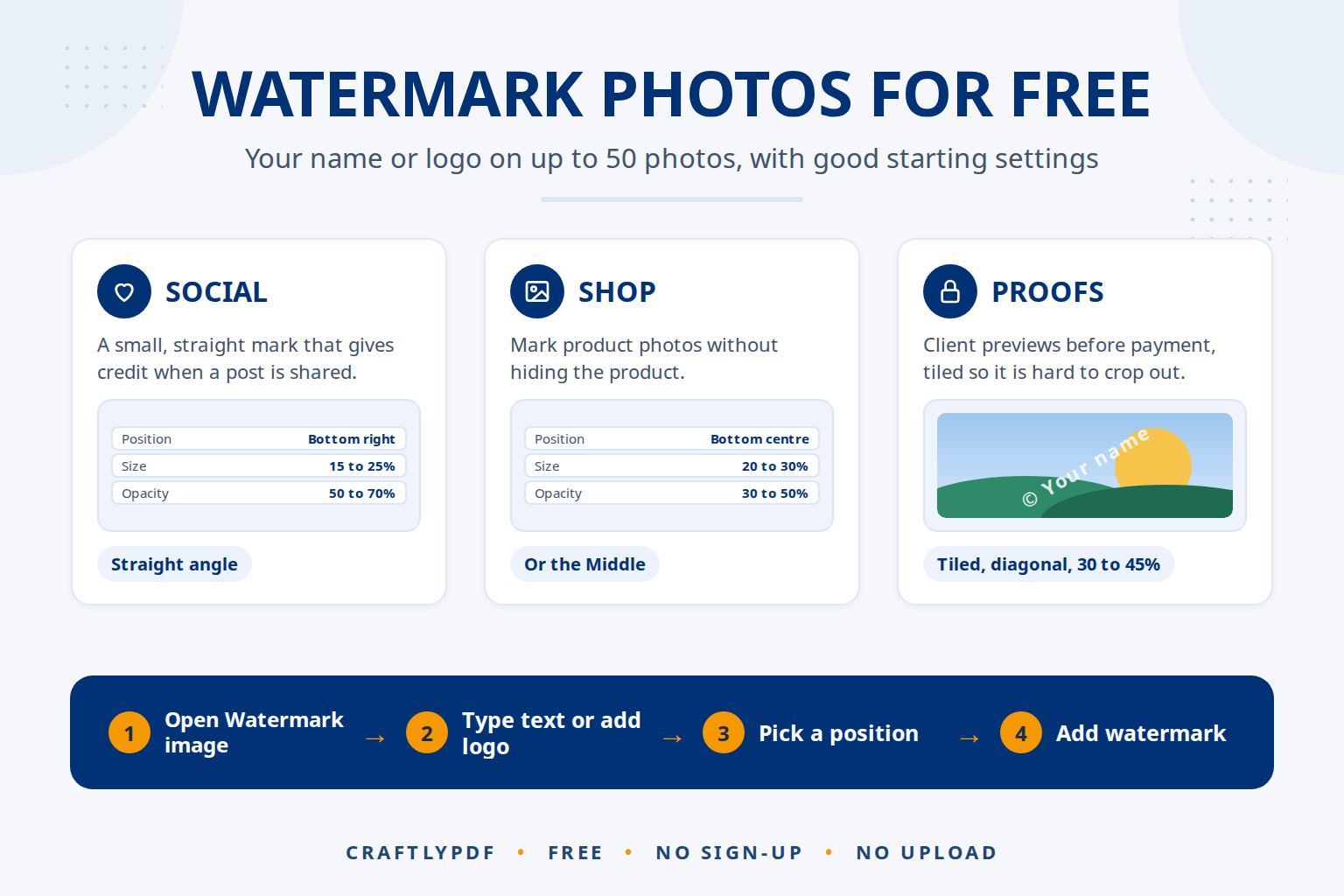
| Social media posts | Bottom right | 15 to 25% | 50 to 70% | Straight |
| Product photos for a shop | Bottom centre or Middle | 20 to 30% | 30 to 50% | Straight |
| Client proofs before payment | Tiled across the picture | 20 to 30% | 30 to 45% | Diagonal |
| Artwork and illustrations online | Middle or Tiled | 30 to 50% | 25 to 40% | Diagonal |
| Property or rental listings | Bottom left | 15 to 20% | 60 to 80% | Straight |
These are starting points, not rules. Check the preview: the mark should be easy to read but should not be the first thing people see. Photographers will find more detail in watermark placement that protects.
What to do before and after
- Crop first. If you crop after watermarking, you may cut the mark off. Use Crop image before adding it.
- Resize first for the web. Shrinking a big photo with Resize image before you watermark keeps the mark the same share of the picture and makes uploads faster.
- Compress last. If the files are still large, run the watermarked copies through Compress image.
- Keep clean originals. Store the unmarked versions safely. You will need them for printing and for paying clients.
Watermarks and AI images
If you make pictures with an AI image generator such as ChatGPT, Gemini or Midjourney, a short text watermark is an easy, honest way to label them. A line like AI-generated image in a corner tells viewers what they are looking at, and the tool applies it to a whole set in one go.
The other side of AI matters too: AI editing tools can now fill in the area behind a small, simple watermark quite convincingly. A corner mark mainly gives credit; a tiled, semi-transparent mark that crosses the main subject is much more work to remove. Nothing is removal-proof, so keep your originals and share smaller copies online.
If you upload your own photos to an AI service to edit them, check its privacy settings first. The copies made with ToolsCampus also leave out the hidden camera and location details that phones store in photos.
Common problems
The watermark is hard to see on some photos
A white mark disappears on snow or a bright sky. The white text has a soft shadow, which helps, but for very pale pictures choose Black, or raise the opacity.
The watermark covers the important part
The preview only shows the first picture. If other photos are framed differently, change the position, or watermark those photos in a separate round.
My logo has a white box around it
The logo file has a solid background. Make it see-through first with Remove background and save it as PNG.
The text looks tiny on a phone
Social apps show photos small. Raise the size to 20% or more, and keep the text short so each letter can be bigger.
Frequently asked questions
How can I watermark photos for free?
Use a free browser tool such as ToolsCampus’s Watermark image: add your photos, type your name or choose a logo, pick a position and download. There is no account to create, and your photos never leave your device.
Is it safe to watermark photos online?
With ToolsCampus, your browser does the work and the pictures are never uploaded. With other sites, check whether files are sent to a server and how long they are kept.
Where should a watermark go on a photo?
For credit, a lower corner is usual. For protection, place it where cropping would ruin the picture, such as the middle, or tile it across the whole photo.
Does a watermark reduce photo quality?
The mark only covers the area it sits on. Your original file is never changed, so you can always go back to the clean version. If file size matters, compress the marked copy afterwards.
Add your watermark now. Pick your text or logo, check the preview, and download marked copies in seconds.