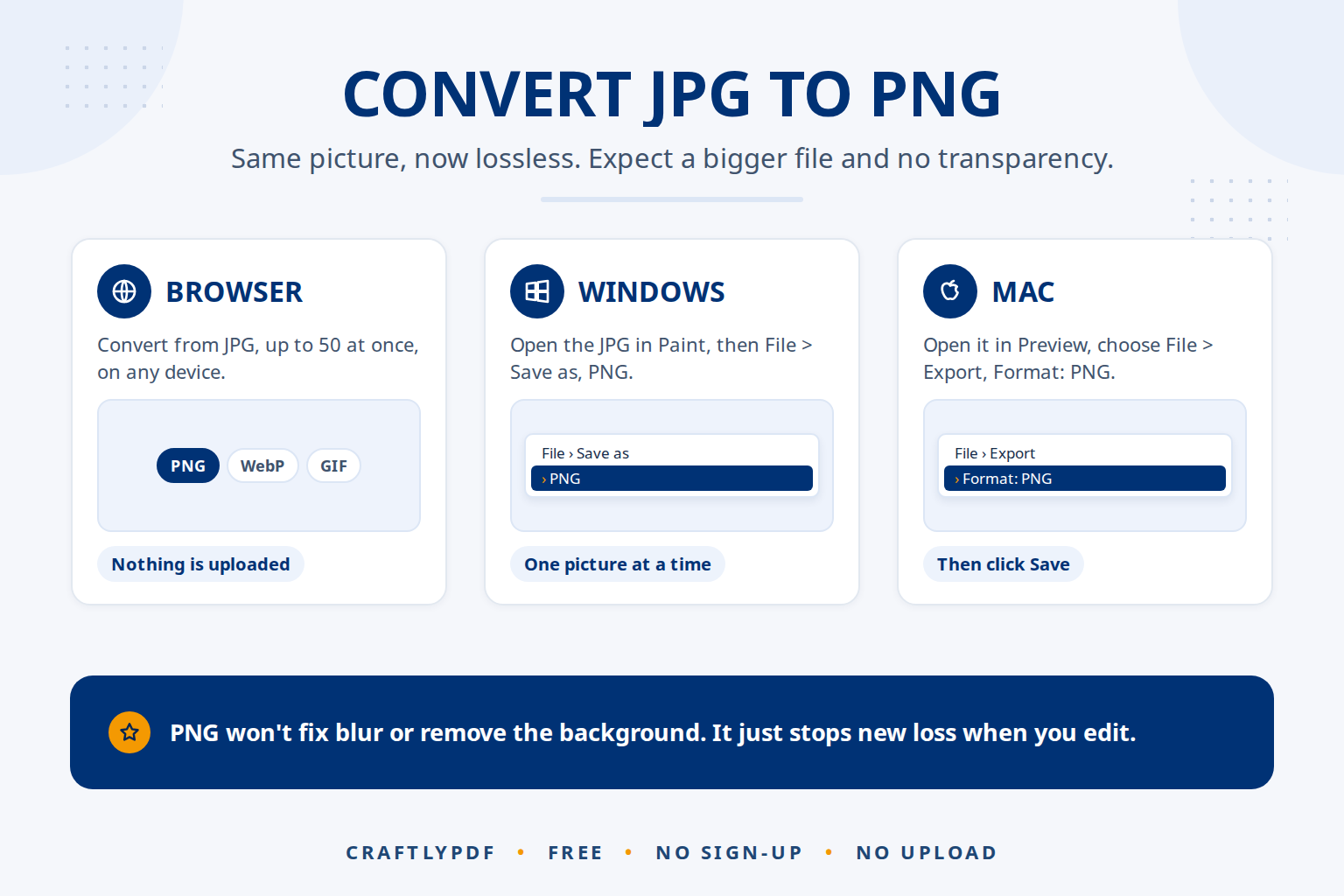
To convert JPG to PNG, open the picture in a converter or photo app and save it in PNG format. The picture looks exactly the same, but from then on it is stored losslessly, so later edits and saves add no new blur. Expect a bigger file, and no transparent background.
This guide shows how to convert JPG to PNG for free in your browser, on Windows and on a Mac, explains what the conversion changes and what it doesn’t, and helps you decide when it is worth doing at all.
Convert JPG to PNG now: free, no sign-up, and your pictures stay on your device.
How to convert JPG to PNG (step by step)
- Open Convert from JPG and choose your pictures, or drop them on the box. You can add up to 50 at once. PNG and WebP files are accepted too.
- Under Convert to, leave PNG selected.
- Click Convert pictures. Each picture in the list shows its old and new size, so you can see the difference straight away.
- Click Download for one picture, or Download all (ZIP) for several. A file called
holiday.jpgbecomesholiday.png, and your original JPG is not changed.
Everything happens in your own browser, so the pictures are never uploaded. Hidden camera and location details are left out of the saved copies, and phone photos are turned upright.
What changes when you convert JPG to PNG
The conversion copies every pixel of the JPG into a PNG file. Nothing is added and nothing is taken away. Here is what that means in practice:
| Property | Original JPG | PNG copy |
|---|---|---|
| How it looks | Your photo | Exactly the same |
| Width and height in pixels | For example 4000 x 3000 | The same |
| Detail lost when the JPG was saved | Already gone | Still gone, not restored |
| Saving it again after edits | Loses a little more each time | No new loss (lossless) |
| Transparent background | Not possible | Possible, but the conversion doesn’t create one |
| File size for a photo | Small | Usually several times bigger |
| Opens in | Almost every program and website | Almost every program and website |
The third row is the one most people miss. JPG compression throws away fine detail when the photo is saved, and a conversion can’t bring it back. A blurry or blocky JPG becomes an equally blurry PNG. What PNG does give you is protection from further loss.
When converting JPG to PNG is worth it
- You will edit the picture several times. Each time a JPG is edited and saved, it is compressed again and gets a little worse. Keep a PNG as your working copy, finish all edits, and save a JPG or WebP only at the end.
- You are adding text, arrows or labels. Letters and thin lines stay crisp in PNG. In JPG they get a faint haze around them.
- A form, app or printer asks for PNG. Some design programs, templates and upload forms only take PNG.
- You want to cut out the background later. A see-through background needs PNG or WebP, never JPG.
When it isn’t worth it: photos for email, social media or a website. There, PNG only makes the file bigger without any visible gain. Keep them as JPG, or use WebP for a website. If you are unsure which format suits a job, see when to use PNG, WebP or GIF instead of JPG.
Why the PNG is bigger than the JPG
PNG stores every pixel exactly. That works brilliantly for screenshots and logos, which have large areas of one colour. A photo has millions of slightly different colours, so lossless packing can’t shrink it much. A 2 MB phone photo can easily become a PNG several times that size.
If the PNG is too large for where it needs to go, you have three options. Reduce its width and height with Resize image. Reduce its colours with Compress image, whose Recommended level keeps up to 256 colours (see how to make a PNG smaller). Or ask yourself whether JPG was the better format after all.
Other ways to convert JPG to PNG
On Windows with Paint
Open the JPG in Paint, choose File > Save as, and pick PNG as the file type. Give it a name and save. This works one picture at a time.
On a Mac with Preview
Open the JPG in Preview, choose File > Export, click the Format menu and choose PNG, then click Save. Apple describes the same steps in its Preview user guide.
On iPhone and Android
The simplest way is to open Convert from JPG in your phone’s browser. It works the same way as on a computer, handles many photos at once, and nothing is uploaded.
JPG to PNG for AI images and AI tools
AI image generators such as ChatGPT, Gemini and Midjourney often give you PNG files already. If an AI picture reached you as a JPG, for example after being shared in a chat app, and you plan to edit it further, convert it to PNG first so your edits don’t add more compression damage.
When you upload pictures to an AI assistant such as ChatGPT, Claude, Gemini or Copilot, note that converting a blurry JPG screenshot to PNG won’t help the AI read it better. Take a fresh screenshot instead, which most devices save as PNG. Always check what the AI reads from a picture against the original, and check the service’s privacy settings before uploading personal pictures.
If what you really want is the subject without its background, that is a job for AI, not for a format change. Remove background runs an AI model inside your browser that finds the person or object and saves a PNG with a see-through background. Our guide to JPG to PNG with a transparent background walks through it.
Common problems
The background is still white after converting
That is expected. A JPG has no transparency, so the PNG copy has the same background. Use Remove background and save as PNG to make it see-through.
The PNG is much bigger than the JPG
Normal for photos. Resize it, reduce its colours with Compress image, or keep the photo as JPG if you don’t need PNG.
The PNG still looks blocky or blurry
The damage was already in the JPG. Go back to the original photo from your camera or phone if you can, and convert that instead.
A website won’t accept the PNG because it is too large
Many upload forms accept JPG as well. If PNG is required, resize the picture first and then compress it, checking the size shown after each step.
Frequently asked questions
Does converting JPG to PNG improve quality?
No. The PNG looks exactly like the JPG, including any blur or blocks. It only stops the picture from losing more quality when you edit and save it again.
Can I convert JPG to PNG without losing quality?
Yes. The conversion itself is lossless: every pixel of the JPG is copied into the PNG unchanged. Nothing is lost on the way.
Is PNG better than JPG?
For screenshots, logos and pictures with text or transparency, yes. For photos, a good JPG looks the same at a fraction of the size, so JPG is usually the better choice.
How do I convert a PNG back to JPG?
Use Convert to JPG, which also lets you choose the quality and the colour for transparent areas. See how to convert PNG to JPG for details.
Convert your JPG to PNG. Up to 50 pictures at once, right in your browser.