A good free collage maker online lets you make a collage and download it without a watermark, without creating an account and at full resolution, and it does not upload your photos to a server you know nothing about. Many tools that call themselves free stop you at one of those four points, usually at the very last step, when you click Download.
This guide shows what to check before you spend twenty minutes arranging photos, what the best-known collage makers say about their free versions, which sizes keep a collage sharp on screen and on paper, and how to make one for free in a few minutes.
Open the free collage maker: no sign-up, no watermark, 2 to 500 photos, and your photos stay on your device.
What “free” should mean for a collage maker
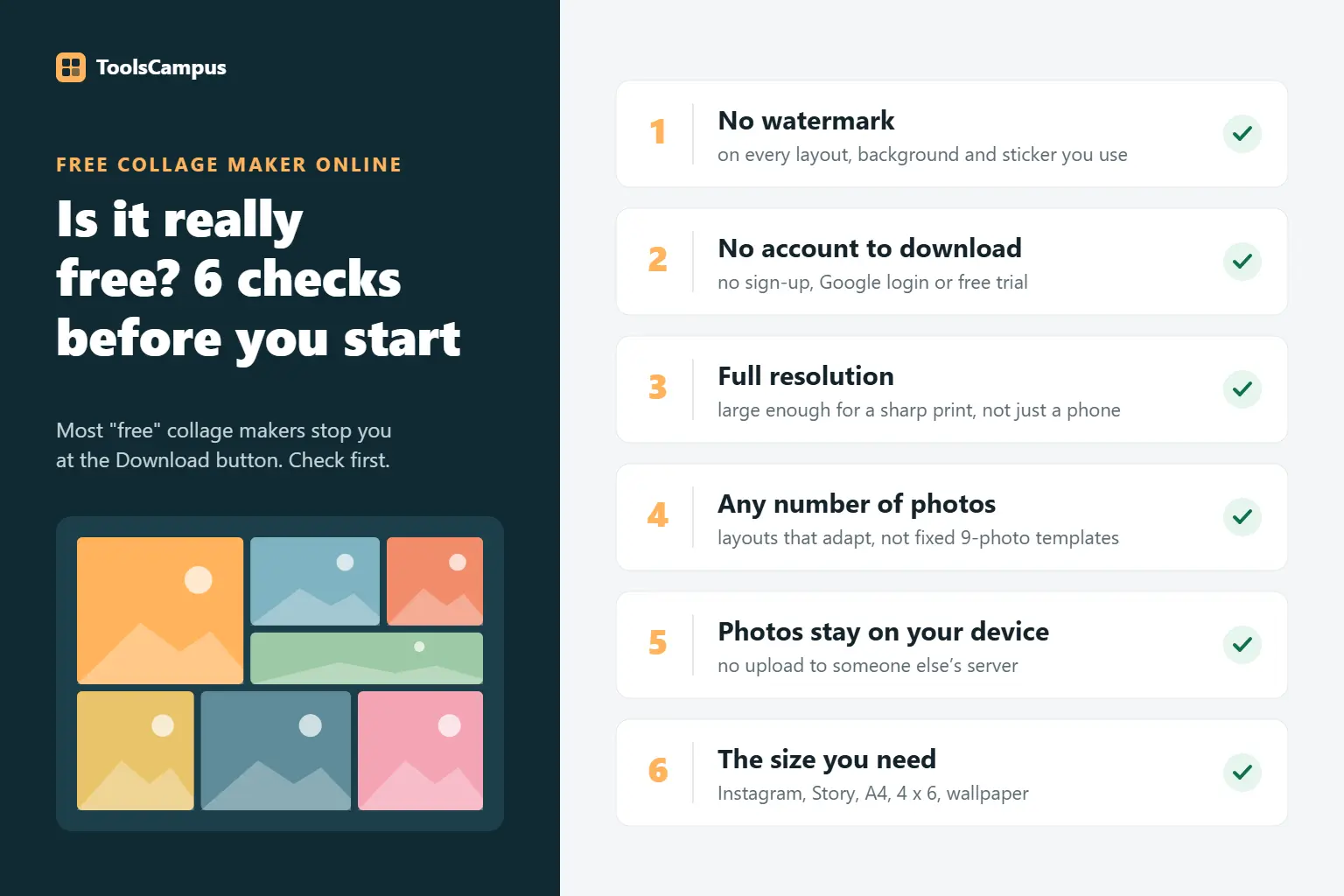
Before you start, check these six things. If a tool fails one of the first three, you will usually only find out when you try to save.
- No watermark on the download. Not just on “basic” layouts, but on the layout, background and stickers you actually used.
- No account to download. Some tools let you design for free and then ask you to sign up, log in with Google or start a trial before the file is saved.
- Full resolution. A free plan that saves only a small file (for example 1080 or 2048 pixels on the longest side) is fine for a phone screen but too small for a sharp print.
- Enough photos. Template-based tools are built around a fixed number of photo boxes, often 2 to 9. If you have 30 or 300 photos, you need a tool whose layouts adapt to any number.
- Your photos stay private. Many online editors upload your pictures to their servers to process them. Tools that work inside your browser never send them anywhere.
- The sizes you need. Instagram post, Story, A4, 4 × 6 or a wallpaper: picking the size first saves you from cropping the finished collage later.
The hidden catches, and how to spot them early
Premium items that only show up at export
Many template collage makers mix free and paid items in the same library: a layout may be free while its background, frame, font or sticker is not. The design looks finished, and only the Download button tells you that one element needs a paid plan. Look for a small crown, diamond or “Pro” badge on everything you add, or make a quick test collage and download it before you put real work into it.
A sign-up wall
If the start button sends you to a “Create your free account” page, the tool is free to use but not anonymous. That is not a problem in itself, but it means your projects, and often your photos, are stored in an account. If you just want one collage, a tool that saves straight to your device is faster.
A small export size
Free plans sometimes save at a reduced size. You will not notice on a phone, but a 2048-pixel collage printed at 8 × 10 inches comes out at about 200 dots per inch, and a 1080-pixel one at about 108, which looks soft. Check the pixel size the tool says it will save, or open the downloaded file and look at its dimensions.
A fixed number of photo boxes
Choosing a “9-photo template” when you have 12 photos means leaving three out or hunting for another template. Layouts like a mosaic, which recalculate the whole page for however many photos you add, avoid that.
Uploading your photos
You can test whether a collage maker uploads your photos: open the page, wait until it has loaded, then turn off Wi-Fi or mobile data and add your photos. If the tool still works and still saves the collage, everything is happening on your own device. If it shows an error or a spinning wheel, your photos were being sent to a server.
What popular collage makers say about their free versions
This is what each tool’s own collage page said in October 2026, plus one independent test where the tool’s page did not say. Plans change often, so check the details on the tool’s site before you rely on them.
| Collage maker | Account | Watermark and limits on free use |
|---|---|---|
| Canva | The “Create a photo collage” button leads to sign up or log in | Free to use, saves PNG, JPG and PDF; some elements and AI tools are Pro only. An April 2026 test found some templates use premium elements that only show at export. |
| Adobe Express | Sign in with an Adobe account | Free plan with “thousands of templates, photo editing and effects” and 2 GB of storage; a paid plan adds more. |
| Fotor | Only to save work in its cloud | Says it exports “in HD with no watermarks”; standard templates cover up to about 20 photos. |
| PicCollage (web) | None, its page says | Says it is “free without conditions” with no watermark; the mobile app has an optional subscription. |
| BeFunky | Not stated on the page | Saves JPG, PNG and PDF; BeFunky Plus unlocks more features. The same independent test found free exports capped at 2048 pixels on the longest side. |
| ToolsCampus collage maker | None | No watermark, 2 to 500 photos, print sizes at 300 dpi and screen sizes up to 3840 pixels wide; photos never leave your device. |
Each of these is a reasonable choice for a different job. Canva and Adobe Express are full design apps, so they make sense if you also make flyers and social posts and do not mind an account. For a quick collage that you want to download straight away at full size, a tool without an account wall is simpler. Sources: Canva, Adobe Express, Fotor, PicCollage and BeFunky.
How to make a collage online for free, without a watermark
- Open the collage maker in Chrome, Edge, Safari or Firefox, on a computer or a phone. There is nothing to install and no account.
- Add your photos. Drop in JPG, PNG, WebP or iPhone HEIC photos, from 2 up to 500. They fill the page straight away.
- Pick a layout. Mosaic fits every photo edge to edge, Frame Mosaic puts one big photo in the middle, Grid makes even rows and columns, and Shape fills a heart, a star or your own word.
- Choose the size before you fine-tune: an Instagram post or Story, a print size such as A4 or 4 × 6, or a screen ratio such as 16:9.
- Adjust. Drag a photo onto another to swap them, drag inside a photo to choose the part that shows, and set the space between photos and the background.
- Download a JPG, a PNG or a print-ready PDF. There is no watermark and no sign-up step.
For every option in detail, with tips on choosing photos and captions, see our step-by-step guide on how to make a photo collage online. If you are curious how the photos get arranged by themselves, read how the AI photo collage maker works.
Which collage layout suits how many photos
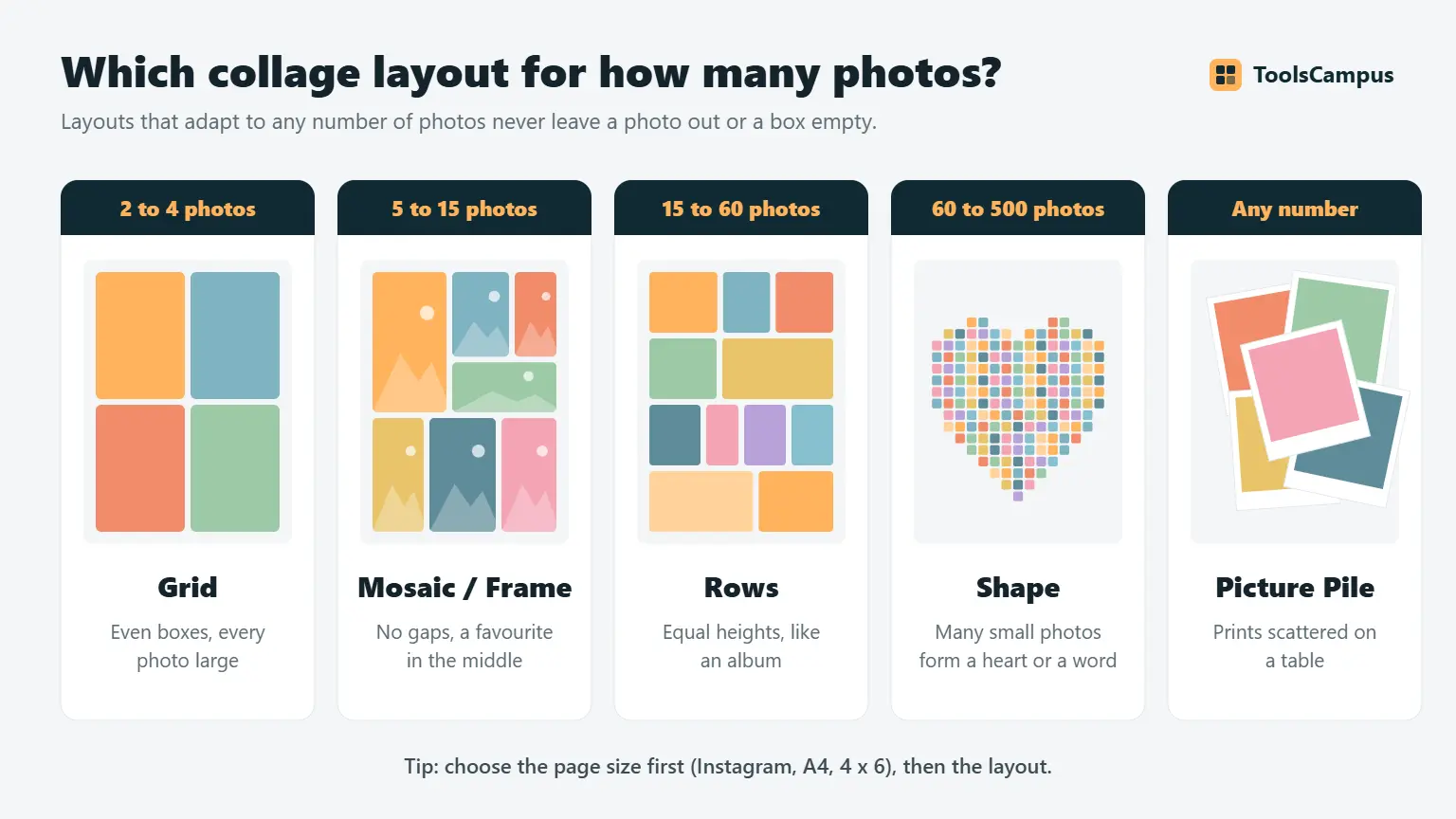
| Number of photos | Best layout | Why |
|---|---|---|
| 2 to 4 | Grid | Even boxes look calm and keep every photo large. Good for before-and-after pictures. |
| 5 to 15 | Mosaic or Frame Mosaic | Mixes portrait and landscape photos without empty gaps; Frame Mosaic puts your favourite in the middle. |
| 15 to 60 | Mosaic or Rows | Rows of equal height read like an album; Mosaic packs more photos into the same space. |
| 60 to 500 | Mosaic, Shape or Contact Sheet | Many small photos make a pattern; a heart or a word turns them into one picture; a contact sheet spreads them over several pages with names. |
| Any | Picture Pile | Looks like prints scattered on a table, for a relaxed, handmade feel. |
Planning something big? See how to make a collage with 100 or more photos, how to make a 2 × 2 or 3 × 3 photo grid or how to make a heart-shaped photo collage.
Collage sizes that stay sharp on screen and on paper
A collage looks sharp when it is saved at least as large as the place it will be shown. For prints, that means about 300 pixels for every inch of paper. For social media, use the size the app shows the picture at, so it is not scaled up.
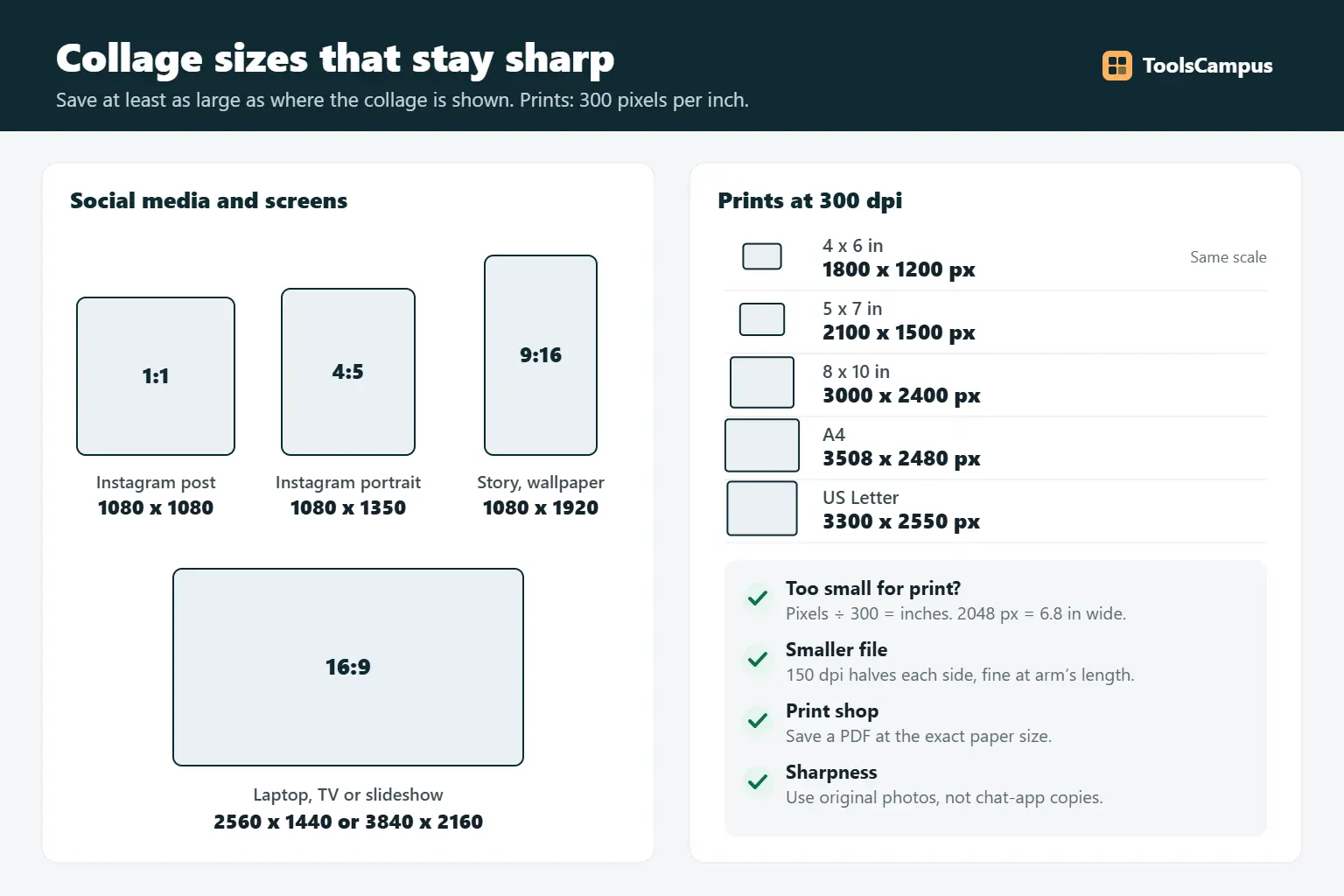
| Where it goes | Size in pixels | Shape |
|---|---|---|
| Instagram post (square) | 1080 × 1080 | 1:1 |
| Instagram post (portrait, shows larger in the feed) | 1080 × 1350 | 4:5 |
| Instagram or Facebook Story, phone wallpaper | 1080 × 1920 | 9:16 |
| Laptop or TV screen, slideshow | 2560 × 1440 or 3840 × 2160 | 16:9 |
| 4 × 6 inch print | 1800 × 1200 | 3:2 |
| 5 × 7 inch print | 2100 × 1500 | 7:5 |
| 8 × 10 inch print | 3000 × 2400 | 5:4 |
| A4 print | 3508 × 2480 | about 1.41:1 |
| US Letter print | 3300 × 2550 | about 1.29:1 |
The print sizes are at 300 dpi. In the collage maker you can choose 150 dpi instead for a smaller file that still looks fine at arm’s length, and the PDF is saved at the exact paper size, which print shops prefer. More detail: making a photo collage for printing, photo collage sizes for Instagram, Facebook and Stories and designing a collage for a canvas print.
One more rule: a collage cannot be sharper than the photos in it. Twelve photos on an A4 page each get roughly 800 to 1000 pixels, which is fine for phone photos. If you made a photo smaller earlier, for example to send it on a messaging app, use the original instead.
A free collage maker for PC, Mac, iPhone and Android
Because it runs in the browser, the same collage maker works on Windows, Mac, Chromebook, iPhone, iPad and Android, with no app to download. A few tips per device:
- Windows and Mac: drag a whole selection of photos from a folder onto the page at once. A large screen makes fine adjustments easier.
- iPhone and iPad: photos are often saved as HEIC. The collage maker reads HEIC directly, so there is no need to convert HEIC to JPG first.
- Android: choose photos from your gallery or Google Photos when the file picker opens, then save the collage to Downloads.
For phone-specific steps, see how to make a photo collage on iPhone or Android. If you already use Google Photos, its built-in collage is quick for a handful of photos; our comparison shows when you need more.
Finishing touches that make a collage look designed
- Space and margin: a thin white gap between photos looks clean; no gap gives a bold mosaic. Keep the outer margin the same as the gap or a little larger.
- One look for all photos: photos from different phones and times of day clash. Applying one filter, such as Warm or Black and white, to every photo makes them belong together.
- A blurred background photo: set one photo as the background and blur it, so the space around the collage picks up its colours.
- Short text: a name, a date or a place is enough. See adding text, captions and stickers to a collage.
Need ideas for the occasion? 20 photo collage ideas for birthdays, weddings, travel and family has layouts and sizes for each.
Common problems
The collage looks blurry
Either the collage was saved smaller than where it is shown, or the photos themselves are small. Save at the print size at 300 dpi, or at 2560 or 3840 pixels wide for screens, and use original photos rather than copies from a chat app.
Heads or faces are cut off
Every layout crops photos a little to fill its boxes. Click the photo and drag inside it to move the visible part, or use the zoom slider. For a tall person in a wide box, swap the photo with a taller box.
The file is too big to email or upload
A 300 dpi A4 collage can be several megabytes. Choose 150 dpi, save as JPG instead of PNG, or compress the image afterwards. If a site wants an exact pixel size, resize the image.
The browser says the collage is too large to make
Very large pages, such as A3 at 300 dpi with hundreds of photos, can exceed what a browser can draw at once. Choose 150 dpi or a smaller page size.
Frequently asked questions
Is there a free collage maker online with no watermark?
Yes. The ToolsCampus collage maker adds no watermark to any layout or size, and needs no account. With other tools, make a quick test download first, because some add a watermark or ask for a paid plan only when a premium element is used.
Can I make a collage without signing up?
Yes. Tools that work in your browser can save the collage straight to your device, with no account, email or trial. Tools that store your projects online usually ask you to log in.
What is the best free collage maker for many photos?
One whose layouts adapt to any number of photos instead of fixed templates. A mosaic layout fits 30 or 300 photos edge to edge, and a contact sheet spreads hundreds over several pages.
Do online collage makers upload my photos?
Many do, to process them on their servers. Ours does not: the collage is made by your browser. You can check any tool by turning off your internet after the page has loaded and seeing whether it still works.
What size should a collage be for printing?
About 300 pixels per inch of paper: 1800 × 1200 for a 4 × 6 print, 3000 × 2400 for 8 × 10 and 3508 × 2480 for A4. Saving as a PDF at the paper size makes it easy for a print shop.
Can I make a collage on my phone without an app?
Yes. Open the collage maker in Safari or Chrome on your phone, add photos from your gallery and download the collage. iPhone HEIC photos work without converting them first.
Make your collage now. Add your photos, pick a layout and a size, and download it free, with no watermark and no sign-up.