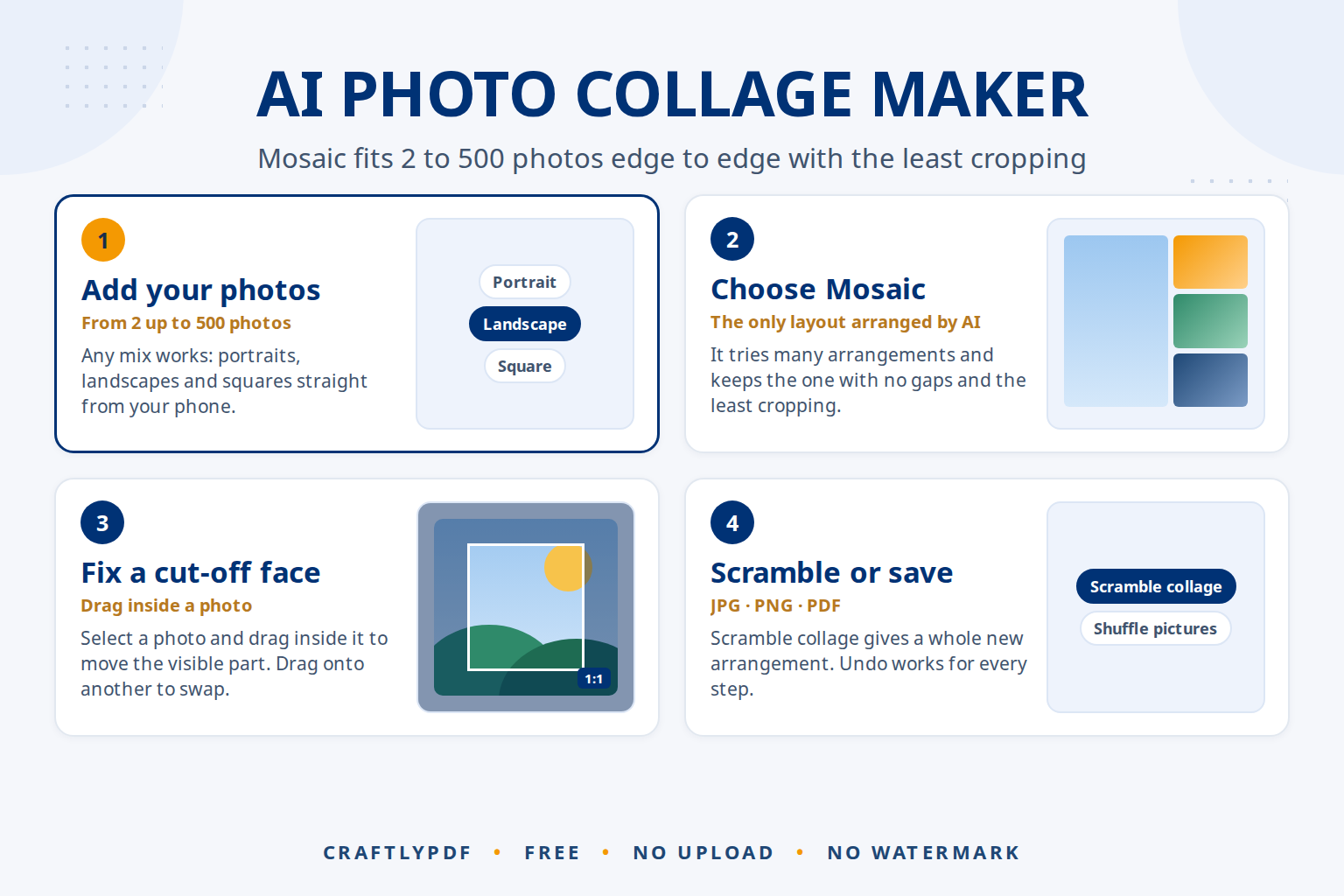
An AI photo collage maker arranges your pictures for you: you add the photos, and it works out where each one goes, how big it is and how much of it is trimmed. In ToolsCampus’s Collage maker, the Mosaic layout is arranged automatically by AI, fitting 2 to 500 photos edge to edge with no empty space and as little cropping as possible.
This guide explains how the AI arrangement works in plain words, compares it with the other layouts, and shows how to fix the few things it gets wrong.
Make an AI photo collage now: free, no sign-up, and your photos stay on your device.
How the AI arrangement works
Arranging photos of different shapes is a puzzle. A tall portrait, three wide landscapes and a square do not naturally fill a rectangle. Done by hand, you either leave gaps or crop some photos heavily.
The AI arrangement solves the puzzle by trial. It tries many different arrangements of your photos, scores each one, and keeps the one that does two things best:
- Fits every photo edge to edge, so the page is completely filled and there are no empty corners.
- Crops the photos the least, so each picture keeps as much of itself as possible.
The result is a mosaic where portraits sit next to landscapes in rows and columns of different sizes, the way a designer would lay out a magazine page. Because it works on the shapes of the photos, it handles any mix: all portraits, all landscapes, or a random set straight from your phone.
How to make an AI photo collage (step by step)
- Open Collage maker and add your photos. JPG, PNG, WebP and iPhone HEIC photos all work, from 2 up to 500 at once.
- Choose the Mosaic layout. The AI arranges the photos straight away.
- Pick a page format: Screen (for example 16:9 or Square), Print (4 x 6 in up to A3) or Social (such as Instagram post 1080 x 1080). Choose landscape or portrait.
- Adjust the spacing between photos and the outer margin. Add rounded corners, shadows or a background colour if you like.
- Not happy with the layout? Click Scramble collage for a completely new arrangement, or Shuffle pictures to keep the layout and move photos to new places.
- Save as JPG, PNG or PDF. Your original photos are not changed.
AI Mosaic vs the other layouts
Mosaic is the only layout arranged by AI. The others follow fixed rules, which is sometimes exactly what you want.
| Layout | What it does | Best for |
|---|---|---|
| Mosaic (AI) | All photos edge to edge, no empty space, least cropping | Mixed photo shapes, big sets, a clean modern look |
| Frame Mosaic | One big photo in the middle, the others around it | Birthdays, a hero shot with supporting photos |
| Grid | Equal cells, columns automatic or 1 to 20 | Product sets, team photos, tidy overviews |
| Rows | Equal-height rows like a photo album, can avoid cropping | Holiday albums where nothing may be trimmed |
| Picture Pile | Scattered prints with white borders you can drag and turn | A casual, scrapbook feel |
| Contact Sheet | Thumbnails with file names, a title and date, over several pages | Choosing photos, sending an overview to a client |
| Multiple Exposure | All photos layered on top of each other with a blend mode | Artistic effects with 2 or 3 photos |
| Shape | Photos fill one of 25 shapes, such as a heart or star, or your own word | Gifts, anniversaries, a name in photos |
If a heart or your own word is what you need, see how to make a heart-shaped photo collage. For framed prints, read making a collage for printing first. Coming from Picasa? The free alternative to Picasa’s collage shows where each of its layouts went.
What the AI does well, its limits, and how to fix them
The AI is good at the part people find tedious: finding a layout where dozens of differently shaped photos fit together without gaps. With 200 photos, trying arrangements by hand would take hours; the AI does it in moments, in your browser, without uploading anything.
Be clear about what it doesn’t do. It judges an arrangement by how well the photos fit and how little they are cropped, not by what is in them. So it can still put a small crop on a photo where the important part sits near the edge, such as a face at the side of a group shot. These fixes take seconds:
- Choose which part shows: click a photo to select it, then drag inside it to move the visible area. Use the zoom slider or the mouse wheel to show more or less.
- Swap two photos: drag one photo onto another.
- Try another arrangement: click Scramble collage. Each click gives a new solution to the puzzle.
- Change your mind: Undo and Redo work for every step, and Reset starts again.
If you also use an AI image generator, its pictures can go into the mosaic like any photo. For product shots or portraits that need a clean background first, Remove background uses an AI model in your browser to cut out the subject; removing a photo background with AI explains how.
Finishing touches
A collage looks more finished when the photos match. The Light and colour panel has 13 looks, from Warm and Golden hour to Black and white and Sepia, with a Strength slider and fine-tuning for brightness, contrast, saturation and warmth. Apply a look to all photos at once, or select one photo that was taken in different light and correct only that one.
The Stickers tab adds emojis and text stickers in a Clean, Classic or Handwritten font. Drag, turn and resize them like the photos. Captions, a blurred photo as background and soft shadows are also there when you want them.
Common problems
Someone’s head is cut off
Select that photo and drag inside it until the face is fully visible, or zoom out slightly. If the photo’s frame is simply too narrow, click Scramble collage for a different arrangement.
One photo is much smaller than the rest
The AI gives each photo the space that makes the whole page fit. Drag your favourite photo onto a bigger frame to swap them, or use Frame Mosaic to make one photo the centre.
My iPhone photos are on their side
Phone photos are turned upright automatically. If one still looks wrong, turn it in your photo app, save it, and add it again. If the collage needs a tighter frame on one picture, trim it first with Crop image.
No cropping at all is allowed
Every edge-to-edge layout crops a little. Use Rows with the never-crop option, or Grid with whole photos shown.
Frequently asked questions
Is there a free AI collage maker without a watermark?
Yes. ToolsCampus’s Collage maker is free, needs no account and adds no watermark. The AI arrangement runs in your browser and your photos are never uploaded.
How many photos can I put in one collage?
From 2 to 500. Mosaic handles large sets well; for very many photos, a Contact Sheet over several pages may be easier to look through.
Can I change the layout the AI chose?
Yes. Swap photos by dragging, change which part of each photo shows, click Scramble collage for a new arrangement, or switch to a different layout at any time.
Does the AI see or keep my photos?
No. The arrangement is calculated on your own device. Nothing is uploaded, and saved photos leave out hidden camera and location data.
For social sizes, see collage sizes for Instagram, Facebook and Stories. Ready to try? Open the AI collage maker, add your photos and let the AI find the fit.