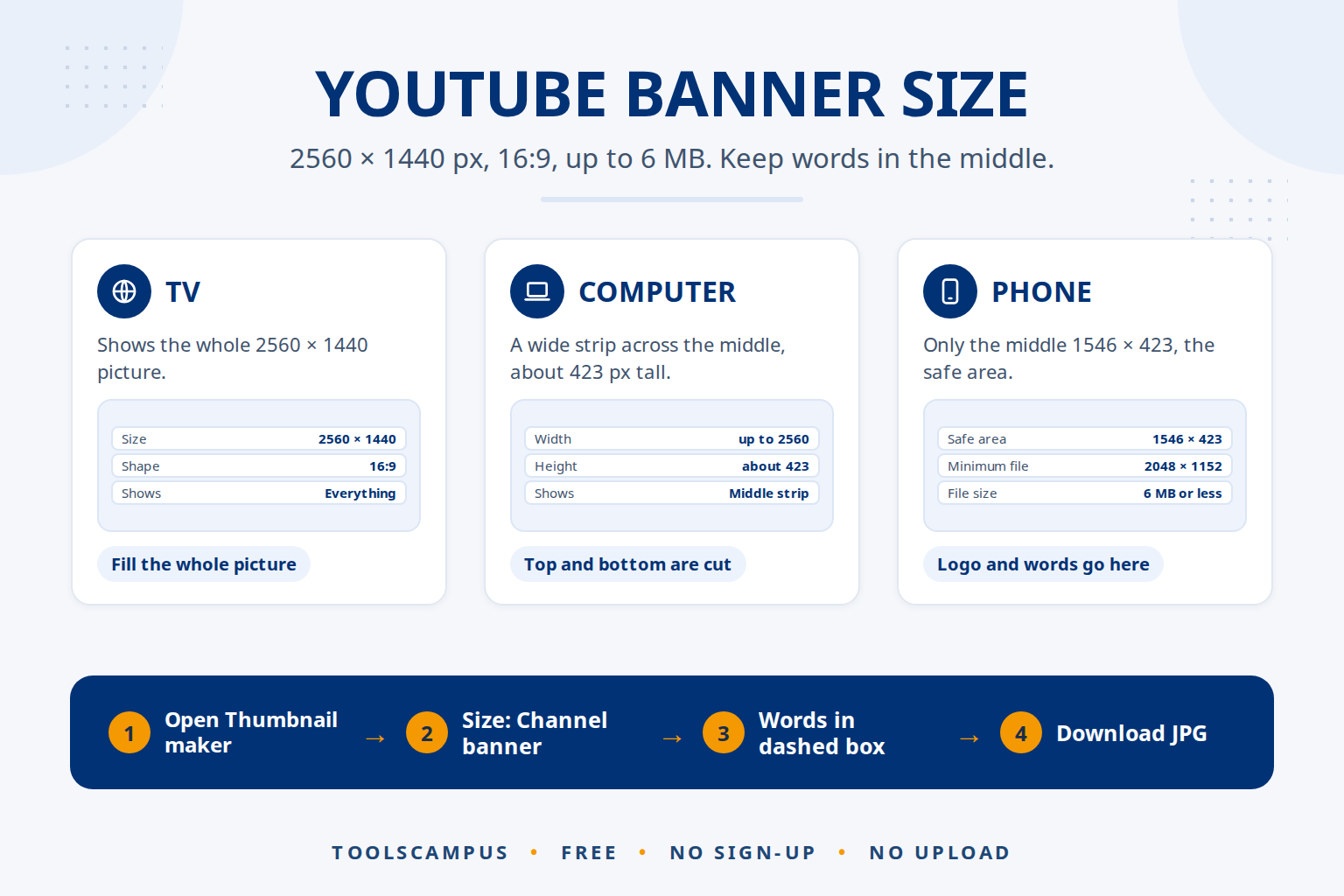
The YouTube banner size is 2560 × 1440 pixels, a 16:9 picture of 6 MB or less. The smallest file YouTube accepts is 2048 × 1152. Only the middle 1546 × 423 pixels shows on every device, so put your channel name, logo and any words inside that safe area and use the rest for background.
This guide explains why the banner is cut differently on a TV, a computer and a phone, how to make one at the right size for free, and how to upload it in YouTube Studio.
Make your YouTube banner now: free, no sign-up, with the safe area marked for you.
YouTube banner size at a glance
| What | Size or limit |
|---|---|
| Recommended size | 2560 × 1440 px |
| Smallest size you can upload | 2048 × 1152 px |
| Shape (aspect ratio) | 16:9 |
| Safe area for words and logos | 1546 × 423 px in the middle (1235 × 338 px on a 2048 × 1152 file) |
| File size | 6 MB or less |
| File type | JPG or PNG |
These numbers come from YouTube’s help page on channel branding, which also asks you not to add borders, frames or shadows around the picture.
Why your banner looks different on a TV, a computer and a phone
YouTube uses one file for every screen but shows a different part of it on each one. That is why a banner that looks perfect in your design app can lose its words on a phone.
- TV: the whole 2560 × 1440 picture fills the screen behind the channel page.
- Computer: a wide strip across the middle, up to the full 2560 pixels wide but only about 423 pixels tall. The top and bottom are cut off.
- Tablet: a slightly narrower strip of the middle.
- Phone: only the centre, roughly the 1546 × 423 safe area. The left and right sides are cut off as well.
So think of your banner in three layers: a background that can be cut anywhere, a wide middle band for decoration, and a small box in the very centre for everything people must be able to read.
How to make a YouTube banner at the right size, step by step
- Open Thumbnail maker in Chrome, Edge, Safari or Firefox. It works on a computer or a phone.
- Start a design. Drop a background photo onto the box, or click YouTube Video thumbnail under Or start with an empty design.
- Change the size to the banner. Open Size, then choose YouTube and Channel banner. The canvas becomes 2560 × 1440 and your design is fitted to the new shape.
- Turn on Guides. A dashed box marked Shows on every device appears in the middle. That is the 1546 × 423 safe area. Guides are never saved in the picture.
- Put your name, logo and words inside the dashed box. Use one or two short lines, such as your channel name and what you post or when (“New videos every Friday”). A bold font with an outline stays readable when the banner is small.
- Fill the rest with background. A photo, a colour or a simple pattern works. Nothing important should sit outside the box, because phones and computers cut it off.
- Check it in Preview. Switch from Design to Preview to see how the banner looks, then go back and adjust.
- Download a JPG. Click Download, then JPG. You get a 2560 × 1440 file that is usually well under the 6 MB limit. Choose PNG instead if your banner is mostly flat colours and text and you want the sharpest edges.
Want your face on the banner? Click your photo and use Cut out the person. The AI removes the background on your own device, the same way as in our guide to cutting yourself out for a thumbnail. For a single photo you can also use Remove background.
How to upload or change your banner in YouTube Studio
According to YouTube’s help page, on a computer:
- Sign in to YouTube Studio.
- In the left menu, choose Customization, then Profile.
- Next to Banner image, click Change and pick your JPG or PNG.
- Adjust the preview and crop if needed, then click Done.
- Click Publish.
The preview in YouTube Studio shows the TV, computer and phone areas, so you can check one last time that your words sit in the part every device shows. The YouTube app on a phone also lets you change the banner from your channel’s edit button.
Design tips for a banner that works everywhere
- Say what the channel is about. Your channel name plus a few words (“Easy vegetarian recipes”) tells new visitors why they should subscribe.
- Add your upload schedule if you have one. It sets expectations and gives people a reason to come back.
- Match your thumbnails. Use the same colours and font as your videos so the channel looks like one brand. Our guide on how to make a YouTube thumbnail for free uses the same maker.
- Leave space at the bottom on computers. Your profile picture, channel name and buttons sit just under the banner, so a busy bottom edge can look cluttered.
- Keep it light. If your file is over 6 MB, save it as JPG or shrink it with Compress image. Our guide on compressing images without losing quality explains how to do that without blurry text.
Other YouTube image sizes
| Image | Recommended size |
|---|---|
| Channel banner | 2560 × 1440 px (safe area 1546 × 423) |
| Video thumbnail | 1280 × 720 px or larger, 16:9 |
| Shorts thumbnail | 1080 × 1920 px, 9:16 |
| Profile picture | Square, shown as a circle at 98 × 98 px, up to 15 MB |
| Video watermark | Square, at least 150 × 150 px, under 1 MB |
The Thumbnail maker has all of these YouTube sizes plus Instagram, TikTok, Facebook, X, LinkedIn and Pinterest. For thumbnails in detail, see the YouTube thumbnail size guide, and for every network in one place, social media image sizes. To crop your profile picture into a perfect square or circle, use Crop image.
Common problems
My words are cut off on a phone
They are outside the safe area. Open the banner again, turn on Guides and move everything into the dashed box in the middle. Make the text a little smaller if it doesn’t fit.
YouTube says my image is too small
The file must be at least 2048 × 1152 pixels. Make it at 2560 × 1440 instead. Stretching a small picture up makes it blurry, so start from a large photo or a plain colour background.
YouTube says the file is too big
The limit is 6 MB. Download as JPG instead of PNG, or compress the file before uploading.
My banner looks blurry on a TV
TVs show the whole picture at full size, so a background taken from a small photo looks soft. Use a sharp photo at least 2560 pixels wide, or a clean colour or gradient.
Black or empty bars appear at the sides
The picture is not 16:9. Make it exactly 2560 × 1440 (or 2048 × 1152) so it fills every screen.
Frequently asked questions
What is the best size for a YouTube banner?
2560 × 1440 pixels. It is the size YouTube recommends, it looks sharp on TVs and it gives you the full 1546 × 423 safe area for your words.
What is the YouTube banner safe area?
The middle 1546 × 423 pixels of a 2560 × 1440 banner. It is the part that shows on every device, including phones, so your name, logo and text belong there.
Is the YouTube banner the same as channel art?
Yes. “Channel art” is the older name for the banner image at the top of your channel page. The size rules are the same.
Can I make a YouTube banner on my phone?
Yes. Open the Thumbnail maker in Safari or Chrome, choose the Channel banner size and download the JPG. Then upload it from YouTube Studio or the YouTube app.
Is the banner maker free?
Yes. There is no account, no watermark and no limit. Your photos are not uploaded to us, because everything runs in your browser.
Make your YouTube banner now. Pick the Channel banner size, keep your words in the dashed box and download in a few minutes.