To convert a PDF to JPG in high quality, open a free PDF to JPG tool, choose your file, set the quality to High (300 dpi) and click convert. Each page becomes its own picture, and several pages download together in one ZIP. Your original PDF is not changed.
This guide walks through the steps, explains each setting (JPG or PNG, 150 or 300 dpi, all pages or only some), shows which setting suits which job, and covers the built-in options on Mac and Windows.
Convert your PDF to JPG now: free, no sign-up, and your file stays on your device.
How to convert a PDF to JPG (step by step)
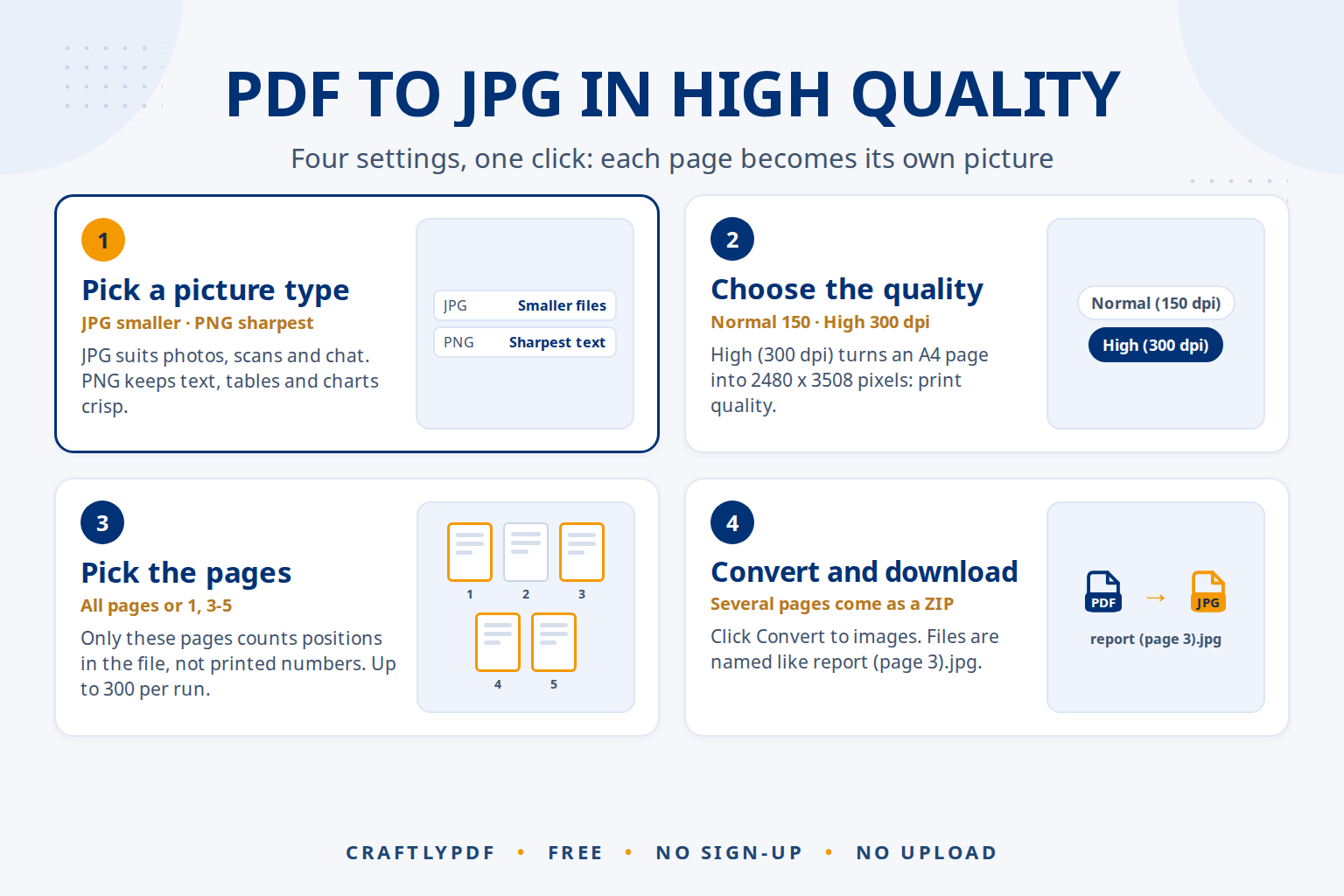
- Open PDF to JPG in any browser and choose your PDF.
- Under Picture type, choose JPG (smaller files) or PNG (sharpest text).
- Under Quality, choose Normal (150 dpi) or High (300 dpi).
- Under Pages, keep All pages or choose Only these pages and type, for example,
1, 3-5. - Click Convert to images.
- Download your pictures. Each one is named after the PDF and its page, for example
report (page 3).jpg.
The conversion happens in your browser, so the PDF is not uploaded anywhere. It works the same way on Windows, Mac, iPhone and Android.
The options explained
JPG or PNG
JPG makes smaller files and is the safe choice for photos, scanned pages and anything you send by message. PNG keeps text and thin lines crisp, with no blurry edges around letters, but the files are bigger. If the page is mostly text, tables or charts, PNG usually looks better. Our guide to converting PDF to PNG for sharp text goes deeper.
150 dpi or 300 dpi
The dpi setting decides how many pixels each page gets. On an A4 page:
- Normal (150 dpi): 1240 x 1754 pixels. Sharp on a phone or laptop screen, and the files stay small.
- High (300 dpi): 2480 x 3508 pixels. Print quality. You can zoom in on small text, and it prints cleanly at full size.
Doubling the dpi gives four times as many pixels, so 300 dpi files are much bigger. Pick it when quality matters more than size. For exact pixel sizes on A4 and Letter, see 150 vs 300 dpi for PDF to JPG.
All pages or only these pages
All pages turns every page into a picture, up to 300 pictures per run. Only these pages lets you list the pages you need, such as 2 or 1, 4-6. Page numbers are positions in the file (1 is the first page), not the numbers printed on the pages.
Which setting for which job
| Job | Picture type | Quality | Why |
|---|---|---|---|
| WhatsApp, social media, chat | JPG | Normal (150 dpi) | Small files that send fast and look fine on a phone |
| Slides (PowerPoint, Google Slides, Keynote) | PNG | Normal or High | Text and charts stay crisp on a projector |
| Printing | JPG or PNG | High (300 dpi) | Enough pixels for a clean print at full page size |
| Website or blog | JPG (photos) or PNG (text, diagrams) | Normal (150 dpi) | Big enough for screens without slowing the page down |
Several pages: download as a ZIP
When the result has more than one picture, you get a Download all (ZIP) button plus a separate download for each picture. The ZIP keeps everything in one file. On Windows, right-click it and choose Extract All. On a Mac, double-click it. On iPhone, tap it in the Files app to open it.
Convert only one page
Choose Only these pages and type one number, for example 4. You get a single picture named report (page 4).jpg, with no ZIP. If your PDF has only one page to begin with, the picture is simply named report.jpg.
Need the page as a PDF instead, so the text stays selectable? Use Split PDF and choose Extract pages. Our guide on how to save just one page of a PDF compares both options.
Built-in alternatives
Mac: Preview
- Open the PDF in Preview and go to the page you want.
- Choose File > Export.
- Set Format to JPEG, adjust the quality and resolution, then save.
This saves one page at a time, so it is slow for long documents. Apple’s Preview guide to converting file types lists the other formats, such as PNG and TIFF.
Windows: Snipping Tool
You can take a screenshot of a page with the Snipping Tool, which opens with Windows+Shift+S according to Microsoft’s Snipping Tool help. It is quick, but the picture only has as many pixels as your screen shows, so small text often comes out soft. For anything you will print or zoom into, a proper conversion at 300 dpi gives a much sharper result. We compare both methods in saving a PDF page as an image on Windows and Mac.
When an AI tool only accepts images
Some AI tools, chat apps and online forms accept pictures but not PDFs. Converting helps here:
- Convert only the page you need. Use Only these pages so you don’t upload the whole document.
- Choose PNG for text. Sharp letters make it easier for the AI to read small print, tables and numbers.
- Give the AI the PDF itself when it can take one. ChatGPT, Claude, Gemini and Copilot can read PDFs directly. Real text in a PDF is more accurate than a picture of text, which the AI has to read letter by letter.
- Scanned PDF? Run it through OCR PDF first so it contains real text.
Always check the AI’s answer against the original page, especially names, amounts and dates. Before uploading personal or work documents, check the AI service’s privacy settings. Converting with ToolsCampus happens on your device, so nothing is uploaded until you choose to share it.
Common problems
“This PDF needs a password”
The converter can open PDFs that only restrict editing or printing, but not PDFs that need a password to open. Open the file in the program that created it, remove the password, and try again.
The text in the picture looks blurry
Switch to High (300 dpi) and PNG. A screenshot or a 150 dpi JPG can soften very small text.
The files are too big to send
Use JPG at Normal (150 dpi), and convert only the pages you need. Still too big? Shrink the pictures with Compress image, and read how to compress a picture without visible quality loss.
A poster or drawing came out smaller than expected
Very large pages are limited to about 16 million pixels per picture. Split the job into the pages you need, or use 150 dpi.
Frequently asked questions
How do I convert a PDF to JPG without losing quality?
Choose High (300 dpi). For pages with lots of text, choose PNG instead of JPG, because PNG keeps letters sharp.
Can I convert a PDF to JPG for free?
Yes. ToolsCampus’s PDF to JPG is free with no account, for files up to 200 MB, and it runs in your browser.
How do I turn every page of a PDF into a separate image?
Keep Pages on All pages and click Convert to images. Each page becomes its own picture, and you can download them all as a ZIP.
Can I turn the JPGs back into a PDF?
Yes. Use JPG to PDF, which accepts JPG, PNG and WebP pictures and puts one picture on each page.
Convert your PDF to JPG now. Pick your quality, click once, and download sharp pictures of your pages.