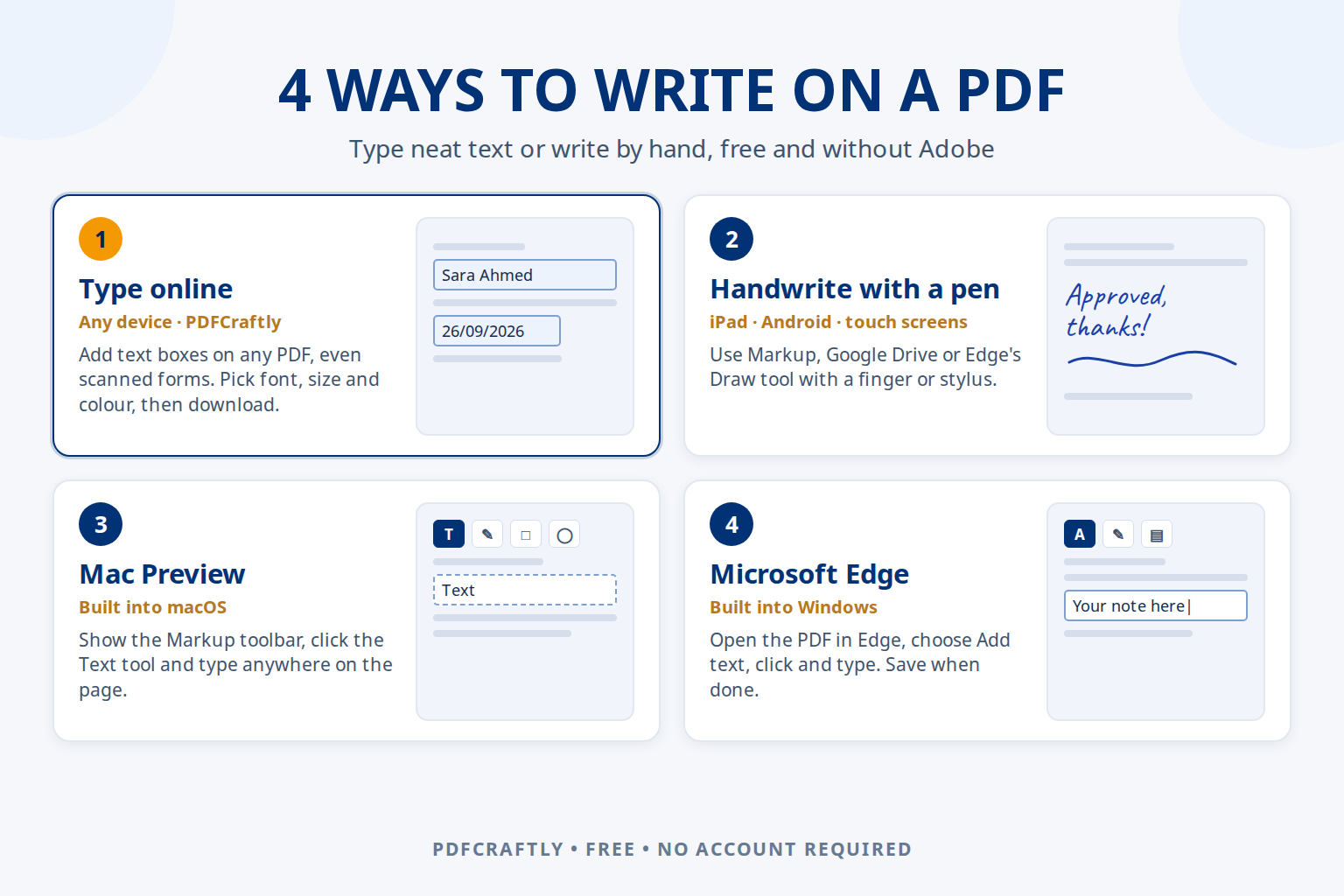
To write on a PDF, open it in a PDF editor and either add text boxes and type, or use a pen tool to write by hand. The quickest free option that works on every device is an online editor such as ToolsCampus: upload the PDF, add a text field where you want to write, type, and download. Mac Preview, Microsoft Edge on Windows and the pen tools on iPhone, iPad and Android also let you write on a PDF without Adobe.
Below are four easy ways to write on a PDF, what each one is best for, and tips to make your writing look neat and stay in place when you send the file.
Typed text or handwriting: which do you need?
- Typed text is best for forms, applications and anything someone else has to read clearly: names, addresses, dates, numbers and answers.
- Handwriting suits quick notes, corrections, circling or underlining something, and marking up a document for review. It is easiest with a stylus on a tablet.
- A signature is a special case: most tools let you create one once and place it neatly. See how to sign a PDF for free.
1. Type on a PDF online with ToolsCampus (any device)
This works in any modern browser on Windows, Mac, Chromebook, iPhone and Android, and on any PDF, including scanned documents and forms that aren’t fillable.
- Upload the PDF on the ToolsCampus home page. No account is needed.
- Add a Text field from the list on the left and click where you want to write. Drag it into place and resize it with the corner handles.
- Double-click the field and type. Press Enter or click elsewhere when you’re done. For several lines of text, turn on Multiline so it wraps.
- Style it in the Properties panel: Helvetica, Times, Courier or Noto Sans; a fixed size or Auto; bold, italic, underline; colour; left, center or right alignment.
- Download the flattened PDF so your text becomes part of the page.
Besides text, you can add dates, check marks, a strike line to cross something out, initials and a signature. Text in Urdu, Arabic, Hindi, Hebrew and many other languages is supported. For a full walkthrough of forms without fields, see how to type on a PDF that isn’t fillable.
2. Write on a PDF by hand with a pen or stylus
For freehand writing, use the pen tools built into your device:
- iPhone and iPad: open the PDF in the Files app, tap Markup (the pen icon), choose a pen and write with your finger or Apple Pencil. Tap Done to save.
- Android: open the PDF in the Google Drive app, tap the annotate (pen) button, pick the pen or highlighter and write. Save over the original or as a copy.
- Windows touch screens: open the PDF in Microsoft Edge, choose Draw and write with a pen or your finger.
Handwriting with a mouse or a fingertip on a small screen rarely looks tidy. If the text has to be read by someone else, typing it is almost always clearer.
3. Write on a PDF on Mac with Preview
- Open the PDF in Preview.
- Click Show Markup Toolbar, then the Text tool (the “T” icon). A text box appears on the page.
- Type your text, drag the box into place and change the font, size or colour with the Text Style button.
- Save the file. If it’s a fillable form, you can also click straight into its fields and type.
4. Write on a PDF on Windows with Microsoft Edge
- Right-click the PDF and choose Open with → Microsoft Edge.
- Click Add text in the PDF toolbar, then click on the page where you want to write.
- Type your text and adjust its colour, size and spacing.
- Click Save or Save as to keep your changes.
Compare the options
| Method | Devices | Typed text | Handwriting | Also adds |
|---|---|---|---|---|
| ToolsCampus | All (browser) | Yes, with fonts, sizes and alignment | Signature and initials only | Dates, check boxes, strike lines, signatures |
| Markup | iPhone, iPad | Yes | Yes | Signatures, shapes |
| Google Drive app | Android | No | Yes | Highlighter |
| Preview | Mac | Yes | Shapes and sketches | Signatures, shapes |
| Microsoft Edge | Windows | Yes | Yes (Draw) | Highlights, comments |
What about writing on a PDF in Google Docs?
Google Docs can open a PDF by converting it into a document, but the conversion usually changes the layout: lines move, tables break and images shift. It works for copying text out of a PDF, not for filling in or writing on the original page. To keep the page exactly as it is, add your text on top of it with one of the methods above.
Tips to make your writing look neat
- Zoom in before placing text so it sits exactly on the line, not across it.
- Match the document: a serif font like Times for traditional printed forms, a sans-serif font like Helvetica for modern ones.
- Use dark blue or black so it reads like pen ink, and keep one size throughout.
- Flatten before sending. Some readers move or hide annotations; a flattened PDF keeps your writing fixed to the page.
Frequently asked questions
How do I write on a PDF for free?
Upload it to ToolsCampus, add a text field, type and download: it’s free and needs no account. Preview on Mac, Microsoft Edge on Windows and Markup on iPhone are also free.
How do I write on a PDF document on my iPhone?
Open it in the Files app and tap Markup to write with your finger, or tap + for a text box. For forms with lots of fields, the online editor in Safari is easier because each answer gets its own neat text field.
Can I write on a PDF without Adobe?
Yes. Every method in this guide works without Adobe Acrobat: an online editor, or the tools built into Mac, Windows, iPhone, iPad and Android.
How do I write on a PDF form?
If the form is fillable, click into its fields and type. If it isn’t, add text fields on the blanks and type into them. Our guide on how to fill out a PDF form online covers both cases.
Can I change or remove the existing text in a PDF?
Writing on a PDF adds new content on top of the page. To correct something already printed, cross it out with a strike line and write the new text next to it.
Related guides
- How to add text to a PDF for free
- How to type on a PDF that isn’t fillable
- How to fill out a PDF form online for free
- How to sign a PDF for free on any device