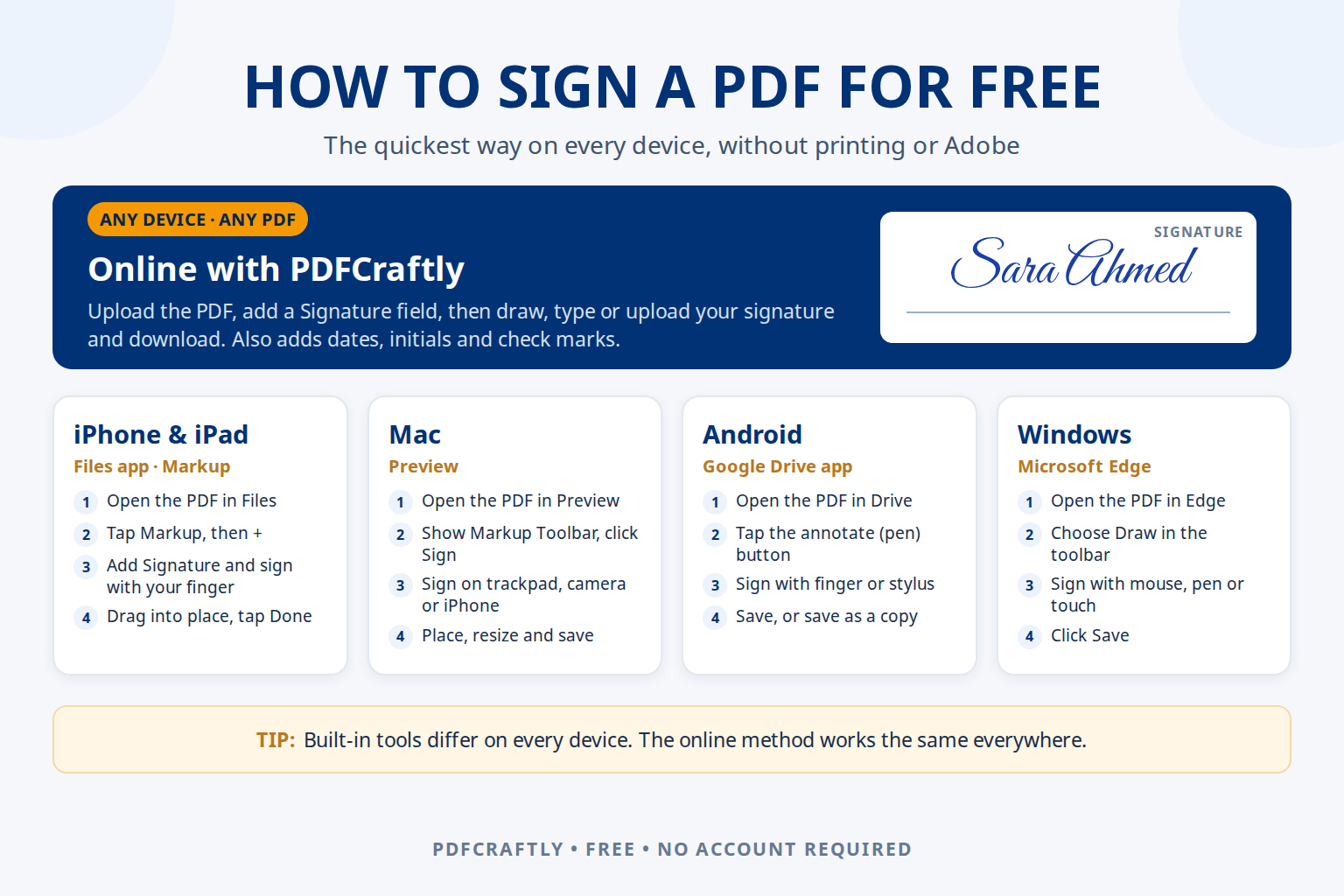
You can sign a PDF for free on any device: upload it to an online PDF editor such as ToolsCampus, add a signature field and draw, type or upload your signature, then download the signed file. If you’d rather use what’s already on your device, the Files app on iPhone, Preview on Mac, the Google Drive app on Android and Microsoft Edge on Windows can all add a handwritten signature too.
This guide shows the quickest way to sign a PDF electronically on each platform, when each option works best, and how to make sure the signed document looks right for whoever receives it.
Which way to sign a PDF should you use?
| Option | Works on | Signature methods | Best for |
|---|---|---|---|
| ToolsCampus (online) | Any device with a modern browser | Draw, type or upload an image | Signing plus filling in names, dates, initials and check boxes on any PDF |
| Files app / Markup | iPhone and iPad | Draw with finger or Apple Pencil | A quick signature on a file you already have on your phone |
| Preview | Mac | Trackpad, camera or iPhone/iPad | Mac users signing fillable forms |
| Google Drive app | Android | Draw with finger or stylus | Marking up a PDF already stored in Drive |
| Microsoft Edge | Windows | Draw with mouse, pen or touch | A quick ink signature on a Windows PC |
How to sign a PDF online for free (any device)
This method works the same on Windows, Mac, iPhone, Android and Chromebook, and on any PDF, including scanned documents that have no form fields.
- Upload the PDF on the ToolsCampus home page. No account is needed.
- Add a Signature field from the field list and place it on the signature line. Resize it to fit.
- Double-click the field to open the signature pad, then draw with your mouse, finger or stylus, type your name in one of three handwriting styles, or upload a photo of your signature (its white background is removed automatically).
- Add anything else the form asks for: a date field next to the signature, your printed name, initials on other pages, or check marks.
- Download the flattened PDF. Your signature becomes part of the page, so it displays the same in every PDF reader.
For a closer look at each signature method and tips for a clean result, see how to add a signature to a PDF without printing.
How to sign a PDF on iPhone or iPad
iPhone and iPad have a built-in signature tool called Markup:
- Open the PDF in the Files app (or tap the attachment in Mail).
- Tap the Markup (pen) button, then tap + and choose Add Signature.
- Sign with your finger or Apple Pencil and tap Done.
- Drag the signature onto the line, resize it with the handles, and tap Done to save.
Markup is ideal for a single quick signature. If the form also needs typed answers, dates and check marks in the right boxes, the online method in Safari gives you proper form fields and a neater result.
How to sign a PDF on Mac
Preview, the PDF app built into macOS, can store your signature and add it to any document:
- Open the PDF in Preview and click Show Markup Toolbar if it isn’t visible.
- Click the Sign button and create a signature using the Trackpad, the Camera (hold your signature on white paper up to the camera) or your iPhone or iPad.
- Choose the signature, drag it into place and resize it.
- Save the file (File → Save or Export as PDF).
How to sign a PDF on Android
The Google Drive app on Android can draw on PDFs:
- Open the PDF in the Google Drive app.
- Tap the annotate (pen) button in the bottom corner.
- Choose the pen, zoom in on the signature line and sign with your finger or a stylus.
- Save over the original, or save a copy to keep the unsigned version.
Signing freehand at phone size can look shaky. The online method trims and scales your signature to fit the field, and lets you type or upload a signature instead of drawing it.
How to sign a PDF on Windows
Microsoft Edge, which comes with Windows, opens PDFs and can ink on them:
- Right-click the PDF and choose Open with → Microsoft Edge.
- Click Draw in the PDF toolbar and pick a colour and thickness.
- Sign with your mouse, a pen or a touch screen. Add text lets you type your name or the date next to it.
- Click Save (or Save as) to keep the signed copy.
Mouse signatures rarely look natural. A typed signature in a handwriting style, or an uploaded photo of your real signature, usually looks more professional; both are available in the online method.
Tips before you send a signed PDF
- Check every page. Contracts often need initials on each page and a date next to the final signature.
- Keep the signature inside its line. Zoom in and resize it so it doesn’t cover printed text.
- Send a flattened copy. A flattened PDF keeps the signature fixed to the page, so it can’t be moved and looks the same in every reader.
- Keep your own copy of the signed document for your records.
Is an electronic signature on a PDF legally valid?
In many countries, electronic signatures are accepted for most everyday agreements, for example under the ESIGN Act and UETA in the United States and the eIDAS Regulation in the European Union. Some documents, such as certain property, court or government filings, may need a certificate-based digital signature, a witness or a signature in ink. When in doubt, ask the person or organisation that sent you the document. This is general information, not legal advice.
Frequently asked questions
How do I sign a PDF for free without Adobe?
Use a free online editor such as ToolsCampus, or the tools built into your device: Markup on iPhone, Preview on Mac, Google Drive on Android or Microsoft Edge on Windows. None of them requires Adobe Acrobat.
How do I sign a PDF electronically?
Open the PDF in a tool with a signature feature, create your signature by drawing, typing or uploading it, place it on the signature line and save the file. That signed PDF is an electronic signature you can email or upload.
How do I sign a PDF on my phone?
On iPhone, use Markup in the Files app; on Android, use the annotate button in Google Drive. Or open ToolsCampus in your phone’s browser, which works the same on both and lets you add dates and other fields too.
Can I sign a PDF without printing it?
Yes. Every method in this guide signs the PDF digitally, so you never need to print, sign by hand and scan the document again.
How do I sign a PDF document that someone emailed me?
Save the attachment, open it in one of the tools above, add your signature and any other details the document asks for, then save it and reply with the signed PDF attached.
Related guides
- How to fill and sign a PDF without Adobe
- How to add a signature to a PDF without printing
- How to fill out a PDF form online for free
- How to type on a PDF that isn’t fillable