You can edit a PDF online for free, without Adobe, by opening it in a browser-based PDF editor, making your changes and downloading the new file. In ToolsCampus’s editor you can type text, sign, add dates, tick boxes and even change the PDF’s own words, all without an account.
This guide shows what you can edit for free, how to do it step by step, which download to pick, and what happens to your file while you work.
Open the free PDF editor: free, works in any browser, and you can fill, sign and edit without signing up.
What you can edit in a PDF for free
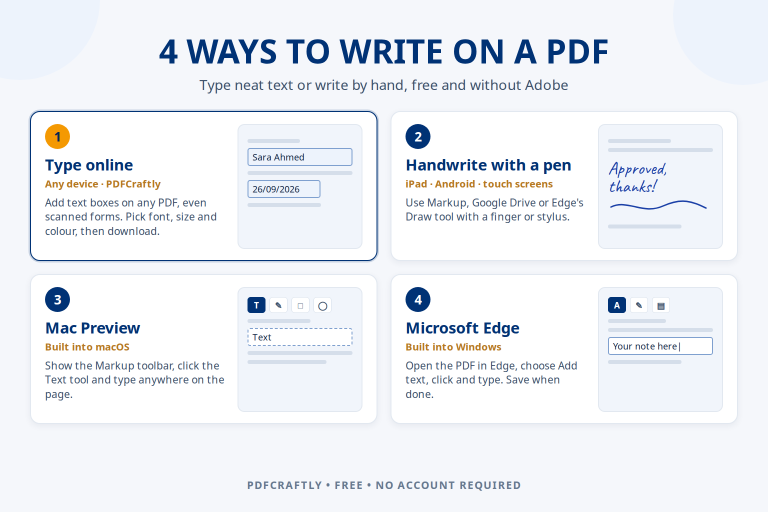
A PDF is built to look the same everywhere, not to be rewritten like a Word file. A good online editor gives you two kinds of changes: things you add on top of the page (text, signatures, ticks, highlights) and changes to the text that is already in the PDF. Here is what each tool in the editor does. Every tool is free, and none of them needs an account.
| What you want to do | Tool in the editor |
|---|---|
| Type text anywhere on a page | Text |
| Sign or add initials | Signature, Initials |
| Add a name or today’s date | Name, Date |
| Tick a box or choose an option | Checkbox, Radio, Dropdown |
| Cross something out | Strike line |
| Highlight or cover something | Highlight, Whiteout |
| Change words already in the PDF | Edit text |
| Add headings, paragraphs, lists, tables, shapes or pictures | Heading, Paragraph, List, Table, Shape, Image |
You can also rotate a page or delete a page inside the editor. To reorder pages, use Organize PDF first, and to add pages from another file, use Merge PDF.
How to edit a PDF online (step by step)
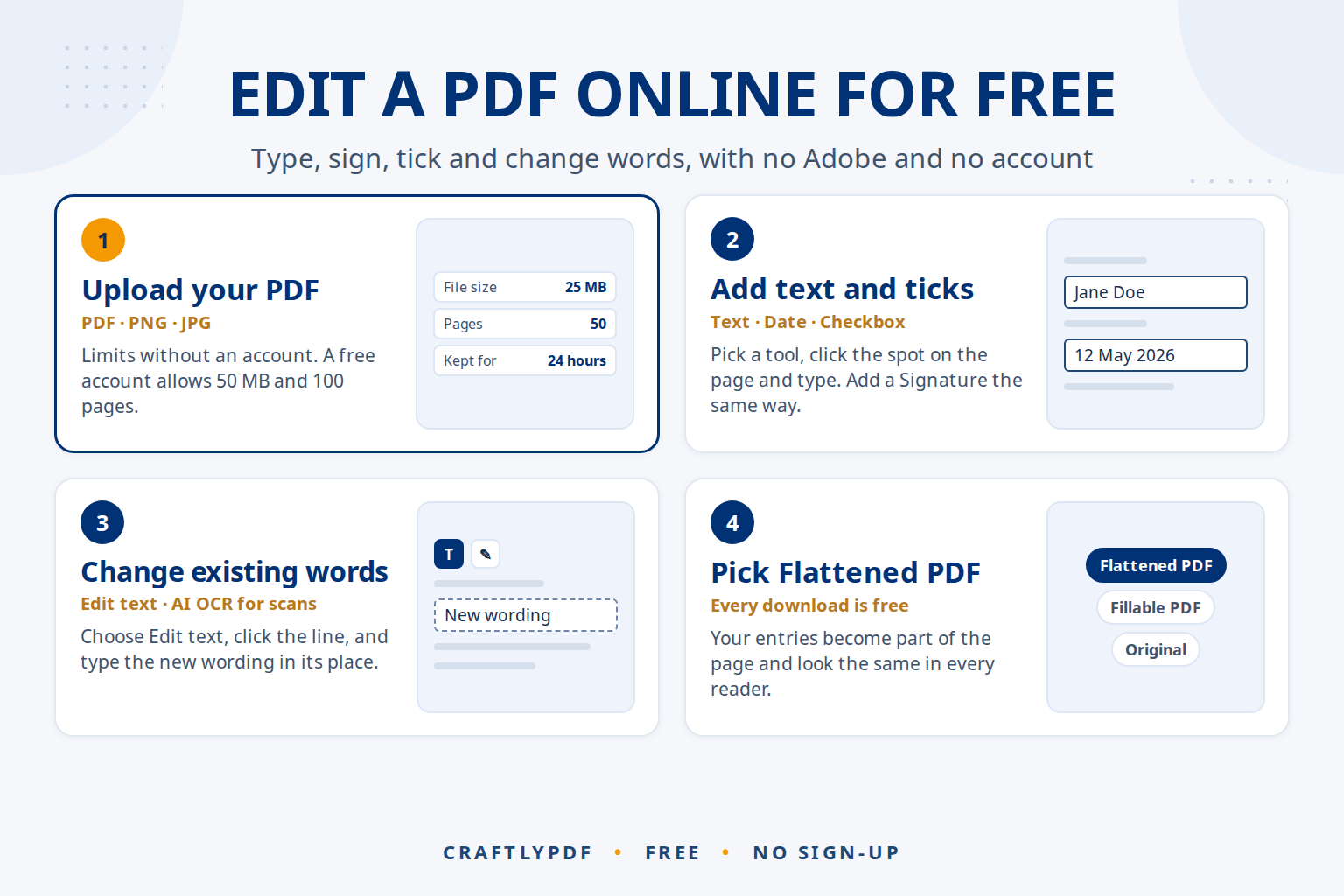
- Open the PDF editor and upload your PDF. A PNG or JPG picture works too.
- Pick a tool from the toolbar, for example Text, then click the spot on the page where it should go.
- Type your entry. Choose a font if you like: Helvetica, Times, Courier, or Noto Sans for other languages and special letters.
- Add whatever else you need: a Signature, a Date, a Checkbox tick, or a Strike line through something that no longer applies.
- If a page is upside down or not needed, use rotate page or delete page.
- Click download and choose Flattened PDF. Your entries become part of the page, and the file opens the same way in every PDF reader.
If the form has no boxes you can click into, see filling a form that isn’t fillable.
Changing the words already in the PDF
Adding text is easy. Changing a word that is already printed in the PDF needs a different tool, because the original text is part of the page.
The clean way: Edit text
- Open your PDF in the editor. You don’t need to sign in.
- Choose Edit text and click the line you want to change.
- Type the new wording in place of the old.
- Download the result as a Flattened PDF.
If the page is a scan or a photo, it has no real text yet. The editor reads the page with text recognition first (labelled AI OCR), and then you can click the lines. That makes it a free PDF editor with OCR built in, so you don’t need a separate OCR step just to change a few words. Editing text in a scanned PDF explains this in detail.
A visible correction: Strike line and Text
Sometimes the reader should see what changed, the way you would correct a paper form: cross the old word out with Strike line and type the new word next to it with Text. For a clean result, use Edit text, or cover the old word with Whiteout and type on top. Don’t use Whiteout to hide confidential information: it covers what is underneath, but it is not a redaction tool.
For big rewrites
If you need to rewrite whole pages, a PDF editor is the wrong tool. Go back to the original Word or Google Docs file if you have it. If you don’t, Microsoft Word can open a PDF and turn it into an editable document, though lines and pages may break in different places than in the original.
Which download should you choose?
| Download | What you get |
|---|---|
| Flattened PDF | Your entries become part of the page and open in every reader |
| Fillable PDF | Real form fields that other people can fill in |
| Original | The file as you uploaded it |
All three downloads are free for everyone, with or without an account. For a form you fill in and send back, Flattened PDF is the right choice. Nobody can accidentally change your entries by clicking on them, and it looks the same on a phone, a Mac or a Windows PC.
Where your file goes, and size limits
Unlike our other PDF tools, which work inside your browser, the editor uploads your PDF to our server so your work can be saved. How long it is kept, and how big it can be, depends on whether you have a free account:
| You are | File size | Pages | How long the file is kept |
|---|---|---|---|
| Not signed in | Up to 25 MB | Up to 50 | Deleted after 24 hours |
| Signed in with a free account | Up to 50 MB | Up to 100 | 60 days after your last edit, listed in My Files |
Every tool works the same either way. A free account only adds bigger files and My Files, where you can open your work again later.
If your PDF is too large, take out only the pages you need to edit with Split PDF, which runs on your device, and edit that part.
Where AI helps when you edit a PDF
The editor uses AI in one specific place: the Edit text tool. When you click a scanned page, AI OCR (text recognition) reads the picture of the page and finds the lines of text, so you can change them like normal text. It works best on clear, straight scans. Check names, numbers and dates after editing, because recognition can confuse similar characters such as 0 and O.
AI assistants such as ChatGPT, Claude, Gemini or Copilot are also useful before you type: they can shorten a paragraph, rephrase a sentence or explain a confusing form question. Paste only the text you need, check the answer yourself, and look at the service’s privacy settings before uploading personal or work documents.
Common problems
I can’t click on the text to change it
Choose Edit text first, then click the line. Text only adds new words on top. On a scan, give AI OCR a moment.
My new text doesn’t match the original font
The editor offers Helvetica, Times, Courier and Noto Sans. Pick the closest one: Times for most printed letters and contracts, Helvetica for modern forms.
The file is too big to upload
Without an account the limit is 25 MB or 50 pages. A free account raises it to 50 MB and 100 pages. You can also split out the pages you need first.
My entries look different on someone else’s computer
Download a Flattened PDF. It makes your entries part of the page, so every reader shows them the same way.
Frequently asked questions
Can I edit a PDF without Adobe Acrobat?
Yes. A browser-based editor lets you add text, signatures and ticks, and change existing text, on any computer or phone without installing Acrobat.
Is it really free to edit a PDF online?
Yes. Every tool, including Edit text, and every download, including Fillable PDF, is free without an account. A free account only allows bigger files (50 MB, 100 pages) and keeps them for 60 days.
Can I edit a scanned PDF?
Yes. Edit text reads scanned pages with AI OCR first, so you can click a line and change it. Clear scans give the best results.
Is my PDF safe in an online editor?
The editor uploads your file so it can be saved. Without an account, files are deleted after 24 hours. With a free account, they are kept for 60 days after your last edit. For very sensitive documents, decide whether you are comfortable with any upload before you start.
Need to add a quick note or signature? Adding text to a PDF in 30 seconds and signing a PDF online walk through both.
Open the free PDF editor and make your changes in a few clicks.