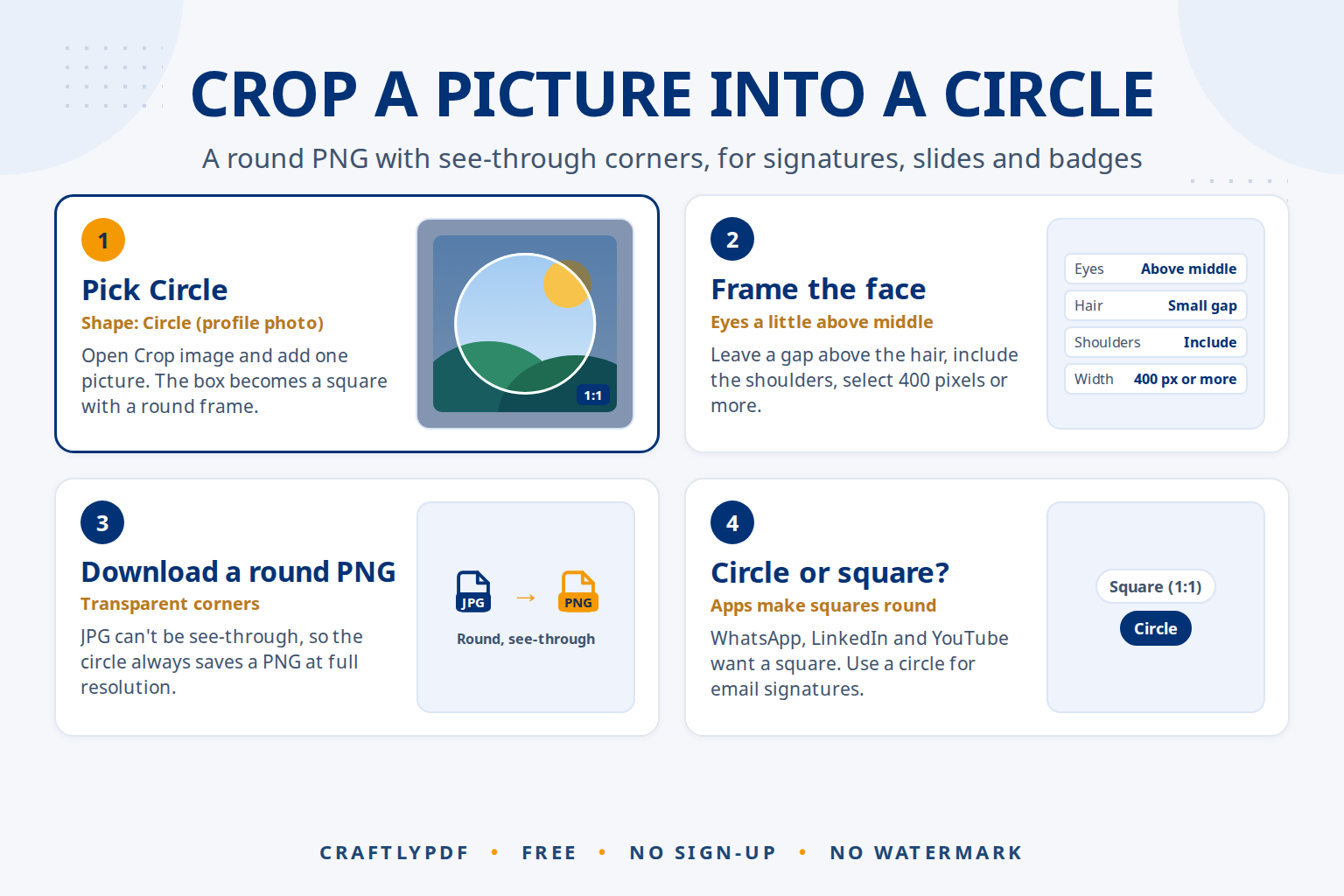
To crop an image into a circle, open the picture in a crop tool, choose a circle shape, move the round frame over the face or object, and save. The result should be a PNG, because PNG keeps the corners outside the circle transparent, so the round picture sits cleanly on any background.
This guide shows the exact steps, explains when you need a real round picture and when a square is better, and covers sizing, backgrounds and the problems people run into most.
Crop your picture into a circle now: free, no sign-up, and your picture stays on your device.
How to crop an image into a circle (step by step)
- Open Crop image and choose one JPG, PNG or WebP picture. Phone photos are turned upright automatically.
- Open the Shape list and pick Circle (profile photo). The crop box becomes a perfect square with a round frame inside it.
- Drag the box to move it over the face. Drag a corner or edge to make the circle bigger or smaller. On a keyboard, the arrow keys move the box and Shift plus an arrow key changes its size.
- Check the line under the picture. It shows the final size, for example
Result: 1200 × 1200 pixels, round PNG. - Click Crop image, then Download. The file is named like
photo (cropped).png, and your original picture is not changed.
Made a mess of the position? Click Reset to start again with the whole picture selected.
Why the round picture is a PNG
Every picture file is really a rectangle. A “round” picture is a square where the four corners outside the circle are see-through. JPG has no transparency, so it would have to fill those corners with a colour, usually white. That is why the circle shape always saves a PNG, even when you started with a JPG.
The circle keeps the full resolution of the area you selected. If you select a 1,500 pixel wide area of a phone photo, you get a 1,500 × 1,500 pixel round PNG. For more on see-through files, read how to make a picture’s background transparent.
Do you need a circle, or a square?
This is the part most guides skip. Most social apps already show your profile photo inside a circle. They expect a square upload and draw the circle themselves. Uploading a round PNG there works, but some apps fill the see-through corners with black or white, which you may see in places where the photo is shown as a square.
| Where the picture goes | What to make | Shape to choose |
|---|---|---|
| WhatsApp, LinkedIn, YouTube, Instagram, Google account | A square; the app makes it round | Square (1:1) or LinkedIn profile photo |
| Email signature | A round PNG | Circle (profile photo) |
| Website “About” or team page | A round PNG (or a square with rounded corners in your site’s design) | Circle (profile photo) |
| Slides, posters, Word documents | A round PNG | Circle (profile photo) |
| Stickers and badges | A round PNG | Circle (profile photo) |
The good news: both shapes use the same square selection, so the framing you choose looks the same either way. Our guide to profile picture sizes for LinkedIn, WhatsApp and YouTube lists the square sizes each app works well with.
How to frame a good round profile photo
A circle hides the four corners of the square, so it cuts more of the picture than you might expect. These habits help:
- Put the eyes a little above the middle. If the face sits dead centre, the circle cuts too much space above the head and chops the chin.
- Leave a small gap above the hair. A circle that touches the top of the head looks cramped at small sizes.
- Include the top of the shoulders. A face that fills the whole circle looks like a close-up passport photo. Head and shoulders reads better as a small icon.
- Use a plain, calm background. Busy backgrounds turn into noise when the picture is shown at icon size.
- Start big. Select at least 400 pixels across. Apps shrink profile photos well, but they can’t add detail that isn’t there.
Making the circle an exact size
The circle shape keeps the size you selected, so it does not resize. If you need a specific size, such as a 300 × 300 pixel round picture for an email signature, do it in two steps:
- Crop the circle as above and download the PNG.
- Open Resize image, add the round PNG, choose Pixels and type
300in the Width box. The height follows. - Keep Save as on the same format so the PNG keeps its see-through corners, then click Resize images.
If the file is too large for an email signature, run it through Compress image with the Recommended level, which keeps PNG transparency.
Clean up the background with AI before you crop
A round photo often looks more professional with a plain background. Remove background does this with an AI model that runs inside your browser, so the photo is not uploaded. The AI finds the person and removes everything else in a few seconds.
- Open Remove background and add your photo. Choose the Soft hair edges for a portrait.
- Under New background, pick Colour and choose a calm colour, or Blurred photo to keep the setting but soften it.
- Download the result, then crop it into a circle with Crop image.
The AI is good, but not perfect. It can miss bits of very fine hair, glasses, or areas where clothes and background have similar colours. Use the Keep and Erase brushes to fix those spots, and switch to Show removed parts to see exactly what was taken away. For more ideas, see how to change a photo’s background colour or blur it.
Common problems
The corners show white or black instead of see-through
The PNG itself is transparent, but some photo viewers draw transparent areas as white or black. Place the picture on a coloured page or slide to check. If you converted it to JPG afterwards, the transparency is gone; crop again and keep the PNG.
The app cuts my round picture again
Apps that show photos in a circle crop the upload themselves. Upload a square version instead, made with Square (1:1), and use the same framing.
The round picture looks blurry
The selected area was too small. Go back to the original photo, not a copy saved from a chat app, and select a larger area around the face.
The PNG file is larger than the original JPG
That is normal: PNG keeps every pixel exactly, so a photo saved as PNG takes more space. Resize it to the size you really need, then compress it.
Frequently asked questions
How do I crop a picture into a circle for free?
Open Crop image, choose Circle (profile photo) as the shape, move the frame over the face and click Crop image. You get a round PNG with transparent corners, with no sign-up and no watermark.
Can a JPG be round?
No. JPG can’t store transparent areas, so the corners around the circle would be filled with a colour. A round picture needs PNG or WebP, which is why the circle crop saves a PNG.
What size should a round profile picture be?
Make it square and at least 400 × 400 pixels. Most apps show profile photos small, but a bigger upload stays sharp on high resolution screens.
Can I crop a circle on my phone?
Yes. Crop image works in the browser on phones and tablets: drag the box with your finger, use a corner to resize it, then tap Crop image and download the PNG.
Crop your picture into a circle. Pick the circle shape, frame the face, and download a round PNG in seconds.