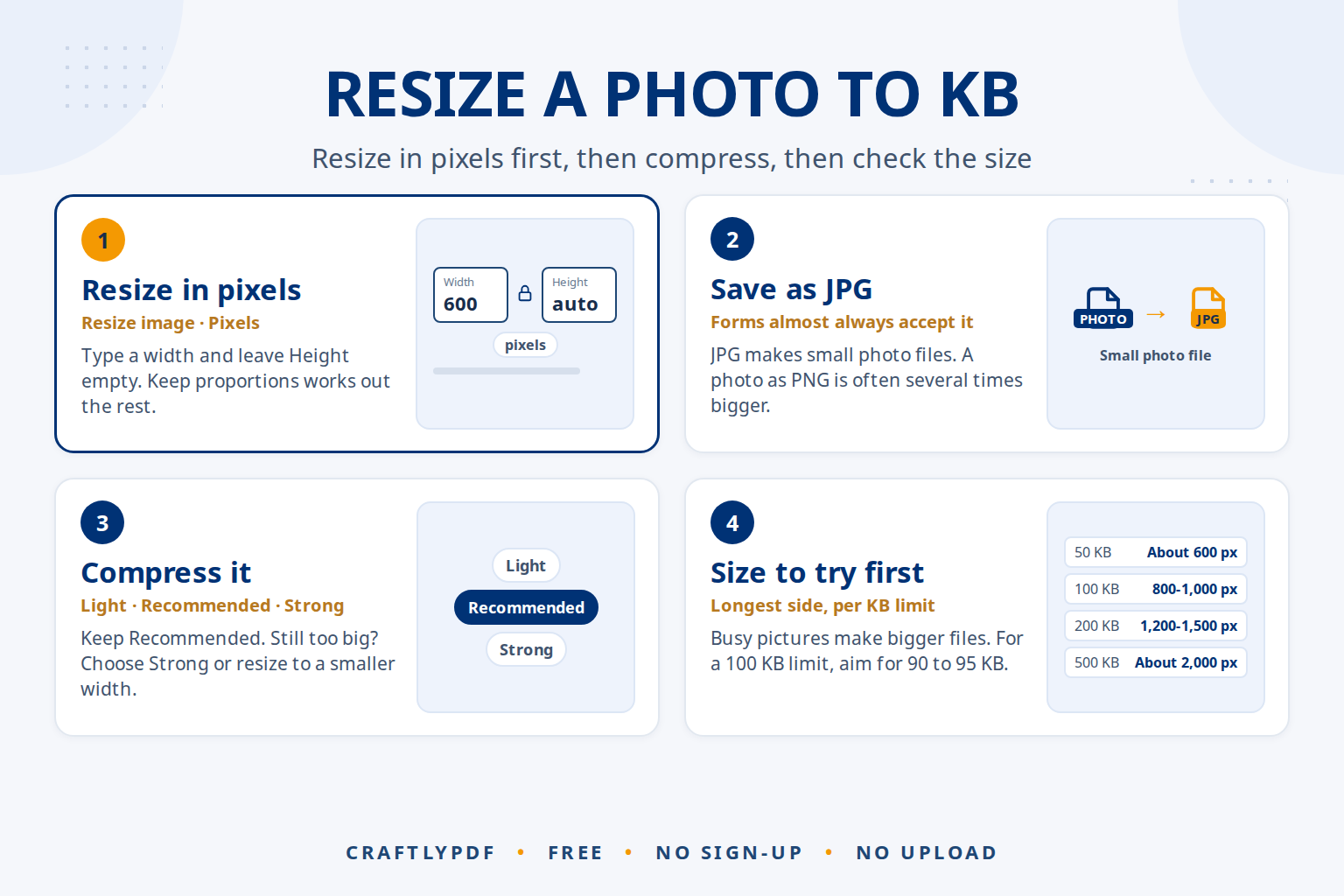
To resize an image to a KB limit such as 50 KB, 100 KB or 200 KB, make the picture smaller in pixels first, then compress it, and check the file size before you upload. File size depends on both, so no single setting hits an exact number, but two quick passes get you under the limit.
This guide shows the two-step method, which pixel sizes to start with for common limits, and what to do when a form still says your photo is too big (or too small).
Resize your photo now: free, no sign-up, and your pictures stay on your device.
Why “resize image to KB” needs two steps
A file’s size in KB comes from two things: how many pixels the picture has, and how strongly those pixels are compressed. A 4000 × 3000 phone photo has 12 million pixels. An upload form that wants 100 KB rarely needs more than a few hundred thousand.
Honest note: ToolsCampus has no “make it exactly 100 KB” button. Instead you control both parts yourself, and each tool shows you the result, so you can see exactly where you land:
- Resize image lowers the number of pixels. This is the big saving.
- Compress image lowers the quality setting a little. This is the fine-tuning.
Doing it in this order matters. Resize saves JPGs at a high quality (92%), so the file is clean. Compress then squeezes it once, and every size it shows is the real final size.
How to resize a photo to under 50, 100 or 200 KB
- Open Resize image and add your photo (JPG, PNG or WebP).
- Under Resize by, choose Pixels. Type a Width from the table below and leave Height empty: it follows automatically, because Keep proportions is ticked.
- Under Save as, pick JPG. Forms almost always accept it, and it makes small photo files.
- Click Resize images and download
photo (resized).jpg. - Open Compress image, add the resized file, keep Recommended and click Compress images.
- Read the size shown in the list. If it is under your limit, download it. If not, choose Strong, or go back to step 2 with a smaller width.
Your original photo is never changed, so you can repeat the steps as often as you like.
Which pixel size to start with for each KB limit
These are starting points for an ordinary photo saved as JPG and then compressed with Recommended. A busy picture (leaves, gravel, patterned clothes) makes a bigger file than a plain portrait, so always check the size shown.
| Size limit | Longest side to try first | Typical use |
|---|---|---|
| Under 20 KB | 300 to 400 pixels | Signatures, small ID photos on exam and admission forms |
| Under 50 KB | About 600 pixels | Passport-style photos on job and exam portals |
| Under 100 KB | 800 to 1,000 pixels | Profile photos, application forms |
| Under 200 KB | 1,200 to 1,500 pixels | Document photos, ID card scans |
| Under 500 KB | About 2,000 pixels | Certificates, photos of documents with small print |
If the form also gives exact pixel dimensions, use those instead of the table. Our guide to photo sizes in pixels for online forms covers the common ones.
Photos of documents need more pixels
A face still looks fine at 600 pixels. A certificate or mark sheet does not: small print turns to mush. For documents, keep more pixels and accept a stronger compression level, or ask whether the form accepts a PDF instead.
Tips for getting under the limit
- Aim a little under. Some sites count 1 KB as 1,000 bytes, others as 1,024. If the limit is 100 KB, aim for 90 to 95 KB.
- Crop before you resize. Cutting away empty wall or desk around the subject removes pixels you don’t need. Use Crop image first.
- Convert iPhone HEIC photos first. Resize image accepts JPG, PNG and WebP. Turn HEIC files into JPG with Convert to JPG.
- Avoid PNG for photos. A photo saved as PNG is often several times bigger than the same photo as JPG.
- Start from the original. A photo forwarded through a chat app has already been compressed and may look blotchy after a second squeeze.
AI tools and form photos
Many forms want a face photo on a plain, light background. Remove background uses an AI model inside your browser to find the person and can put a plain colour behind them. It works well for job portals, ID cards and staff directories.
Be careful with official documents. Passport and visa offices usually require an unedited photo, and some say so directly. For those, take a new photo against a plain wall instead of editing the background, and check the official rules.
You can also ask an AI assistant such as ChatGPT, Claude, Gemini or Copilot to explain a confusing form requirement. Check its answer against the form’s own instructions, because those always win. Before uploading an ID photo to any AI service, check its privacy settings. The ToolsCampus tools work inside your browser, so your photo is never uploaded.
Common problems
The form says the file is still too large
Compress again with Strong, or resize to a smaller width and compress once more. Also check you uploaded the new file, not the original with a similar name.
The form says the file is too small
Some forms have a minimum, such as 20 KB or 50 KB. Resize to a larger width, or use the Light compression level. Don’t make a tiny photo bigger: start again from the original.
The form wants exact dimensions, like 200 × 230 pixels
Crop to the same shape first with Crop image (Free shape, type the size), then resize. If you untick Keep proportions without cropping, the face gets stretched.
The form asks for 300 DPI
Resize image has no DPI setting, and most upload forms only check pixels and KB. DPI tells a printer how big to print: 2 inches at 300 DPI means 600 pixels. Give the photo that many pixels.
Frequently asked questions
How do I reduce a photo to 50 KB?
Resize it to about 600 pixels on the longest side, save as JPG, then compress it with the Recommended level. If the size shown is still over 50 KB, use Strong or a slightly smaller width.
Can I resize an image to an exact KB size?
Not exactly with any honest tool, because the final size depends on what is in the picture. You can get reliably under a limit by resizing first, compressing second and checking the size shown.
Does reducing KB size lower the quality?
A little, but at sensible settings you won’t see it on screen. Fewer pixels mean less detail when zoomed in, which is why document photos need more pixels than face photos.
How do I resize a photo to KB on my phone?
Open Resize image in your phone’s browser, then Compress image, exactly as on a computer. For phone-specific tips, see reducing photo size on iPhone and Android.
More on keeping photos sharp while they shrink: compress an image without losing quality.
Resize your photo for the form now. Type a width, click once, then compress and check the size.