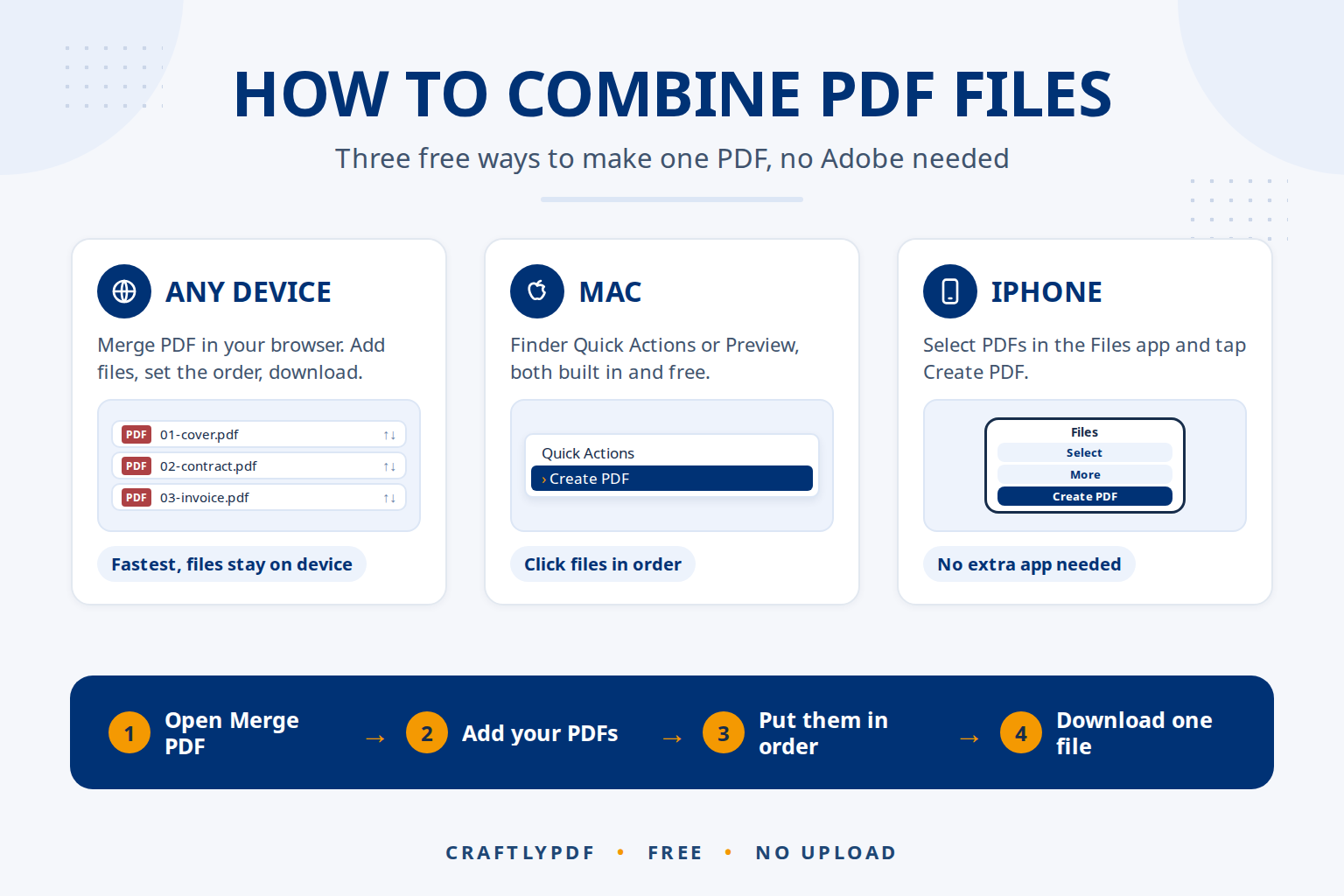
To combine PDF files into one, open a free merge tool in your browser, add your PDFs, put them in the right order and download the new file. The whole job takes under a minute, it works on Windows, Mac, iPhone and Android, and you don’t need Adobe Acrobat or an account.
This guide shows the fastest way to combine PDF files, the built-in options on each device, and how to fix the problems people run into most often.
Combine your PDFs now with our free Merge PDF tool. Your files stay on your device.
The fastest way to combine PDF files (any device)
A browser tool is the quickest option because it works the same everywhere. You don’t install anything, and there is no difference between a work laptop, a home Mac and a phone.
- Open Merge PDF. It works in Chrome, Edge, Safari and Firefox.
- Add your files. Click Choose files and select two or more PDFs, or drag them onto the box. You can add more files at any time with Add more.
- Put them in order. Use the up and down arrows next to each file. The first file in the list becomes the first pages of the new PDF.
- Click Merge PDF. The combined file is ready in a few seconds.
- Download. The new file is named after your first PDF, for example
contract (merged).pdf. Your original files are not changed.
Want to add a signature, fill in a field or type a note on the merged file? Click Open in the editor on the result screen and keep working.
Why “no upload” matters for private documents
Most online PDF tools send your files to their servers, process them there and send the result back. That is fine for a recipe, but many of the PDFs people merge are contracts, bank statements, ID scans and medical letters.
Our Merge PDF tool works differently: your browser does all the work on your own device. The PDFs are never uploaded or stored anywhere.
How to combine PDF files on Windows 10 and 11
Windows has no built-in way to merge PDFs. Microsoft Edge can open and print PDFs, and “Microsoft Print to PDF” can save one document as a PDF, but neither joins several files together.
The free options on Windows are:
- A browser tool such as Merge PDF. Open it in Edge or Chrome and follow the steps above. This is the fastest way.
- Adobe Acrobat (paid). The free Acrobat Reader can’t combine files; merging is part of the paid Acrobat plans.
- Desktop PDF programs. Several free and paid programs can merge PDFs, but you have to install them, and some add watermarks to the free version.
How to combine PDF files on a Mac
A Mac has two built-in ways to combine PDFs, both free.
Option 1: Finder Quick Actions
- Select the PDFs in Finder. Hold Command and click each file.
- Control-click (or right-click) one of the selected files.
- Choose Quick Actions, then Create PDF.
A new PDF appears in the same folder. Apple notes in its guide to combining files into a PDF in Finder that the files appear in the order you select them, so click them in the order you want.
Option 2: Preview
- Open the first PDF in Preview.
- Choose View > Thumbnails to show the page sidebar.
- Drag the other PDF files from Finder onto the sidebar, where you want their pages to go.
- Choose File > Export as PDF to save the combined file under a new name.
Preview gives you control over every page, but dragging many files one by one is slow. For more than two or three files, a merge tool where you can reorder whole files is faster. Our guide to merging PDFs on a Mac with Preview covers both methods in more detail.
How to combine PDF files on iPhone and Android
iPhone and iPad
The Files app can combine files without an extra app:
- Open Files and go to the folder with your PDFs.
- Tap the More button (three dots), then Select, and tap each PDF.
- Tap More at the bottom right, then Create PDF.
The new PDF is saved in the same folder. If your PDFs are in Mail or WhatsApp rather than Files, it is usually quicker to open Merge PDF in Safari and choose the files from there. For Shortcuts and setting the file order, see three ways to merge PDFs on iPhone.
Android
Android has no built-in PDF merger. Open Merge PDF in Chrome, tap Choose files, pick your PDFs from Files or Downloads, and the merged PDF is saved to your Downloads folder.
Which method should you use?
| Method | Works on | Reorder files first | Cost |
|---|---|---|---|
| ToolsCampus Merge PDF | Any device with a browser | Yes | Free |
| Finder Quick Actions | Mac | No | Free |
| Preview | Mac | Page by page | Free |
| Files app | iPhone, iPad | No | Free |
| Adobe Acrobat | Windows, Mac | Yes | Paid plan |
Common problems and how to fix them
“This PDF is protected with a password”
A PDF locked with a password can’t be merged until the lock is removed. Open it with the password in the program that made it (or the bank or office that sent it) and save an unlocked copy, then merge that copy.
The pages are in the wrong order
Go back with Change the options, move the files into the right order and merge again. To move single pages rather than whole files, merge first, then open the result in Organize PDF and drag the pages where you want them. You can also rearrange PDF pages after merging step by step.
Some pages are sideways
Scans and phone photos often come out turned. Fix them before or after merging with Rotate PDF. The rotation is saved in the file, so the pages open the right way for everyone.
One of the files is a photo, not a PDF
Turn the photo into a PDF first with JPG to PDF, then merge it with your other files. Here is how to combine a PDF and a JPG in two steps.
The form fields or bookmarks are gone
When PDFs are combined, the page content, pictures and web links are kept, but fillable form fields and the bookmark list (the outline) from the original files are not carried over. Fill in forms before you merge, or add new fields to the merged file in our PDF editor.
The merged file is too big to email
Merging doesn’t shrink files. The new PDF is about the size of all your files added together. If it is too big to attach, split it into smaller parts with Split PDF, or share it through a cloud link instead.
Tips for a clean merged PDF
- Name your files in order first, for example
01-cover.pdf,02-contract.pdf. They are then easy to put in the right sequence. - Remove pages you don’t need before merging, such as blank scan pages or email footers, with Organize PDF.
- Add page numbers last. Once everything is in one file, Add page numbers numbers the whole document from start to end. See how to add page numbers to a PDF with a skipped cover.
- Keep the originals until you have opened the merged file and checked every page.
Combining PDFs before using AI tools like ChatGPT, Claude or Gemini
AI assistants such as ChatGPT, Claude and Gemini can read PDFs and answer questions about them. Merging your files first often gets better results:
- Compare documents in one go. Merge three supplier quotes or two versions of a contract into one PDF, upload it once, and ask the AI to list the differences.
- Fewer uploads. Some apps limit how many files you can attach to one message. One merged file avoids the limit.
- Put the most important file first. The order you set in the merge tool is the order the AI reads the pages.
- Don’t overdo it. Very long files can hit upload size limits, and answers can miss details buried in hundreds of pages. Merge what belongs together, and split anything too large.
- Make scans readable. If you can’t select the text in a page, it is a scanned picture. Run the merged file through OCR PDF so the AI gets real text.
AI tools can still misread numbers and names, so check important figures against the original. And before uploading work or personal documents to any AI service, check its privacy settings. Merging with ToolsCampus happens on your device, so nothing is shared until you choose to upload.
Frequently asked questions
How do I combine PDF files for free?
Use a free browser tool like ToolsCampus Merge PDF: add your files, put them in order and click Merge PDF. On a Mac you can also use Preview or Finder Quick Actions, and on iPhone the Files app.
Can I merge PDFs without Adobe Acrobat?
Yes. The free Acrobat Reader can’t combine files anyway. A browser tool, Preview on Mac or the Files app on iPhone all merge PDFs without Adobe.
How many PDF files can I combine at once?
Our tool merges up to 50 files and 2,000 pages in one go. Very large files depend on your device’s memory, so a computer handles them faster than a phone.
Is it safe to merge PDFs online?
It depends on the tool. Many upload your files to a server. ToolsCampus merges them inside your browser, so your documents never leave your device.
Does merging reduce PDF quality?
No. Pages are copied as they are. Text stays sharp and searchable, and pictures are not compressed again.
Ready? Combine your PDF files now. It’s free, there’s no sign-up, and your files stay on your device.