Category: PDF Guides

  • How to Write on a PDF: 4 Easy Ways to Add Your Own Text

    How to Write on a PDF: 4 Easy Ways to Add Your Own Text

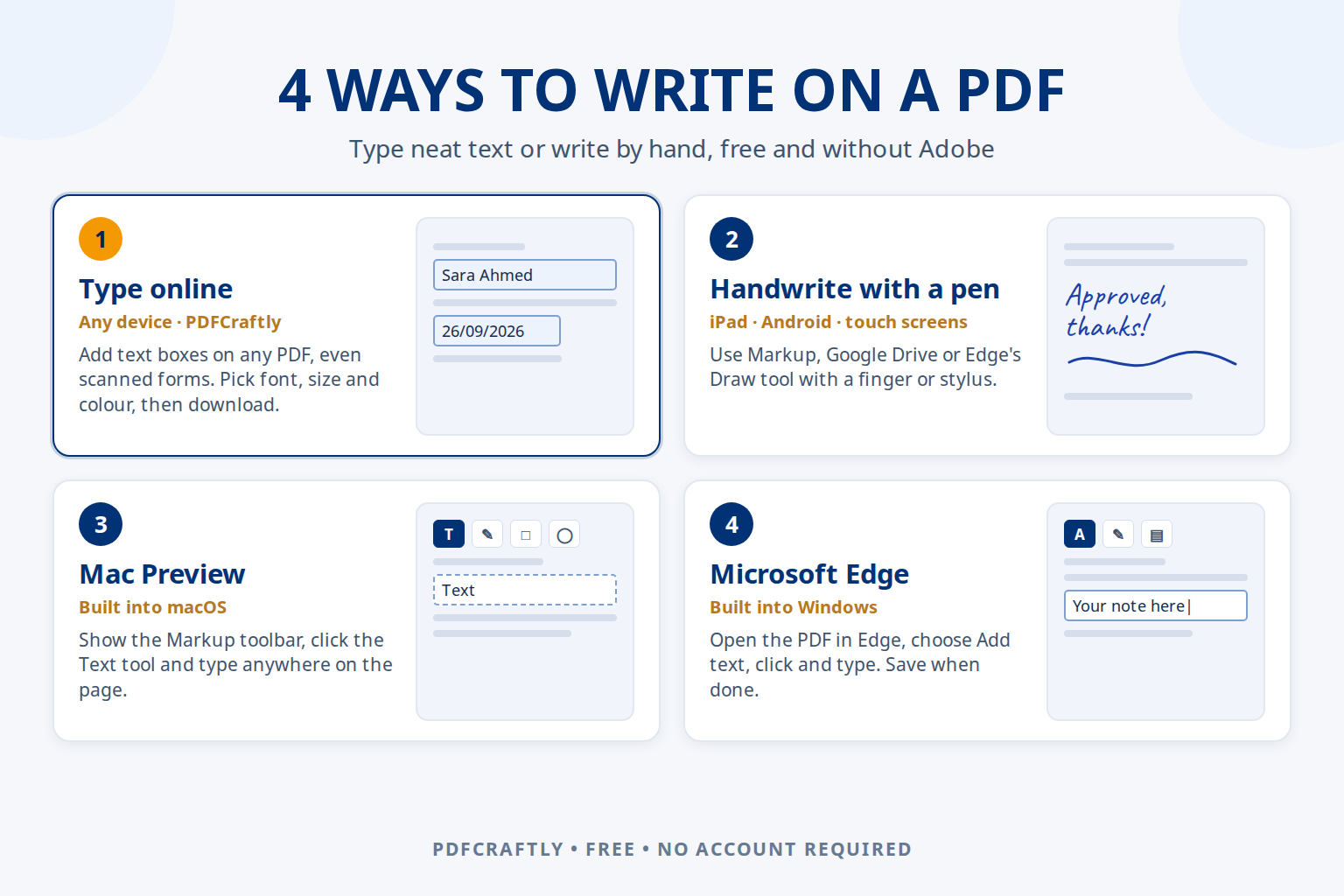
    To write on a PDF, open it in a PDF editor and either add text boxes and type, or use a pen tool to write by hand. The quickest free option that works on every device is an online editor such as ToolsCampus: upload the PDF, add a text field where you want to write, type, and download. Mac Preview, Microsoft Edge on Windows and the pen tools on iPhone, iPad and Android also let you write on a PDF without Adobe.

    Below are four easy ways to write on a PDF, what each one is best for, and tips to make your writing look neat and stay in place when you send the file.

    Typed text or handwriting: which do you need?

    • Typed text is best for forms, applications and anything someone else has to read clearly: names, addresses, dates, numbers and answers.
    • Handwriting suits quick notes, corrections, circling or underlining something, and marking up a document for review. It is easiest with a stylus on a tablet.
    • A signature is a special case: most tools let you create one once and place it neatly. See how to sign a PDF for free.

    1. Type on a PDF online with ToolsCampus (any device)

    This works in any modern browser on Windows, Mac, Chromebook, iPhone and Android, and on any PDF, including scanned documents and forms that aren’t fillable.

    1. Upload the PDF on the ToolsCampus home page. No account is needed.
    2. Add a Text field from the list on the left and click where you want to write. Drag it into place and resize it with the corner handles.
    3. Double-click the field and type. Press Enter or click elsewhere when you’re done. For several lines of text, turn on Multiline so it wraps.
    4. Style it in the Properties panel: Helvetica, Times, Courier or Noto Sans; a fixed size or Auto; bold, italic, underline; colour; left, center or right alignment.
    5. Download the flattened PDF so your text becomes part of the page.

    Besides text, you can add dates, check marks, a strike line to cross something out, initials and a signature. Text in Urdu, Arabic, Hindi, Hebrew and many other languages is supported. For a full walkthrough of forms without fields, see how to type on a PDF that isn’t fillable.

    2. Write on a PDF by hand with a pen or stylus

    For freehand writing, use the pen tools built into your device:

    • iPhone and iPad: open the PDF in the Files app, tap Markup (the pen icon), choose a pen and write with your finger or Apple Pencil. Tap Done to save.
    • Android: open the PDF in the Google Drive app, tap the annotate (pen) button, pick the pen or highlighter and write. Save over the original or as a copy.
    • Windows touch screens: open the PDF in Microsoft Edge, choose Draw and write with a pen or your finger.

    Handwriting with a mouse or a fingertip on a small screen rarely looks tidy. If the text has to be read by someone else, typing it is almost always clearer.

    3. Write on a PDF on Mac with Preview

    1. Open the PDF in Preview.
    2. Click Show Markup Toolbar, then the Text tool (the “T” icon). A text box appears on the page.
    3. Type your text, drag the box into place and change the font, size or colour with the Text Style button.
    4. Save the file. If it’s a fillable form, you can also click straight into its fields and type.

    4. Write on a PDF on Windows with Microsoft Edge

    1. Right-click the PDF and choose Open with → Microsoft Edge.
    2. Click Add text in the PDF toolbar, then click on the page where you want to write.
    3. Type your text and adjust its colour, size and spacing.
    4. Click Save or Save as to keep your changes.

    Compare the options

    MethodDevicesTyped textHandwritingAlso adds
    ToolsCampusAll (browser)Yes, with fonts, sizes and alignmentSignature and initials onlyDates, check boxes, strike lines, signatures
    MarkupiPhone, iPadYesYesSignatures, shapes
    Google Drive appAndroidNoYesHighlighter
    PreviewMacYesShapes and sketchesSignatures, shapes
    Microsoft EdgeWindowsYesYes (Draw)Highlights, comments

    What about writing on a PDF in Google Docs?

    Google Docs can open a PDF by converting it into a document, but the conversion usually changes the layout: lines move, tables break and images shift. It works for copying text out of a PDF, not for filling in or writing on the original page. To keep the page exactly as it is, add your text on top of it with one of the methods above.

    Tips to make your writing look neat

    • Zoom in before placing text so it sits exactly on the line, not across it.
    • Match the document: a serif font like Times for traditional printed forms, a sans-serif font like Helvetica for modern ones.
    • Use dark blue or black so it reads like pen ink, and keep one size throughout.
    • Flatten before sending. Some readers move or hide annotations; a flattened PDF keeps your writing fixed to the page.

    Frequently asked questions

    How do I write on a PDF for free?

    Upload it to ToolsCampus, add a text field, type and download: it’s free and needs no account. Preview on Mac, Microsoft Edge on Windows and Markup on iPhone are also free.

    How do I write on a PDF document on my iPhone?

    Open it in the Files app and tap Markup to write with your finger, or tap + for a text box. For forms with lots of fields, the online editor in Safari is easier because each answer gets its own neat text field.

    Can I write on a PDF without Adobe?

    Yes. Every method in this guide works without Adobe Acrobat: an online editor, or the tools built into Mac, Windows, iPhone, iPad and Android.

    How do I write on a PDF form?

    If the form is fillable, click into its fields and type. If it isn’t, add text fields on the blanks and type into them. Our guide on how to fill out a PDF form online covers both cases.

    Can I change or remove the existing text in a PDF?

    Writing on a PDF adds new content on top of the page. To correct something already printed, cross it out with a strike line and write the new text next to it.
  • How to Sign a PDF for Free: Online, iPhone, Mac and Android

    How to Sign a PDF for Free: Online, iPhone, Mac and Android

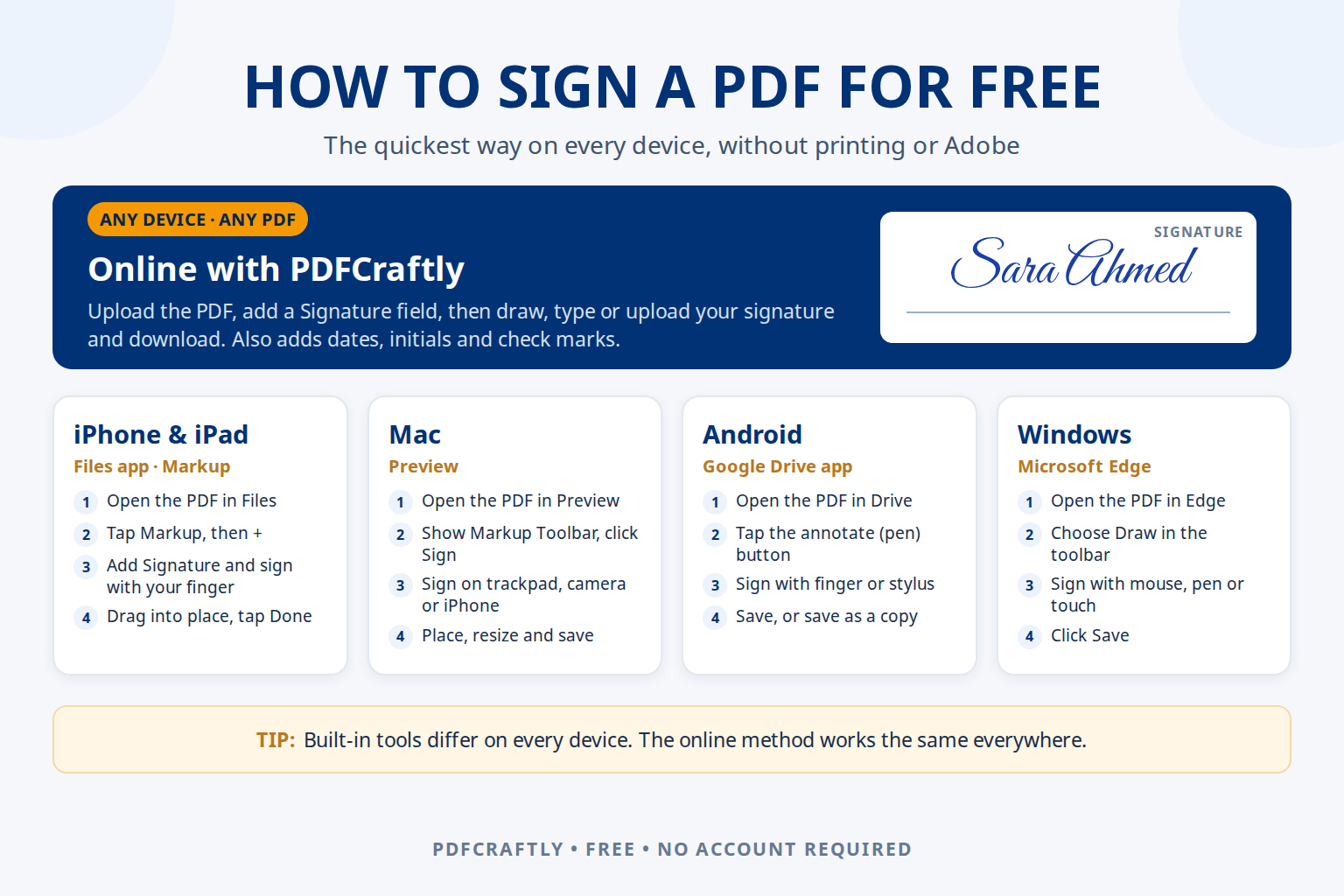
    You can sign a PDF for free on any device: upload it to an online PDF editor such as ToolsCampus, add a signature field and draw, type or upload your signature, then download the signed file. If you’d rather use what’s already on your device, the Files app on iPhone, Preview on Mac, the Google Drive app on Android and Microsoft Edge on Windows can all add a handwritten signature too.

    This guide shows the quickest way to sign a PDF electronically on each platform, when each option works best, and how to make sure the signed document looks right for whoever receives it.

    Which way to sign a PDF should you use?

    OptionWorks onSignature methodsBest for
    ToolsCampus (online)Any device with a modern browserDraw, type or upload an imageSigning plus filling in names, dates, initials and check boxes on any PDF
    Files app / MarkupiPhone and iPadDraw with finger or Apple PencilA quick signature on a file you already have on your phone
    PreviewMacTrackpad, camera or iPhone/iPadMac users signing fillable forms
    Google Drive appAndroidDraw with finger or stylusMarking up a PDF already stored in Drive
    Microsoft EdgeWindowsDraw with mouse, pen or touchA quick ink signature on a Windows PC

    How to sign a PDF online for free (any device)

    This method works the same on Windows, Mac, iPhone, Android and Chromebook, and on any PDF, including scanned documents that have no form fields.

    1. Upload the PDF on the ToolsCampus home page. No account is needed.
    2. Add a Signature field from the field list and place it on the signature line. Resize it to fit.
    3. Double-click the field to open the signature pad, then draw with your mouse, finger or stylus, type your name in one of three handwriting styles, or upload a photo of your signature (its white background is removed automatically).
    4. Add anything else the form asks for: a date field next to the signature, your printed name, initials on other pages, or check marks.
    5. Download the flattened PDF. Your signature becomes part of the page, so it displays the same in every PDF reader.

    For a closer look at each signature method and tips for a clean result, see how to add a signature to a PDF without printing.

    How to sign a PDF on iPhone or iPad

    iPhone and iPad have a built-in signature tool called Markup:

    1. Open the PDF in the Files app (or tap the attachment in Mail).
    2. Tap the Markup (pen) button, then tap + and choose Add Signature.
    3. Sign with your finger or Apple Pencil and tap Done.
    4. Drag the signature onto the line, resize it with the handles, and tap Done to save.

    Markup is ideal for a single quick signature. If the form also needs typed answers, dates and check marks in the right boxes, the online method in Safari gives you proper form fields and a neater result.

    How to sign a PDF on Mac

    Preview, the PDF app built into macOS, can store your signature and add it to any document:

    1. Open the PDF in Preview and click Show Markup Toolbar if it isn’t visible.
    2. Click the Sign button and create a signature using the Trackpad, the Camera (hold your signature on white paper up to the camera) or your iPhone or iPad.
    3. Choose the signature, drag it into place and resize it.
    4. Save the file (File → Save or Export as PDF).

    How to sign a PDF on Android

    The Google Drive app on Android can draw on PDFs:

    1. Open the PDF in the Google Drive app.
    2. Tap the annotate (pen) button in the bottom corner.
    3. Choose the pen, zoom in on the signature line and sign with your finger or a stylus.
    4. Save over the original, or save a copy to keep the unsigned version.

    Signing freehand at phone size can look shaky. The online method trims and scales your signature to fit the field, and lets you type or upload a signature instead of drawing it.

    How to sign a PDF on Windows

    Microsoft Edge, which comes with Windows, opens PDFs and can ink on them:

    1. Right-click the PDF and choose Open with → Microsoft Edge.
    2. Click Draw in the PDF toolbar and pick a colour and thickness.
    3. Sign with your mouse, a pen or a touch screen. Add text lets you type your name or the date next to it.
    4. Click Save (or Save as) to keep the signed copy.

    Mouse signatures rarely look natural. A typed signature in a handwriting style, or an uploaded photo of your real signature, usually looks more professional; both are available in the online method.

    Tips before you send a signed PDF

    • Check every page. Contracts often need initials on each page and a date next to the final signature.
    • Keep the signature inside its line. Zoom in and resize it so it doesn’t cover printed text.
    • Send a flattened copy. A flattened PDF keeps the signature fixed to the page, so it can’t be moved and looks the same in every reader.
    • Keep your own copy of the signed document for your records.

    In many countries, electronic signatures are accepted for most everyday agreements, for example under the ESIGN Act and UETA in the United States and the eIDAS Regulation in the European Union. Some documents, such as certain property, court or government filings, may need a certificate-based digital signature, a witness or a signature in ink. When in doubt, ask the person or organisation that sent you the document. This is general information, not legal advice.

    Frequently asked questions

    How do I sign a PDF for free without Adobe?

    Use a free online editor such as ToolsCampus, or the tools built into your device: Markup on iPhone, Preview on Mac, Google Drive on Android or Microsoft Edge on Windows. None of them requires Adobe Acrobat.

    How do I sign a PDF electronically?

    Open the PDF in a tool with a signature feature, create your signature by drawing, typing or uploading it, place it on the signature line and save the file. That signed PDF is an electronic signature you can email or upload.

    How do I sign a PDF on my phone?

    On iPhone, use Markup in the Files app; on Android, use the annotate button in Google Drive. Or open ToolsCampus in your phone’s browser, which works the same on both and lets you add dates and other fields too.

    Can I sign a PDF without printing it?

    Yes. Every method in this guide signs the PDF digitally, so you never need to print, sign by hand and scan the document again.

    How do I sign a PDF document that someone emailed me?

    Save the attachment, open it in one of the tools above, add your signature and any other details the document asks for, then save it and reply with the signed PDF attached.

  • How to Fill Out a PDF Form Online for Free (Any Device)

    How to Fill Out a PDF Form Online for Free (Any Device)

    To fill out a PDF form online for free, open it in a browser-based PDF editor, click into each field (or add a field on any blank that isn’t clickable), type your answers, tick the check boxes, add your signature and download the completed PDF. It works on Windows, Mac, iPhone and Android, with no printing, scanning or Adobe Acrobat needed.

    This guide covers both kinds of PDF form you’ll come across: fillable forms, which already have boxes you can type into, and flat forms, which only look like forms. You’ll find the fastest method for each, step-by-step instructions in ToolsCampus, tips for every kind of field, and how to do it on your phone.

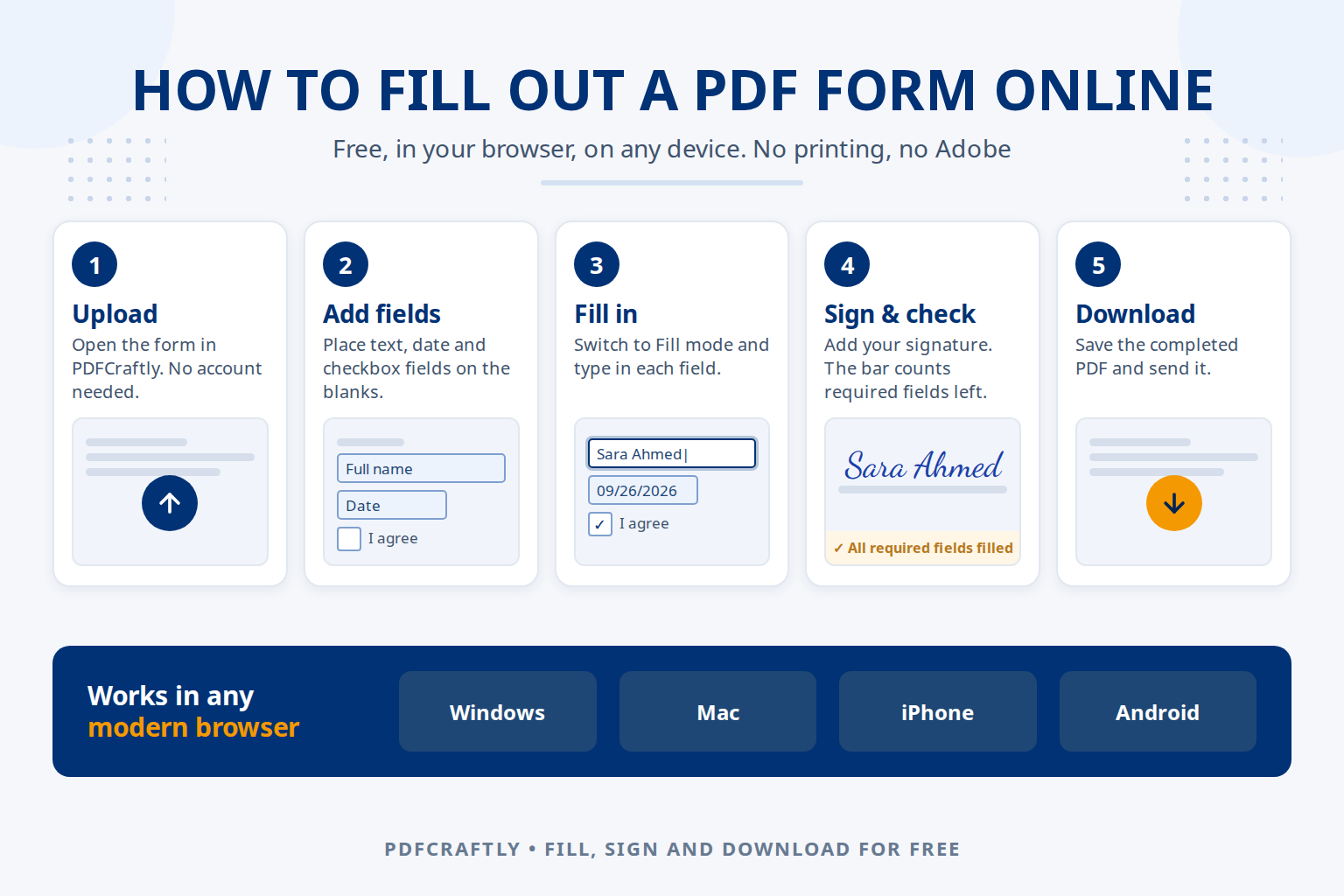
    Quick answer: fill out any PDF form in 5 steps

    1. Upload the PDF form on the ToolsCampus home page. You don’t need an account.
    2. Add fields (text, date, checkbox, signature) on the blanks you need to complete.
    3. Switch to Fill mode and type your answers into each field.
    4. Sign and check: add your signature and make sure every required field is filled.
    5. Download the completed PDF and send it.

    First, which kind of PDF form do you have?

    Open the form in your browser and click on one of the blanks:

    What happensType of formEasiest way to fill it
    A cursor appears and you can typeFillable PDF formFill it directly in Chrome, Edge, Acrobat Reader or Preview (Method 1), or in ToolsCampus if you also need to add a signature, dates or extra boxes
    Nothing happens, or you only select the printed textFlat or scanned PDFAdd fields and fill them in ToolsCampus (Method 2)

    Many forms are a mix: a few fillable boxes, and blanks or signature lines that aren’t. Method 2 handles every case, because you can place a field anywhere on the page.

    Method 1: Fill a fillable PDF in your browser or PDF reader

    If the form already has interactive fields, you can complete it in the software you already have:

    1. Open the PDF in Google Chrome, Microsoft Edge, Adobe Acrobat Reader or, on a Mac, Preview.
    2. Click the first field, type your answer and move to the next one.
    3. Save or download the file. In Chrome and Edge, use the download or save button in the PDF toolbar so your answers are kept.

    This is quick, but it only works on the fields the form’s author created. If there is no field for your signature, the date or a box you need to tick, use Method 2.

    Method 2: Fill out any PDF form online with ToolsCampus

    Step 1: Upload the form

    Go to the ToolsCampus home page and choose the PDF, or drag it onto the upload area. Scanned forms and image-only PDFs work too. Your original file is never changed, and your work saves automatically as you go.

    Step 2: Add a field on each blank

    In Edit mode, choose a field type from the list on the left and click where it belongs on the page:

    • Text or Name for written answers such as your name, address or reference number;
    • Date for any date on the form;
    • Checkbox or Radio for yes/no questions and multiple-choice options;
    • Dropdown when an answer comes from a fixed list;
    • Signature and Initials for signing lines.

    Drag each field onto its line and resize it with the corner handles. To answer as you go, double-click a field and type straight into it without leaving Edit mode.

    Step 3: Switch to Fill mode and complete the form

    Click Fill at the top of the editor. Every field turns into a real form control: text boxes to type in, a calendar for dates, tick boxes, radio buttons and dropdown lists. Answers in Urdu, Arabic, Hindi, Hebrew and many other languages are supported and appear correctly in the downloaded PDF.

    Step 4: Sign and check for missing answers

    Click the signature field to draw, type or upload your signature; our guide on how to add a signature to a PDF without printing covers each option. If any fields are marked as required, the bar at the bottom of the screen shows how many are still empty, and Next required field jumps straight to the next one. Click Preview to see how the finished page will look, without field borders.

    Step 5: Download the completed PDF

    Open Download and choose Flattened PDF. Your answers become part of the page, so the form looks the same for whoever receives it, in any PDF reader, and when printed.

    How to fill each type of form field

    FieldHow to fill itTip
    TextClick and typeTurn on Multiline for addresses and comment boxes so the text wraps
    DatePick from the calendarSet the format the form expects: MM/DD/YYYY, DD/MM/YYYY, YYYY-MM-DD or “Sep 26, 2026”
    CheckboxClick to tick or untickChoose a check mark, a cross or a filled square to match the form
    Radio buttonsClick one optionOptions in the same group work together, so choosing one clears the others
    DropdownChoose from the listUseful for repeated answers such as a state, department or plan
    SignatureDraw, type or uploadAdd a date field next to it if the form asks when you signed

    How to fill out a PDF form on each device

    On a Windows PC

    Open the site in Chrome, Edge or Firefox and follow the steps above. A mouse makes it easy to place and resize fields; the arrow keys nudge a selected field for exact positioning.

    On a Mac

    Preview can fill in many fillable forms. For flat forms, or to add a signature line, dates or check marks that aren’t part of the form, use ToolsCampus in Safari or Chrome.

    On an iPhone or iPad

    Open the site in Safari, tap to upload and choose the PDF from Files, iCloud Drive or an email attachment. Tap to place fields, then double-tap a field to type in it. Signing with your finger works well on a touch screen. When you download, save the file to Files or share it straight from your phone.

    On an Android phone or tablet

    Use Chrome and upload the PDF from your Downloads folder, Google Drive or an attachment. The steps are the same as on iPhone. For long forms, landscape mode or a tablet gives you more room to place fields accurately.

    Common mistakes to avoid

    • Not saving the answers. In a browser’s built-in PDF viewer, closing the tab without saving loses everything. In ToolsCampus your work saves automatically, and you download the finished file when you’re ready.
    • Text overflowing the box. Leave the font size on Auto so long answers shrink to fit, or make the field wider.
    • Sending an editable copy by mistake. Send the flattened PDF when you’re returning a completed form, so answers can’t be changed or lost.
    • Forgetting the date or initials. Many forms ask for a date next to the signature and initials on every page; check the whole document before you download.

    Want others to fill out your form?

    If you’re preparing a form for someone else, add the fields, leave them empty and download a fillable PDF (a Pro feature). They can then complete it in any PDF reader. See how to make a PDF fillable for the full walkthrough.

    Frequently asked questions

    How do I fill out a PDF form for free?

    Upload the form to ToolsCampus, add fields on the blanks, fill them in Fill mode and download the completed PDF. Filling, signing and downloading are free and don’t require an account.

    How do I fill out a PDF form without Adobe?

    You don’t need Adobe Acrobat. Fillable forms can be completed in Chrome, Edge or Preview, and any form, fillable or not, can be completed in your browser with ToolsCampus.

    Why can’t I type in my PDF form?

    The PDF is probably flat: it was scanned, printed to PDF or flattened, so it has no interactive fields. Add your own text fields on top of it; our guide on how to type on a PDF that isn’t fillable explains how.

    Can I save a PDF form and finish it later?

    Yes. Your answers save automatically. Without an account, your file is kept for 24 hours in the same browser; with a free account, it stays in My Files for 60 days after your last edit, so you can come back from any device.

    Is it safe to fill out a PDF form online?

    Your files are private to you and reached through a long random address that other visitors can’t guess. Files uploaded without an account are deleted automatically after 24 hours. As with any online service, only upload documents you’re allowed to share.