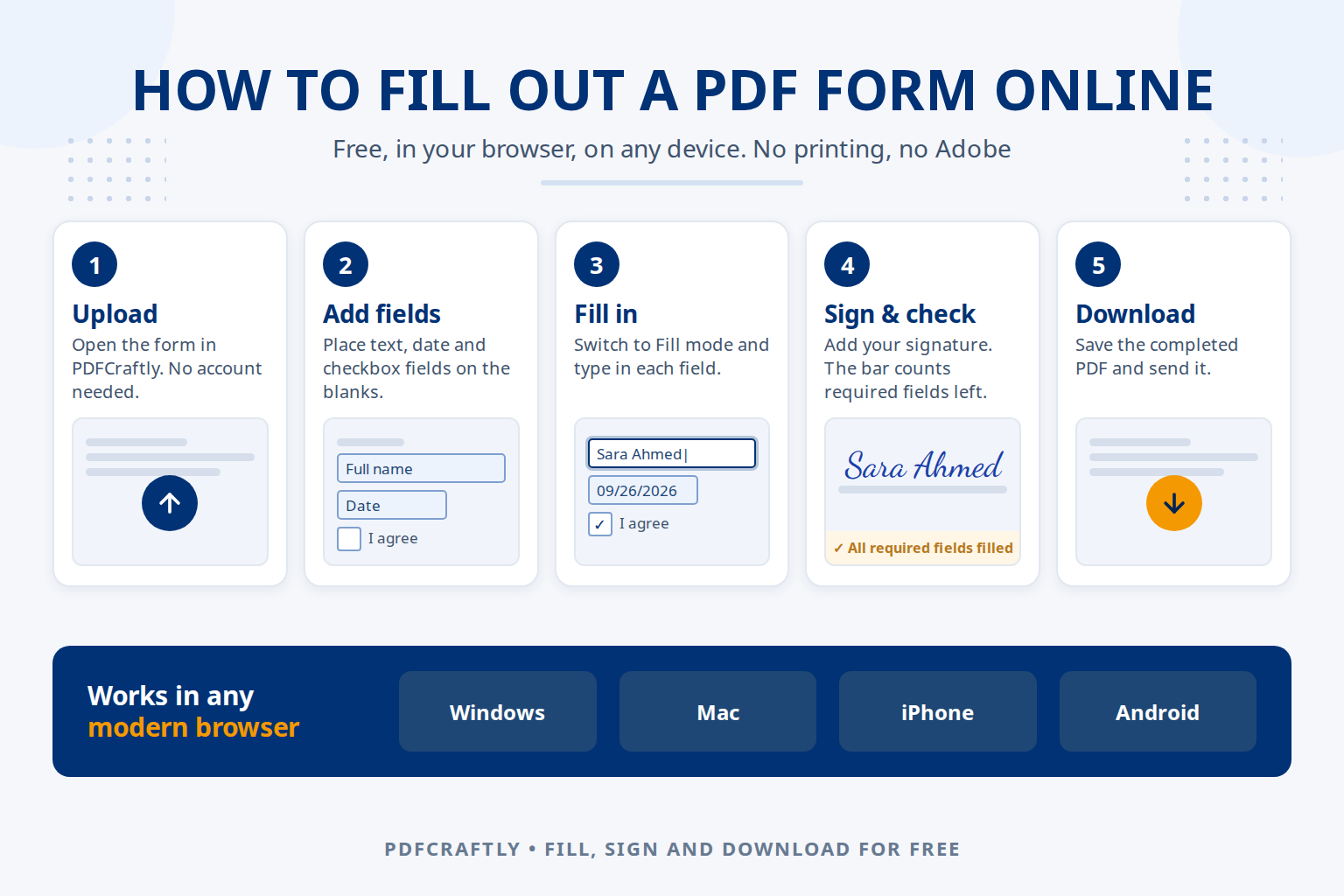
To fill out a PDF form online for free, open it in a browser-based PDF editor, click into each field (or add a field on any blank that isn’t clickable), type your answers, tick the check boxes, add your signature and download the completed PDF. It works on Windows, Mac, iPhone and Android, with no printing, scanning or Adobe Acrobat needed.
This guide covers both kinds of PDF form you’ll come across: fillable forms, which already have boxes you can type into, and flat forms, which only look like forms. You’ll find the fastest method for each, step-by-step instructions in ToolsCampus, tips for every kind of field, and how to do it on your phone.
Quick answer: fill out any PDF form in 5 steps
- Upload the PDF form on the ToolsCampus home page. You don’t need an account.
- Add fields (text, date, checkbox, signature) on the blanks you need to complete.
- Switch to Fill mode and type your answers into each field.
- Sign and check: add your signature and make sure every required field is filled.
- Download the completed PDF and send it.
First, which kind of PDF form do you have?
Open the form in your browser and click on one of the blanks:
| What happens | Type of form | Easiest way to fill it |
|---|---|---|
| A cursor appears and you can type | Fillable PDF form | Fill it directly in Chrome, Edge, Acrobat Reader or Preview (Method 1), or in ToolsCampus if you also need to add a signature, dates or extra boxes |
| Nothing happens, or you only select the printed text | Flat or scanned PDF | Add fields and fill them in ToolsCampus (Method 2) |
Many forms are a mix: a few fillable boxes, and blanks or signature lines that aren’t. Method 2 handles every case, because you can place a field anywhere on the page.
Method 1: Fill a fillable PDF in your browser or PDF reader
If the form already has interactive fields, you can complete it in the software you already have:
- Open the PDF in Google Chrome, Microsoft Edge, Adobe Acrobat Reader or, on a Mac, Preview.
- Click the first field, type your answer and move to the next one.
- Save or download the file. In Chrome and Edge, use the download or save button in the PDF toolbar so your answers are kept.
This is quick, but it only works on the fields the form’s author created. If there is no field for your signature, the date or a box you need to tick, use Method 2.
Method 2: Fill out any PDF form online with ToolsCampus
Step 1: Upload the form
Go to the ToolsCampus home page and choose the PDF, or drag it onto the upload area. Scanned forms and image-only PDFs work too. Your original file is never changed, and your work saves automatically as you go.
Step 2: Add a field on each blank
In Edit mode, choose a field type from the list on the left and click where it belongs on the page:
- Text or Name for written answers such as your name, address or reference number;
- Date for any date on the form;
- Checkbox or Radio for yes/no questions and multiple-choice options;
- Dropdown when an answer comes from a fixed list;
- Signature and Initials for signing lines.
Drag each field onto its line and resize it with the corner handles. To answer as you go, double-click a field and type straight into it without leaving Edit mode.
Step 3: Switch to Fill mode and complete the form
Click Fill at the top of the editor. Every field turns into a real form control: text boxes to type in, a calendar for dates, tick boxes, radio buttons and dropdown lists. Answers in Urdu, Arabic, Hindi, Hebrew and many other languages are supported and appear correctly in the downloaded PDF.
Step 4: Sign and check for missing answers
Click the signature field to draw, type or upload your signature; our guide on how to add a signature to a PDF without printing covers each option. If any fields are marked as required, the bar at the bottom of the screen shows how many are still empty, and Next required field jumps straight to the next one. Click Preview to see how the finished page will look, without field borders.
Step 5: Download the completed PDF
Open Download and choose Flattened PDF. Your answers become part of the page, so the form looks the same for whoever receives it, in any PDF reader, and when printed.
How to fill each type of form field
| Field | How to fill it | Tip |
|---|---|---|
| Text | Click and type | Turn on Multiline for addresses and comment boxes so the text wraps |
| Date | Pick from the calendar | Set the format the form expects: MM/DD/YYYY, DD/MM/YYYY, YYYY-MM-DD or “Sep 26, 2026” |
| Checkbox | Click to tick or untick | Choose a check mark, a cross or a filled square to match the form |
| Radio buttons | Click one option | Options in the same group work together, so choosing one clears the others |
| Dropdown | Choose from the list | Useful for repeated answers such as a state, department or plan |
| Signature | Draw, type or upload | Add a date field next to it if the form asks when you signed |
How to fill out a PDF form on each device
On a Windows PC
Open the site in Chrome, Edge or Firefox and follow the steps above. A mouse makes it easy to place and resize fields; the arrow keys nudge a selected field for exact positioning.
On a Mac
Preview can fill in many fillable forms. For flat forms, or to add a signature line, dates or check marks that aren’t part of the form, use ToolsCampus in Safari or Chrome.
On an iPhone or iPad
Open the site in Safari, tap to upload and choose the PDF from Files, iCloud Drive or an email attachment. Tap to place fields, then double-tap a field to type in it. Signing with your finger works well on a touch screen. When you download, save the file to Files or share it straight from your phone.
On an Android phone or tablet
Use Chrome and upload the PDF from your Downloads folder, Google Drive or an attachment. The steps are the same as on iPhone. For long forms, landscape mode or a tablet gives you more room to place fields accurately.
Common mistakes to avoid
- Not saving the answers. In a browser’s built-in PDF viewer, closing the tab without saving loses everything. In ToolsCampus your work saves automatically, and you download the finished file when you’re ready.
- Text overflowing the box. Leave the font size on Auto so long answers shrink to fit, or make the field wider.
- Sending an editable copy by mistake. Send the flattened PDF when you’re returning a completed form, so answers can’t be changed or lost.
- Forgetting the date or initials. Many forms ask for a date next to the signature and initials on every page; check the whole document before you download.
Want others to fill out your form?
If you’re preparing a form for someone else, add the fields, leave them empty and download a fillable PDF (a Pro feature). They can then complete it in any PDF reader. See how to make a PDF fillable for the full walkthrough.
Frequently asked questions
How do I fill out a PDF form for free?
Upload the form to ToolsCampus, add fields on the blanks, fill them in Fill mode and download the completed PDF. Filling, signing and downloading are free and don’t require an account.
How do I fill out a PDF form without Adobe?
You don’t need Adobe Acrobat. Fillable forms can be completed in Chrome, Edge or Preview, and any form, fillable or not, can be completed in your browser with ToolsCampus.
Why can’t I type in my PDF form?
The PDF is probably flat: it was scanned, printed to PDF or flattened, so it has no interactive fields. Add your own text fields on top of it; our guide on how to type on a PDF that isn’t fillable explains how.
Can I save a PDF form and finish it later?
Yes. Your answers save automatically. Without an account, your file is kept for 24 hours in the same browser; with a free account, it stays in My Files for 60 days after your last edit, so you can come back from any device.
Is it safe to fill out a PDF form online?
Your files are private to you and reached through a long random address that other visitors can’t guess. Files uploaded without an account are deleted automatically after 24 hours. As with any online service, only upload documents you’re allowed to share.