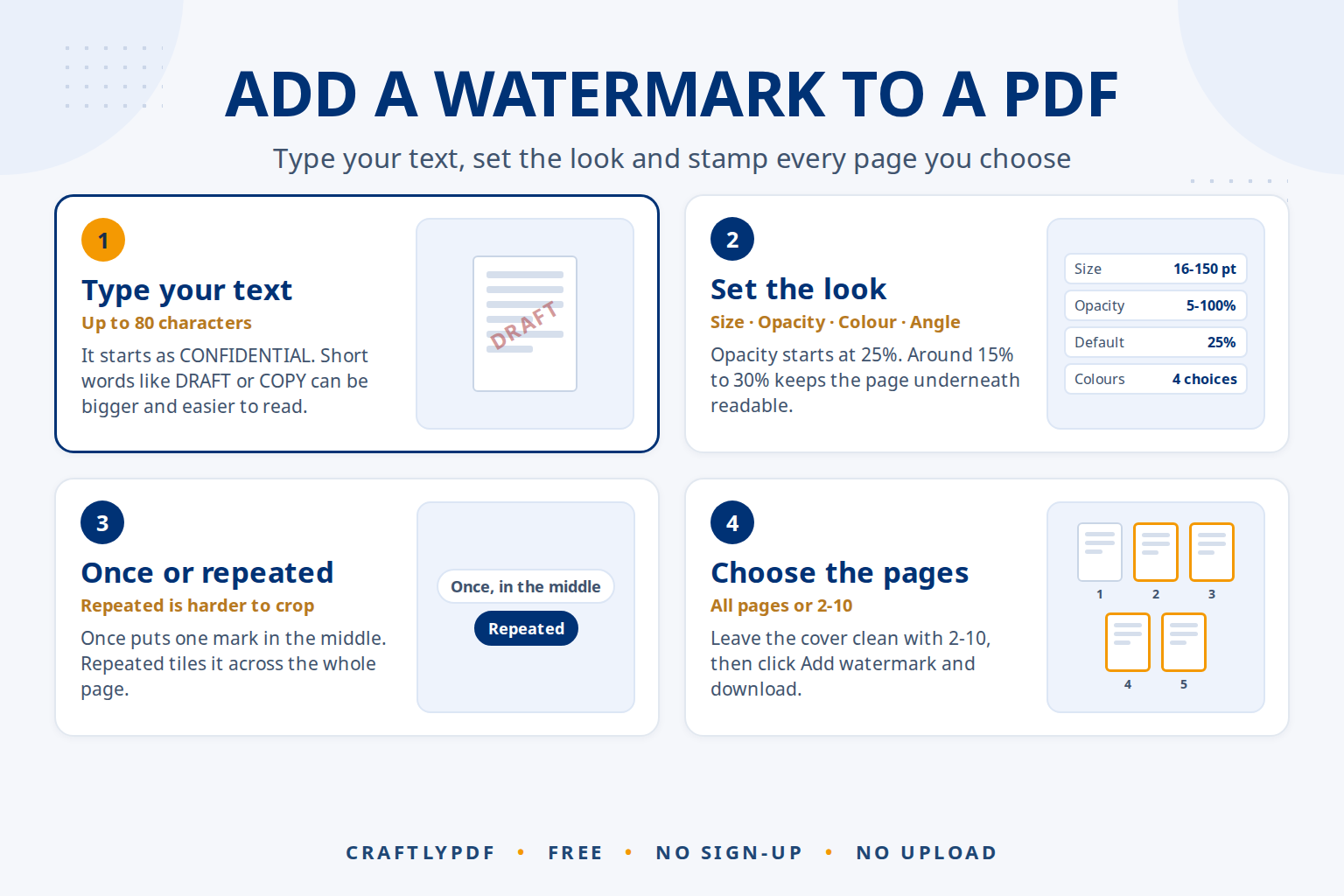
To add a watermark to a PDF for free, open a free watermark tool, choose your PDF, type the text (for example DRAFT or CONFIDENTIAL), pick its size, colour and angle, and download the watermarked copy. The text appears across every page you choose, and your original file stays unchanged. No account or software is needed.
This guide walks through every setting, suggests settings for common uses, shows how to watermark only some pages, and is honest about what a watermark can and can’t do.
Add a watermark to your PDF now: free, no sign-up, and your file stays on your device.
How to add a watermark to a PDF (step by step)
- Open Watermark PDF and choose your file.
- Type the watermark text, up to 80 characters. It starts as
CONFIDENTIAL. - Set the look: text size, opacity, colour and angle.
- Choose the layout: once in the middle, or repeated across the page.
- Choose the pages: all pages, or only the pages you list.
- Click Add watermark and download the result, named like
report (watermarked).pdf.
Every option explained
Text
Any text up to 80 characters: a single word like DRAFT, a status like NOT FOR DISTRIBUTION, or a name like Prepared for Acme Ltd. Short text can be larger and is easier to read.
Text size
A slider from 16 to 150 pt, starting at 60. Big text works for a single word across the middle. Smaller sizes suit longer text or a repeated pattern.
Opacity
From 5% (barely visible) to 100% (solid), starting at 25%. Because the watermark is drawn on top of the page, low opacity keeps the content underneath readable. Around 15% to 30% is a good range for most documents.
Colour
Grey, Red, Blue or Black. Grey is the most discreet. Red draws attention to statuses like DRAFT or VOID.
Angle
Diagonal (45°) rises across the page, the classic watermark look. Straight runs level across the page. Diagonal down slopes the other way.
Layout
Once, in the middle places one watermark in the centre of each page. Repeated tiles it across the whole page, which makes it harder to crop out of a screenshot.
Pages
All pages, or Only these pages with numbers like 1, 3-5. Page numbers are positions in the file, so 1 is the first page.
Suggested settings for common uses
| Use | Text | Size | Opacity | Colour | Angle and layout |
|---|---|---|---|---|---|
| Work in progress | DRAFT | 100 to 150 | 15 to 25% | Red or Grey | Diagonal, once |
| Internal document | CONFIDENTIAL | 60 to 90 | 20 to 30% | Grey or Red | Diagonal, once |
| Preview of paid work | SAMPLE | 40 to 60 | 20 to 35% | Grey | Diagonal, repeated |
| Copy of an original | COPY | 80 to 120 | 15 to 25% | Grey or Blue | Diagonal, once |
| Sending ID or documents to one company | For Acme Ltd only, 2026 | 20 to 30 | 25 to 35% | Grey or Black | Straight, repeated |
These are starting points. Try one setting, open the result, and adjust if the watermark is too strong or too faint. For more recipes, see how to stamp CONFIDENTIAL or DRAFT on a PDF.
Watermark only some pages
Choose Only these pages and type the pages, for example 2-10 to leave the cover clean, or 1 to mark only the first page. To use different watermarks on different pages, run the tool twice: once for 1-5 with “DRAFT”, then on the result for 6-8 with “APPENDIX”.
If your document is several files, combine them first with Merge PDF so one run covers everything. Need page numbers too? Add them with Add page numbers, on the same file, before or after the watermark. See how to number the pages of a PDF.
Which languages are supported
- Plain Latin letters (English and similar) use bold Helvetica.
- Accented Latin letters, Greek and Cyrillic (for example
BROUILLON,ENTWURF,ΠΡΟΣΧΕΔΙΟ,ЧЕРНОВИК) work too: a bold Noto Sans font is embedded automatically. - Arabic, Urdu, Hindi, Chinese and similar scripts are not supported yet. The tool tells you which letters it can’t use.
What a watermark is, and what it isn’t
A watermark is a visible label. It tells readers what the document is (a draft, a sample, a copy) or who it was meant for, and it makes careless copying or reuse less tempting. Here is a closer look at whether a watermark stops copying.
It is not protection. The watermark is drawn on top of the page, but anyone with PDF editing software could remove it, and it doesn’t stop anyone opening, printing or copying the file. For truly sensitive files, share less: send only the pages needed (see how to extract pages from a PDF) and use a secure way to share them.
Watermarks are placed by how each page is displayed, so they appear correctly on landscape and rotated pages. Pages that show sideways in every reader can be fixed first with Rotate PDF.
Watermarks and AI assistants
AI assistants like ChatGPT, Claude, Gemini and Copilot can read PDFs, summarise them and answer questions. A text watermark is real text on the page, so it usually travels with the document:
- Labels stay visible. When a watermarked PDF is uploaded, the AI can usually read “DRAFT” or “CONFIDENTIAL” along with the content, and a person viewing the file still sees it.
- Mark drafts clearly. AI summaries get forwarded and pasted into emails. If a draft is clearly marked, it is easier to spot that a summary came from a draft, not the final version. Ask the AI to say in its summary whether the document is marked as a draft, and check that it did.
- Watermark text can get mixed into the answer. A repeated watermark may appear in the text the AI reads. If a summary looks garbled, try the unwatermarked original.
- Confidential means confidential. A “CONFIDENTIAL” label is a reminder, not permission. Don’t upload confidential work documents to AI tools your organisation hasn’t approved, and check the service’s privacy settings first.
Always check AI answers against the original document. Watermarking with ToolsCampus happens in your browser, so the file is not uploaded anywhere.
Common problems
The watermark hides the text underneath
Lower the opacity to 15% to 25%, choose Grey, or use a smaller size.
Some letters can’t be used
Arabic, Urdu, Hindi, Chinese and similar scripts aren’t supported yet. Use Latin, Greek or Cyrillic letters instead.
I want my logo as a watermark
This tool adds text only. You can place a picture on pages with our PDF editor, or, if you still have the Word file, add a picture watermark in Word before exporting to PDF.
The PDF is password-protected
Remove the password in the program that created it, or ask the sender for an unlocked copy, then try again.
Frequently asked questions
How do I add a watermark to a PDF for free?
Open Watermark PDF, type your text, choose size, opacity, colour and angle, then click Add watermark and download. It’s free and needs no account, and you don’t need Adobe: see the ways to watermark without Acrobat.
Can a watermark be removed from a PDF?
Yes, by someone with PDF editing software. A watermark discourages copying and labels the document, but it doesn’t secure it.
Can I watermark only one page?
Yes. Choose “Only these pages” and type the page number, for example 1, or a list like 1, 3-5.
Does a watermark change my original file?
No. You get a new file named like report (watermarked).pdf. Keep the original for your own records.
Watermark your PDF now. Type your text, choose the look, and download in seconds.