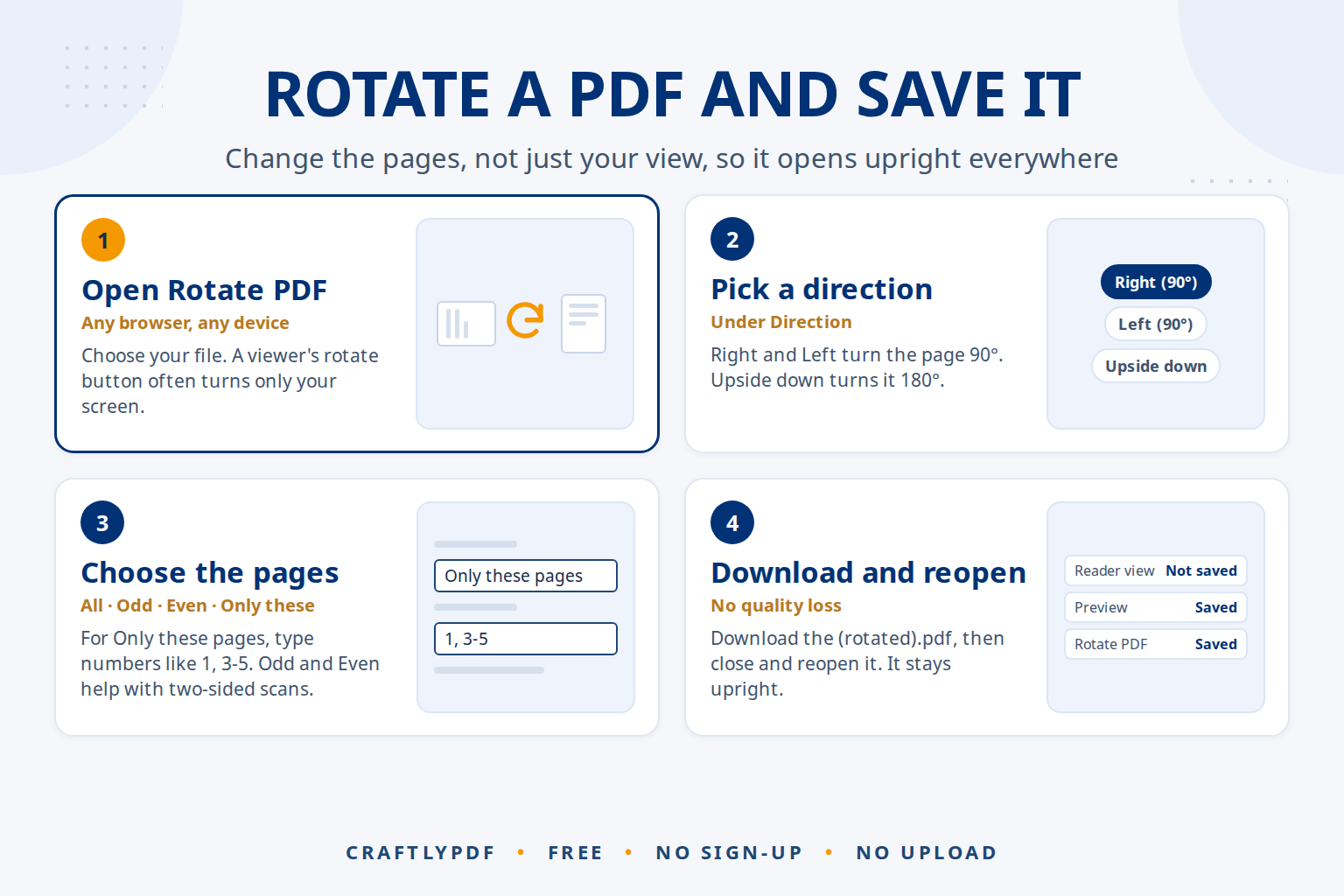
To rotate a PDF and save it, use a tool that changes the pages themselves, not just your view. Open a free rotate tool, choose your PDF, pick a direction and the pages to turn, then download the new file. The rotation is stored inside the PDF, so it opens upright for everyone, on every device.
This guide explains why the rotate button in many PDF viewers doesn’t stick, how to save a rotation permanently, how to turn different pages in different directions, and what to do on a Mac or Windows PC.
Rotate and save your PDF now: free, no sign-up, and your file stays on your device.
Rotate view vs. rotate and save
Many PDF viewers have a rotate button, but it often only turns what you see on screen. Close the file and open it again, and the page is sideways once more. Send it to someone else and they see it sideways too.
- Rotate view changes the display for this session only. The free Adobe Acrobat Reader works this way: Adobe’s help page on adjusting PDF views in Acrobat says rotating the view can’t be saved. Here is why Adobe Reader won’t save rotation and the free fix.
- Rotate and save writes the new direction into the PDF. Every reader, phone and printer then shows the page the right way.
Browser PDF viewers in Edge and Chrome also have a rotate button. It is made for reading, so don’t count on it changing the file. The quick test is always the same: reopen the file and check.
| Method | Saved in the file? | Cost |
|---|---|---|
| Acrobat Reader Rotate view | No, display only | Free |
| Browser viewer rotate button | Don’t rely on it | Free |
| Mac Preview, then save | Yes | Free (Mac only) |
| Paid Adobe Acrobat (page tools) | Yes | Subscription |
| ToolsCampus Rotate PDF | Yes | Free, any device |
How to rotate a PDF and save it (step by step)
- Open Rotate PDF in any browser and choose your file.
- Under Direction, pick Right (90°), Left (90°) or Upside down (180°).
- Under Pages, choose All pages, Odd pages, Even pages or Only these pages. For the last option, type page numbers like
1, 3-5. - Click Rotate PDF, then Download the result. It is named like
contract (rotated).pdf.
The rotation is saved as a page setting, so text and pictures are not redrawn and there is no quality loss. Your original file is never changed.
Rotating different pages in different directions
A scanned bundle often has some pages turned left, some turned right and one upside down. You have two options.
Run Rotate PDF more than once
- Rotate the first group, for example pages
2, 5to the Right, with Only these pages. - Open the downloaded
(rotated).pdfin the tool again. - Rotate the next group, for example page
7Upside down, and download.
Use page previews
Organize PDF shows a preview of every page with rotate left and rotate right buttons under each one. Fix each page while you look at it, then click Save PDF. You can also reorder or delete pages in the same pass.
Odd pages and Even pages help with double-sided scans, where every second page often comes out upside down.
Rotating and saving on Mac and Windows
Mac: Preview
- Preview saves changes automatically, so make a copy first with File > Duplicate if you want to keep the original.
- To rotate several pages, choose View > Thumbnails and select them in the sidebar.
- Click the Rotate button in the toolbar, or use Tools > Rotate Left or Tools > Rotate Right.
- Save the file, then reopen it to check.
Apple’s guide to rotating a PDF in Preview on Mac shows how to turn one page or several selected pages.
Windows
Windows has no built-in way to save a rotated PDF. Edge, the default PDF viewer, has a rotate button for reading, but treat it as a view change. Use Rotate PDF in Edge or Chrome instead; it works the same way on a phone. Here are the phone steps to rotate a PDF on iPhone or Android.
Why scanned PDFs come out sideways
- Phone photos. A phone held sideways records a direction flag that some apps ignore when turning photos into a PDF. If you build PDFs from photos with JPG to PDF, check the result and rotate if needed.
- Landscape pages. Wide tables and charts are often printed sideways in a portrait document.
- Scanner feed. Pages put in the feeder the wrong way, or double-sided scans, can come out sideways or upside down.
To match your symptom to the cause, see why a PDF opens sideways. If you scan with your phone, these tips to scan documents to PDF on a phone help you get upright pages from the start.
Rotate before you upload a scan to AI
AI assistants such as ChatGPT, Claude, Gemini and Copilot can read PDFs and answer questions about them. Sideways or upside-down pages are harder for them, and for text recognition in general, to read correctly. A table turned 90° may come back with missing or jumbled numbers.
- Rotate and save first, so every page is upright before you upload.
- Check the text. If you can’t select words in the PDF, it is only a picture. Run it through OCR PDF after rotating, so there is real, searchable text.
- Check the answers against the original document, especially numbers, dates and names.
- Check privacy settings of the AI service before uploading personal or work documents.
Rotating with ToolsCampus happens in your browser, so the file isn’t uploaded anywhere just to fix it.
Common problems
The page turned back after I reopened the file
You rotated the view, not the file. Rotate it with Rotate PDF and use the downloaded (rotated).pdf from now on.
The wrong pages were rotated
Page numbers mean the position in the file (1 is the first page), not the numbers printed on the pages. Start again from your original, which is unchanged.
The PDF is password-protected
Remove the password first in the program that created it, or ask the sender for an unlocked copy.
The form fields stopped working
Fillable form fields and bookmarks are not kept in the new file. Fill in the form first, or add fields again in our PDF editor.
Need to remove or pull out pages as well? See how to extract pages from a PDF.
Frequently asked questions
How do I rotate a PDF permanently?
Use a tool that saves the rotation into the file, such as Rotate PDF, Mac Preview or the paid Adobe Acrobat. Then reopen the file to make sure it stayed turned.
Why won’t my PDF stay rotated?
Your viewer only rotated the display. Acrobat Reader’s Rotate view and most browser rotate buttons don’t change the file, so the page goes back when you close it.
Does rotating a PDF reduce its quality?
No. Rotate PDF changes a page setting, so text stays sharp and searchable and pictures are not compressed again.
Can I rotate just one page of a PDF?
Yes. Choose Only these pages and type the page number, or use the rotate buttons under that page in Organize PDF.
Rotate and save your PDF now. Pick a direction, choose the pages, and download a file that opens the right way for everyone.