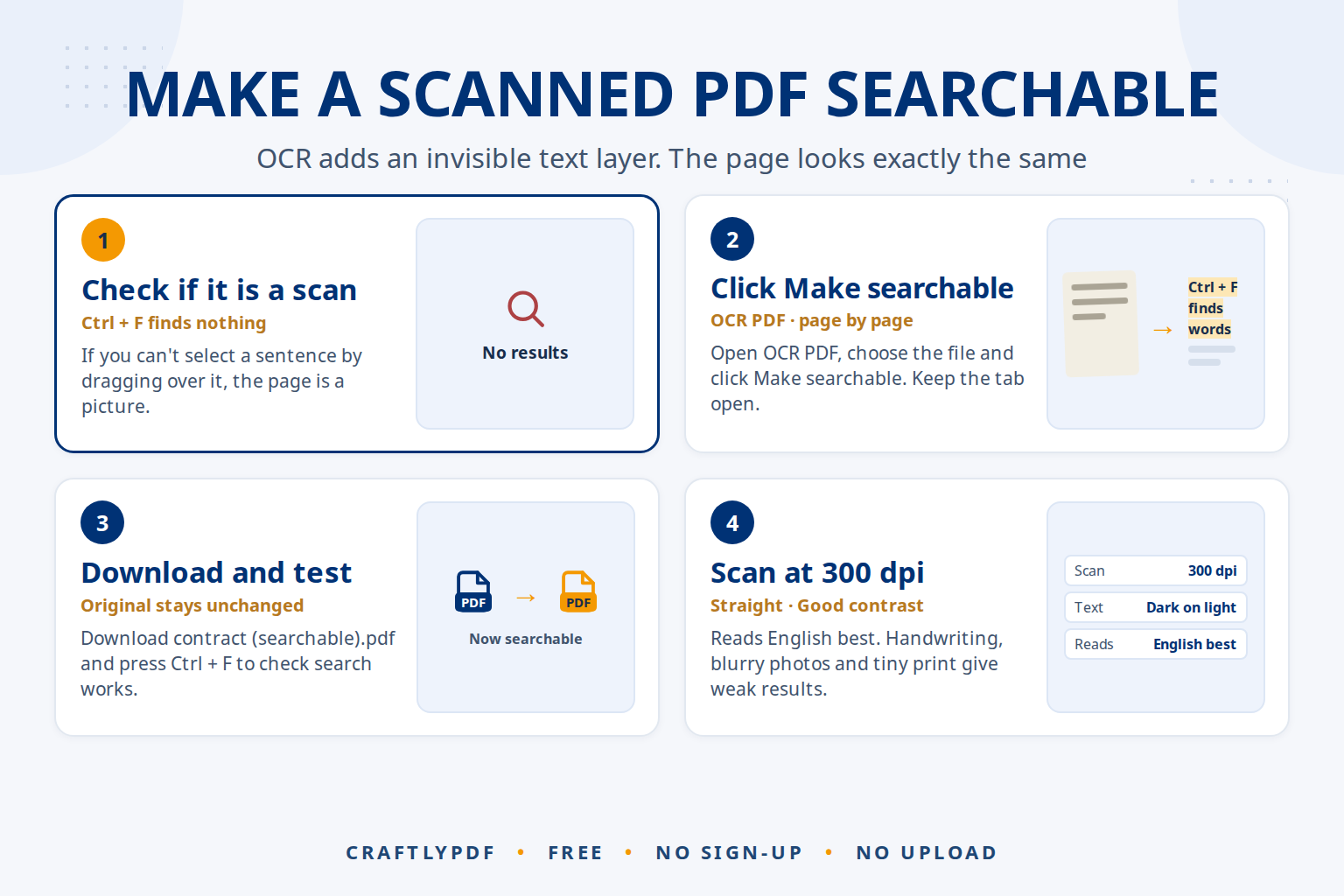
To make a scanned PDF searchable, run it through OCR (optical character recognition). OCR reads the words in the scanned picture and adds them as an invisible text layer. The page looks exactly the same, but Ctrl+F finds words and you can select and copy text. You can run OCR on a PDF online for free: the text recognition happens right in your browser, and the file is not uploaded.
This guide shows how to tell whether your PDF is a scan, what OCR actually does, the steps, what to expect, and how to get the best results.
Make your scanned PDF searchable: free, no sign-up, and your file stays on your device.
How to tell if your PDF is a scan
A scanned PDF is a set of pictures of pages. It looks like text, but to the computer it is just an image. Quick checks:
- You can’t select text. Click and drag over a sentence. If nothing highlights, or a whole box around the page highlights, it is a picture.
- Search finds nothing. Press Ctrl+F (Command+F on a Mac) and search for a word you can see. No results means there is no text layer.
- It came from a scanner or phone. Documents made with a scanner app or from photos are usually scans, unless the app already ran OCR.
- It looks slightly grey or crooked. Paper texture, shadows or slightly tilted lines are a sign of a scan.
What OCR does to your PDF
OCR looks at each scanned page, recognises the letters and puts the words behind the picture, in the right positions. Nothing visible changes. For the idea behind it in plain words, see how OCR reads text in images. The difference:
| Task | Scanned PDF | After OCR |
|---|---|---|
| How the page looks | Picture of the page | Exactly the same |
| Search with Ctrl+F | Finds nothing | Finds words |
| Select and copy text | Not possible | Works |
| Change the words | Not possible | Use the editor’s Edit text tool |
| AI assistants reading it | Must read the picture | Get real text |
How to make a scanned PDF searchable (step by step)
- Open OCR PDF and choose your scanned PDF.
- Click Make searchable.
- Wait while it reads each page. Progress is shown page by page.
- Read the result note, which says how many pages got text.
- Download the file, named like
contract (searchable).pdf. Your original stays unchanged. - Open it and press Ctrl+F to check that search works.
What to expect
- First use takes longer. The browser downloads the text recognition engine (about 7 MB) once and keeps it for next time.
- Time. A clear scan takes a few seconds per page, so a long document can take a few minutes. Keep the tab open.
- Language. It reads English best, along with numbers and common symbols. Other languages that use the Latin alphabet partly work, but accents may be missed.
- Privacy. Recognition runs inside your browser using the open-source Tesseract engine. The file is not uploaded.
- Mixed files are fine. Pages that already have real text are left alone, and blank pages are skipped.
Tips for the best results
- Scan at 300 dpi. The Tesseract project’s advice on improving OCR quality says it works best on images of at least 300 dpi. Lower resolutions blur small letters.
- Keep pages straight. A page placed squarely on the scanner reads better than one that is tilted.
- Good contrast. Dark text on a light page, without shadows. With a phone, scan in good light and hold it flat above the page. Our guide to scanning documents to PDF with your phone covers this.
- Fix rotation first if you can. OCR detects pages scanned sideways or upside down and reads them the right way, but the page itself still displays sideways. Rotate PDF fixes that for every reader.
- Put pages in order. Use Organize PDF to sort or delete pages before OCR, so you only process what you keep.
- Know the limits. Handwriting, blurry photos and tiny print give weak results.
If you only have photos of the pages, turn them into a PDF with JPG to PDF first, then run OCR.
After OCR: search, copy and edit
Search
Press Ctrl+F or Command+F in any PDF reader. Your computer’s file search may also find words inside the PDF.
Copy
Select text and copy as you would in any PDF. Line breaks and table layout may not come out perfectly, so paste into a plain text editor first if needed. Our guide to copying tables and columns from a scan has more tips.
Change words
OCR doesn’t create a Word file or an editable document. Still, recognising the text is always the first step before a scan can be edited. The PDF editor‘s Edit text tool does that step for you with AI OCR, then lets you change words on the page. See how to edit a scanned PDF online for free. If you need the whole document as text you can rework, compare the routes to editable text from a scan.
Why OCR helps with AI tools
AI assistants such as ChatGPT, Claude, Gemini and Copilot can read PDFs. With a scanned PDF, they have to read the picture first. With an OCR’d PDF, they get real text, which is usually faster and more accurate for:
- Summaries of long reports or letters.
- Translation of a scanned document into another language.
- Questions like “When does this contract end?” or “What is the total on page 3?”
OCR can misread a character, and AI can misunderstand. Always check names, dates and numbers against the original page. Before uploading personal or work documents, check the AI service’s privacy settings and your organisation’s rules.
Common problems
Search still finds nothing
Check the result note. If it says no pages got text, the pages may already have text, may be blank, or the scan may be too unclear to read. Try a sharper scan.
The text has mistakes
Blurry, low-resolution or tilted scans cause misread letters. Rescan at 300 dpi with good light if you can. Handwriting is not read reliably.
Accented letters are wrong
The engine reads English best and may miss accents in other languages. Search for words without the accent, or correct them in the editor.
The PDF has a password
Password-protected PDFs aren’t supported. Open it with the password, save an unlocked copy, then run OCR on that.
Frequently asked questions
How do I make a scanned PDF searchable for free?
Open OCR PDF, choose your file and click “Make searchable”. It runs in your browser, costs nothing and needs no account.
Does OCR change how my PDF looks?
No. The text is added as an invisible layer behind the scanned picture, so every page looks exactly as before.
Can OCR convert a scanned PDF to Word?
This tool doesn’t. It makes the PDF searchable and copyable. To change words, use the Edit text tool in the PDF editor.
Why can’t I search my PDF?
Most likely it is a scan: pictures of pages with no text behind them. Running OCR adds that text so search works.
Make your PDF searchable now. Choose the file, click once, search away.