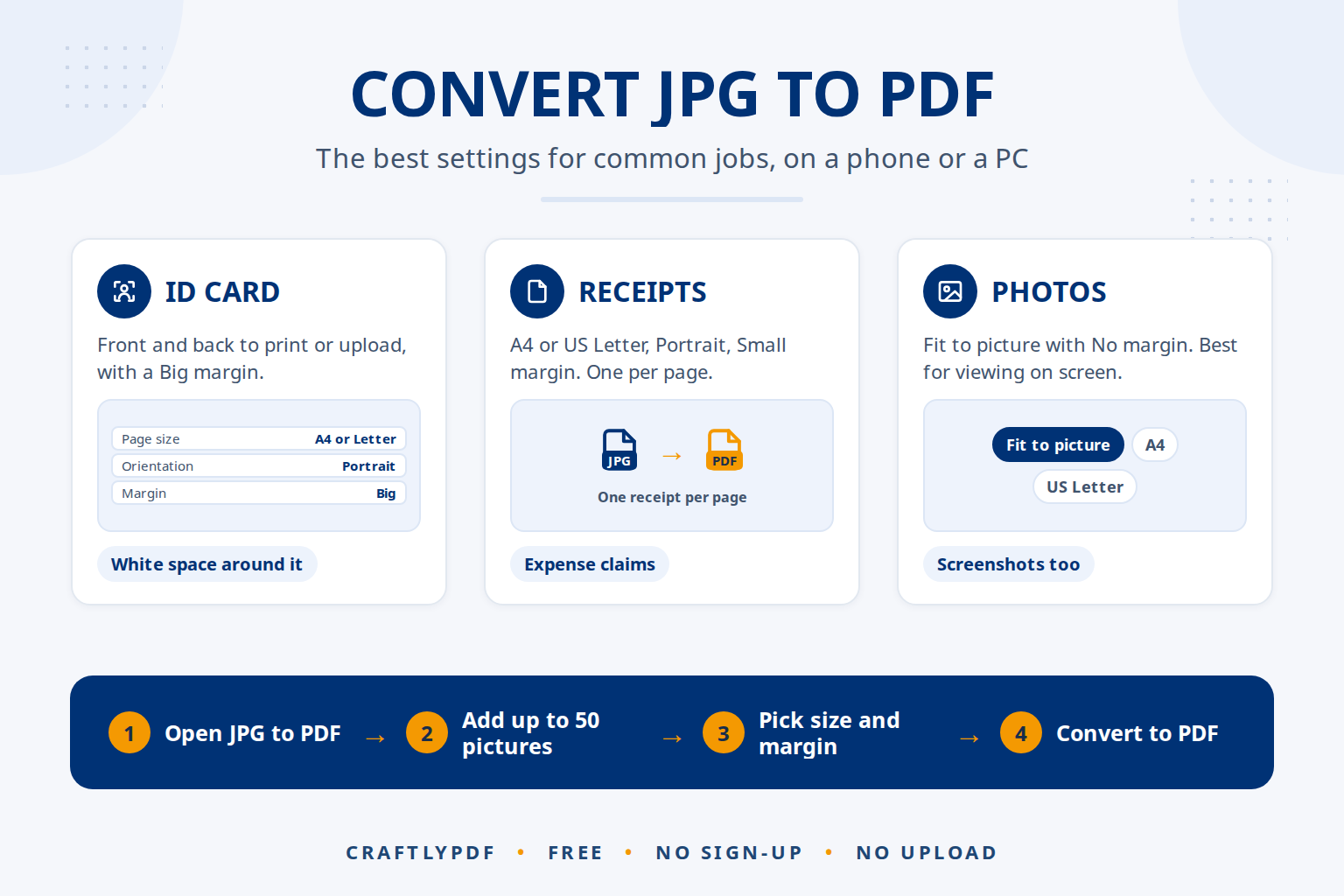
To convert JPG to PDF for free, open a JPG to PDF tool in your browser, add your pictures, choose a page size and margin, and click convert. You get one PDF with one picture per page, in the order you set. It works the same on a phone or a PC, with nothing to install.
This guide walks through the steps, explains each option with a table of the best settings for common jobs, covers Windows, Mac, iPhone and Android, and shows how to make the PDF searchable for you and for AI tools.
Convert your JPG to PDF now: free, no sign-up, and your file stays on your device.
How to convert JPG to PDF (step by step)
- Open JPG to PDF in any browser.
- Add your pictures. JPG, PNG and WebP work, up to 50 pictures and 50 MB each.
- Put them in order with the up and down arrows. Each picture becomes one page.
- Choose the options: page size, orientation and margin (explained below).
- Click Convert to PDF.
- Click Download. One picture gives a file like
photo.pdf; four pictures givephoto-and-3-more.pdf.
Want to add a signature, a date or some text afterwards? Click Open in the editor to continue in our PDF editor.
The options explained
Page size
- Fit to picture: each page takes the shape of its picture, with the longer side as long as an A4 page. Best for viewing on screen.
- A4 or US Letter: every page is a standard paper size. Best for printing and for forms that ask for a normal page.
Orientation
Only used with A4 and US Letter. Automatic picks portrait for tall pictures and landscape for wide ones. Portrait or Landscape forces every page the same way.
Margin
No margin, Small or Big. Pictures are scaled to fit inside the margins, kept in their shape and centred. They are never cropped, so nothing at the edge is cut off.
Which setting for which job
| Job | Page size | Orientation | Margin |
|---|---|---|---|
| ID card copy (front and back) to print or upload | A4 or US Letter | Portrait | Big |
| Receipts for an expense claim | A4 or US Letter | Portrait | Small |
| A photo to share or view on screen | Fit to picture | (not used) | No margin |
| Screenshots of a chat or web page | Fit to picture | (not used) | No margin |
| Photo of a document, to print | A4 or US Letter | Automatic | Small |
Every picture is scaled to fill the space inside the margins, so a big margin leaves white space around an ID card photo and keeps it from filling the whole sheet. Printers can’t print right to the edge, so a small margin keeps document photos from being cut off when printed. Sending a stack of receipts or homework pages? Our tips to combine many pictures into one PDF cover file order and the 50-picture limit.
JPG to PDF on Windows, Mac, iPhone and Android
Windows
Open the tool in Edge or Chrome and choose your pictures from File Explorer. Windows also has a built-in way: open a picture in the Photos app, print it, and choose the Microsoft Print to PDF printer. That works, but it is slower for several pictures, and the tool gives you more control over page size and margins.
Mac
For a single picture, open it in Preview and choose File > Export as PDF. For several pictures in one PDF, in a set order, the tool is quicker.
iPhone
iPhone photos are often saved as HEIC, which the tool doesn’t accept. In most cases this sorts itself out: when you pick photos in Safari’s photo picker, it usually converts them to JPG. If a photo is refused, share or export it as JPG first, then add it again. To shoot JPG from the start, choose Settings > Camera > Formats > Most Compatible, as Apple’s guide to HEIF photos explains. The finished PDF goes to the Downloads folder in the Files app.
For the built-in Print and Files app methods too, see how to turn an iPhone photo into a PDF.
Android
Open the tool in Chrome and pick photos from your gallery or files. Phone photos are turned upright automatically, so a picture taken sideways still ends up the right way. The PDF saves to your Downloads folder.
Will my photos lose quality?
Photos stay JPG inside the PDF, so the file stays small and the photo isn’t compressed into a different format. PNG and WebP pictures are stored as PNG, which keeps text in screenshots sharp; see-through areas become white. That matches the usual advice in MDN’s image format guide: JPG for photos, lossless PNG for screenshots and text. More tips are in our guide to PNG to PDF without losing quality.
Very large photos are reduced to print quality: 3,508 pixels on the longest side, which is about 300 dpi on an A4 page. That is enough for a sharp print and keeps the PDF from becoming huge. If you need an even smaller file to email, make your photos smaller on your phone before you convert them.
Need to add pictures to an existing PDF? See how to combine PDF and JPG files. Convert the pictures here, then join everything with Merge PDF.
One PDF for AI, and searchable with OCR
AI assistants like ChatGPT, Claude, Gemini and Copilot can read photos directly, so you don’t always need a PDF. But when you have several pictures, such as the five pages of a letter or a week of receipts, one PDF keeps them together and in the right order. That makes it easier for the AI to treat them as one document, and easier for you to keep and share.
- Set the order first. Use the arrows so page 1 really is page 1 before you convert.
- Make it searchable. A PDF made from photos holds pictures, not text. Run it through OCR PDF to add searchable text, so you can find words with Ctrl+F and an AI can work with real text.
- Leave out what isn’t needed. Skip photos of ID cards or bank details if your question doesn’t need them.
Check the AI’s answers against the original pictures, especially numbers and amounts. Before uploading personal or work documents, check the AI service’s privacy settings. Converting with ToolsCampus happens in your browser, so your pictures are not uploaded.
Common problems
My iPhone photo was refused
It is probably HEIC. Share or export it as JPG, or pick it through Safari’s photo picker, which usually converts it.
A file was refused even though it ends in .jpg
The tool checks that each file really is a picture. A file renamed to .jpg that is actually something else is refused. Open it and save it again as a real JPG.
The pages are in the wrong order
Use the up and down arrows before converting. If the PDF is already made, fix it in Organize PDF.
The picture looks small on the page
Choose No margin, or Fit to picture so the page takes the picture’s shape.
Frequently asked questions
How do I convert a JPG to PDF for free?
Open JPG to PDF in your browser, add the picture, choose your options and click Convert to PDF. It’s free, needs no account and works on phones and computers.
Can I put several JPGs into one PDF?
Yes. Add up to 50 pictures, set their order with the arrows, and they become one PDF with one picture per page.
Does converting JPG to PDF reduce quality?
Photos stay JPG and are never cropped. Only very large photos are reduced, to about 300 dpi on A4, which is still sharp in print.
How do I convert a photo to PDF on my phone?
Open JPG to PDF in Safari or Chrome, pick photos from your gallery, convert and download. The PDF lands in your Downloads folder.
Convert JPG to PDF now. Add your pictures, pick a setting from the table and download one tidy PDF.