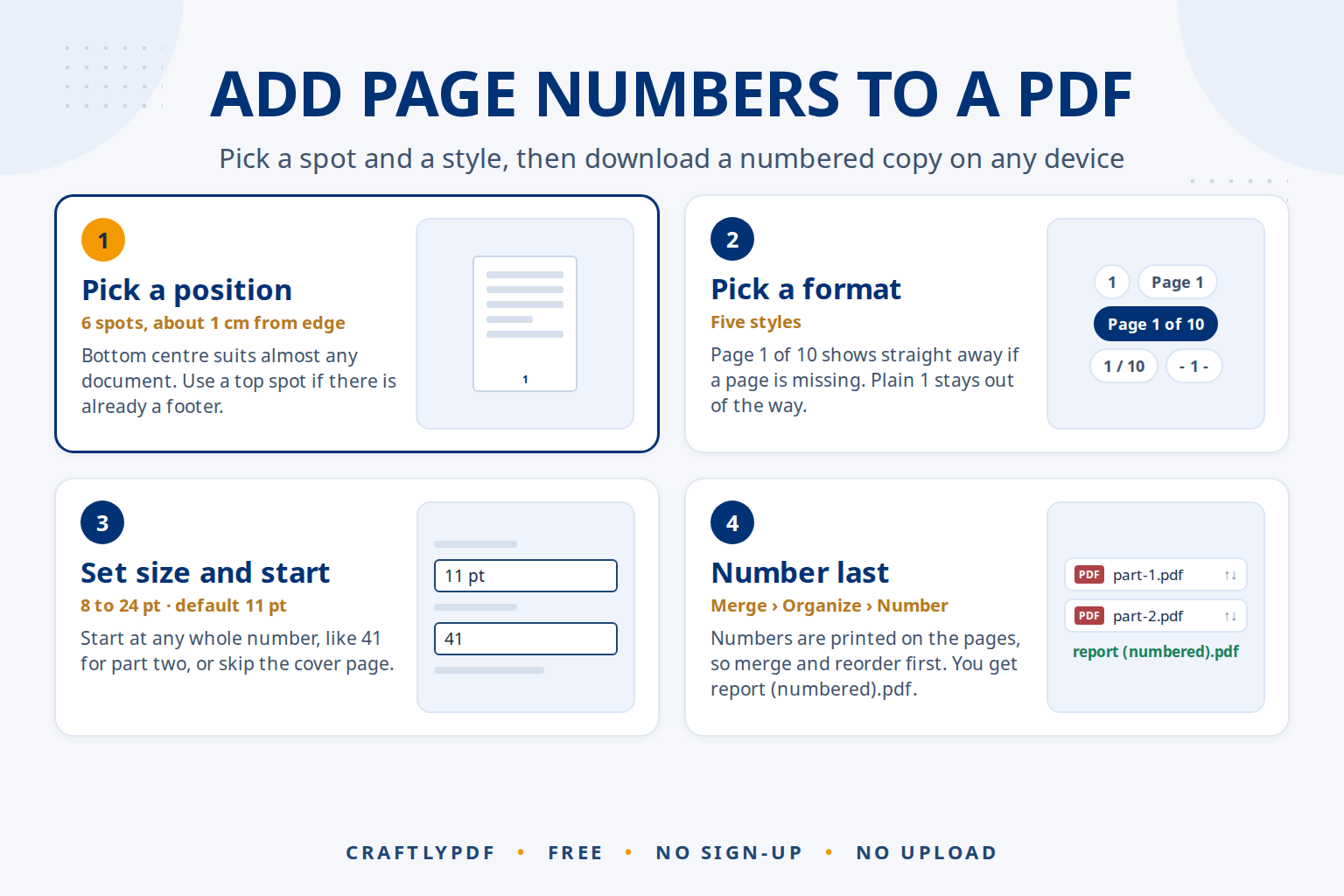
To add page numbers to a PDF, open a free page-numbering tool, choose your file, pick where the numbers go and how they look, then download the numbered copy. The numbers are added as real text on every page, and your original file is not changed. It works in any browser on Windows, Mac, iPhone and Android.
This guide walks through every option, shows which number format suits which document, explains where to put the numbers, and covers the right order of work when you are also merging or reordering pages.
Add page numbers to your PDF now: free, no sign-up, and your file stays on your device.
How to add page numbers to a PDF (step by step)
- Open Add page numbers in any browser and choose your PDF, or drag it onto the box.
- Pick a position, for example Bottom centre.
- Pick a format, such as
1orPage 1 of 10. - Set the text size with the slider if the default 11 pt doesn’t suit your pages.
- Set the first number and decide whether to skip the cover page (both explained below).
- Click Add page numbers, then Download. The new file is named like
report (numbered).pdf.
If you want to add more to the document after numbering, such as a signature or a date, click Open in the editor to continue in our PDF editor.
Every option explained
Position
Six choices: Bottom centre, Bottom right, Bottom left, Top centre, Top right and Top left. Numbers sit about 1 cm from the edge of the page.
Format
Five styles, from a plain number to “Page 1 of 10”. See the table below for when to use each.
Text size
A slider from 8 to 24 pt, with 11 pt as the default. That matches normal body text in most documents. Go larger for slides or posters, smaller for dense reports with narrow margins.
First number
The number shown on the first numbered page. It can be any whole number from 0. Use it when this PDF continues an earlier document: if part one ended on page 40, start part two at 41.
Skip the first page (cover)
Tick this box and the cover gets no number. Numbering starts on page 2, using your first number. With first number 1, page 2 shows “1”; with first number 2, page 2 shows “2”, so the numbers match the page positions. For worked examples of both choices, see how to start page numbers on page 2.
The numbers are black Helvetica text. There is no choice of font or colour, no Roman numerals, no custom text before the number, and no Bates numbering. All pages are numbered; you can’t pick a range. If you need Roman numerals or separate numbering per section, set them in the original Word file with section breaks and a number format for each section, then export a new PDF.
Which page number format to use
| Format | Looks like | Best for |
|---|---|---|
1 |
1, 2, 3 | Minimal and clean. Books, reports and anything where the number should stay out of the way. |
Page 1 |
Page 1, Page 2 | Formal documents, letters and applications where you want the label spelled out. |
Page 1 of 10 |
Page 3 of 10 | Contracts, forms and anything printed or signed. A reader can see straight away if a page is missing. |
1 / 10 |
3 / 10 | The same “missing page” check in a compact form. Good for slides and handouts. |
- 1 - |
– 3 – | A classic print look, common in older reports and typed manuscripts. |
The total in “of 10” and “/ 10” is the last number used. If you skip the cover or change the first number, the total changes with it.
Where to put page numbers
- Bottom centre is the most common choice and works for almost any document.
- Bottom right is easy to spot when flipping through printed pages held at the corner.
- Top right suits academic papers and manuscripts that follow a style guide asking for it.
- Check the footer first. If your pages already have a footer, a logo or a slide number at the bottom, choose a top position so the numbers don’t overlap.
Printed booklets often put numbers on the outside corner, which switches between left and right on facing pages. This tool uses the same position on every page, so for booklets Bottom centre is the safe choice. For thesis, report and contract conventions, see these page numbering rules by document type.
Landscape and rotated pages
Numbers are placed by how each page is shown on screen, not by how it was stored. A landscape chart in the middle of a portrait report gets its number along the bottom of the page as you see it, the right way up. If a page is sideways, straighten it with Rotate PDF first so the number lands where you expect.
Merge and organize first, number last
Page numbers are printed onto the pages. If you add, remove or move pages afterwards, the numbers will be wrong. Work in this order:
- Combine all parts into one file with Merge PDF. See how to combine several PDF files into one.
- Arrange the pages, delete blanks and fix rotation with Organize PDF. See how to rearrange PDF pages.
- Number the finished document last.
Page numbers make AI answers easier to check
AI assistants such as ChatGPT, Claude, Gemini and Copilot can read PDFs and answer questions about them. Clear page numbers help on both sides of that conversation:
- Point to a page. “Summarise the payment terms on page 7” is a precise question when page 7 is printed on the page itself.
- Ask for page references. Ask the AI to say which page each answer comes from, then open that page and read it yourself. AI tools can quote the wrong section or get a page wrong.
- Make scans readable first. If you can’t select text in your PDF, it is a picture of text. Run it through OCR PDF before numbering so the AI can read the words.
Before uploading personal or work documents to any AI service, check its privacy settings. Numbering with ToolsCampus happens in your browser, so the file isn’t uploaded to do it.
Common problems
The numbers overlap existing text
Some pages have content very close to the edge. Pick a different position, such as the top instead of the bottom, or reduce the text size.
The total says “of 9” but my PDF has 10 pages
You ticked Skip the first page (cover). The total is the last number used, so nine numbered pages show “of 9”. Set the first number to 2 if you want the last page to read “10 of 10”.
The PDF is password-protected
Remove the password in the program that created it, or ask the sender for an unlocked copy, then add the numbers.
The form fields stopped working
Fillable form fields and bookmarks are not kept in the numbered copy. Text, pictures and web links are. Fill in the form first, or add fields again in the PDF editor.
Frequently asked questions
How do I add page numbers to a PDF for free?
Open the Add page numbers tool, choose your PDF, pick a position and format, and click Add page numbers. It’s free, needs no account, and works in any browser. You can also compare the free ways to number pages without Acrobat.
Can I add page numbers to a PDF on my phone?
Yes. Open the tool in Safari or Chrome on your iPhone or Android phone, choose the PDF from your files, and save the numbered copy back to Files or Downloads.
Does adding page numbers change my original file?
No. You get a new file ending in “(numbered)”, and the original stays exactly as it was.
Can I start numbering from a number other than 1?
Yes. Set the First number to any whole number from 0, for example 41 if this file continues a document that ended on page 40.
Number your PDF pages now. Pick a position and format, click once, and download.