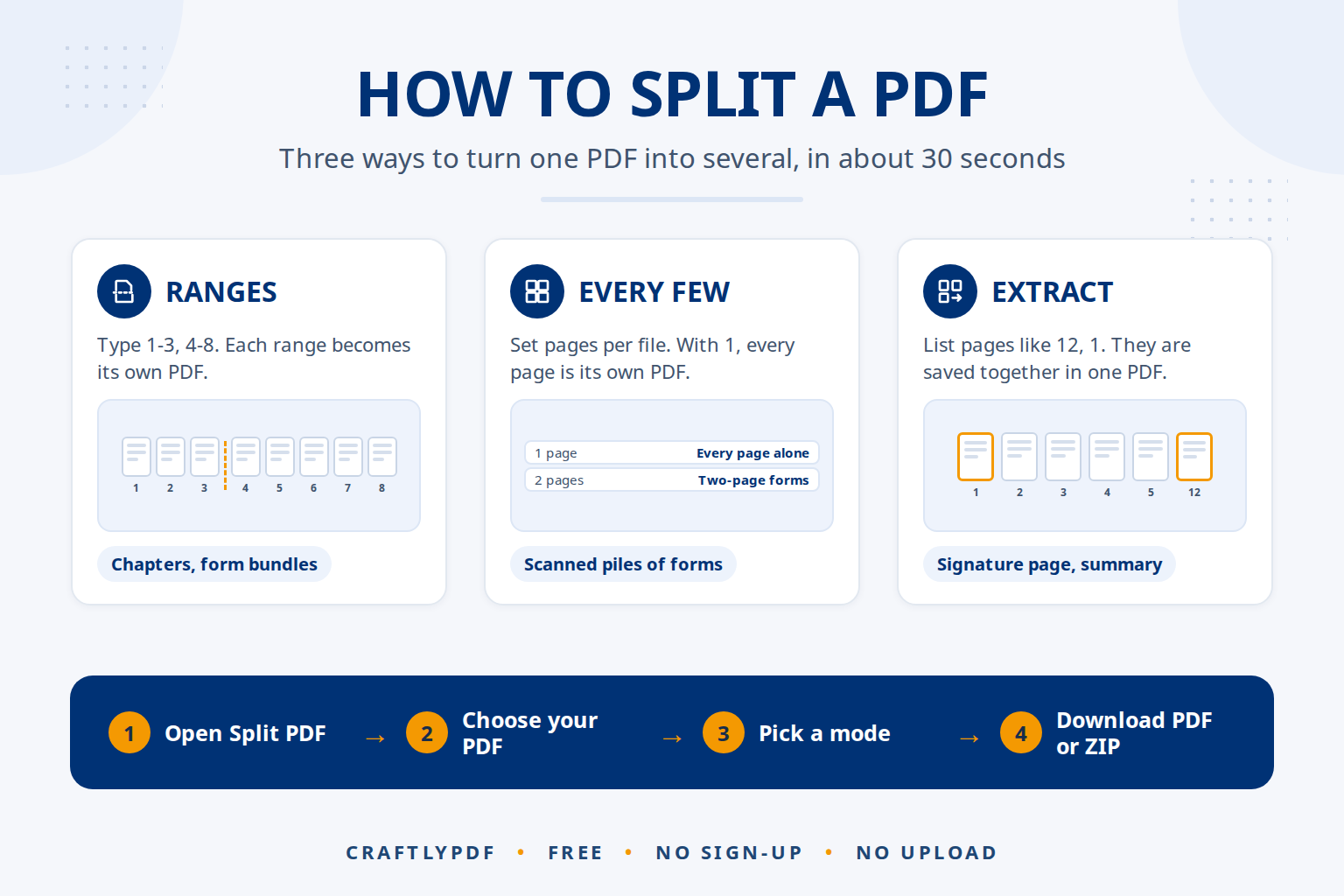
To split a PDF into multiple files, open a free split tool, choose your PDF, type the page ranges you want (for example 1-3, 4-8, 9-) and download the new files. Each range becomes its own PDF, and several files come together in one ZIP. It takes about 30 seconds and works on any device.
This guide covers the three ways to split a PDF, how to write page ranges, built-in options on Windows and Mac, and how splitting helps when you use AI tools with long documents.
Split your PDF now: free, no sign-up, and the file never leaves your device.
How to split a PDF (step by step)
- Open Split PDF in any browser.
- Choose your PDF or drag it onto the box. The tool shows how many pages it has.
- Pick how to split: by page ranges, every few pages, or extract pages (all three are explained below).
- Click Split PDF.
- Download. One result downloads as a PDF. Several results download together as a ZIP, or one by one from the list.
Every new file is named after the original and its pages, for example report (pages 4-8).pdf, so you always know what is inside.
Three ways to split a PDF
1. By page ranges
Type the ranges separated by commas. Each range becomes one PDF. Use this to split a report into chapters or a bundle of forms into separate documents.
2. Every few pages
Set how many pages each file should have. With 1, every page becomes its own PDF. With 2, a pile of two-page forms scanned together is separated back into individual forms.
3. Extract pages
List the pages you want, and they are saved together in one new PDF, in the order you type them. Use this to pull the signature page and the summary out of a long contract, for example 12, 1. Our guide to extracting pages from a PDF has more examples.
How to write page ranges
| You type | You get |
|---|---|
1-3, 4-8 |
Two PDFs: pages 1 to 3, and pages 4 to 8 |
5 |
A PDF with only page 5 |
9- |
Page 9 to the last page |
1-3, 5, 9-12 |
Three PDFs |
10-7 |
Pages 10, 9, 8 and 7, in that order |
Spaces don’t matter. If you type a page that doesn’t exist, the tool tells you how many pages the PDF has, so you can fix the range. If you only need a single page, see how to save just one PDF page.
Splitting a PDF on Windows and Mac without a tool
Windows: Print to PDF
Open the PDF in Edge or Chrome, press Ctrl+P, choose Microsoft Print to PDF (Edge) or Save as PDF (Chrome), set Pages to a custom range and save. This makes one range at a time, and “printing” can lose links and fillable form fields, so a split tool is faster for more than one part.
Mac: Preview
Open the PDF in Preview, choose View > Thumbnails, select the pages you want, and drag them from the sidebar onto the desktop. Preview makes a new PDF from them, a trick Apple describes in its guide to adding, deleting or moving PDF pages in Preview. Repeat for each part.
iPhone and Android
Phones have no built-in split option. Open Split PDF in Safari or Chrome; it works the same as on a computer, and the ZIP opens in the Files app on iPhone and the Files by Google app on Android. Phone-specific steps are in splitting a PDF on iPhone, Android and Mac.
Splitting PDFs for AI tools like ChatGPT, Claude and Gemini
AI assistants such as ChatGPT, Claude and Gemini can read PDFs you upload and answer questions about them. Long documents run into two problems: each app limits how big an upload can be, and the longer the document, the easier it is for the answer to miss details buried in the middle.
Splitting helps with both:
- Upload one chapter at a time. Split a 300-page report by chapter and ask about each part. Answers tend to be more precise when the AI only has the relevant pages.
- Stay under upload limits. If an app rejects your file as too large, split it into parts and upload them one after another.
- Send only what’s needed. Extract the pages you have questions about rather than sharing the whole document. Fewer pages uploaded means less personal information shared.
- Check scanned PDFs first. If you can’t select the text in your PDF, it is a scan. Some AI tools read scans poorly; run it through OCR PDF first so the text is real text.
Before uploading work or personal documents to any AI service, check its privacy settings and your organisation’s rules. Splitting with ToolsCampus happens on your device, so the full file is never sent anywhere.
Common problems
“Page 9 does not exist”
The range goes past the end of the document. The message tells you how many pages the PDF has; change the range, or use 9- to mean “to the end”.
The PDF is protected with a password
A locked PDF can’t be split until the lock is removed. Open it with the password in the program that created it and save an unlocked copy, or ask the sender for one.
The form fields stopped working
Page content, pictures and web links are kept when splitting, but fillable form fields and bookmarks are not. Fill the form in before splitting, or add fields again in our PDF editor.
I want to remove pages, not split
Use Organize PDF to delete or rearrange pages and save one tidy file. Here is how to delete unwanted pages from a PDF.
Need the opposite? See how to combine PDF files into one.
Frequently asked questions
How do I split a PDF into separate pages?
In Split PDF, choose “Every few pages” and set it to 1. Each page becomes its own PDF, all collected in one ZIP file.
Can I split a PDF for free without Adobe?
Yes. Split PDF is free and works in your browser. On a Mac you can also use Preview, and on Windows the browser’s Print to PDF option for one range at a time.
Does splitting a PDF reduce its quality?
No. Pages are copied exactly, so text stays sharp and searchable and pictures are not compressed again.
Is it safe to split a confidential PDF online?
With ToolsCampus, yes: the PDF is split inside your browser and never uploaded. Many other online tools send your file to their servers.
Split your PDF now. Type your ranges, click once, download.