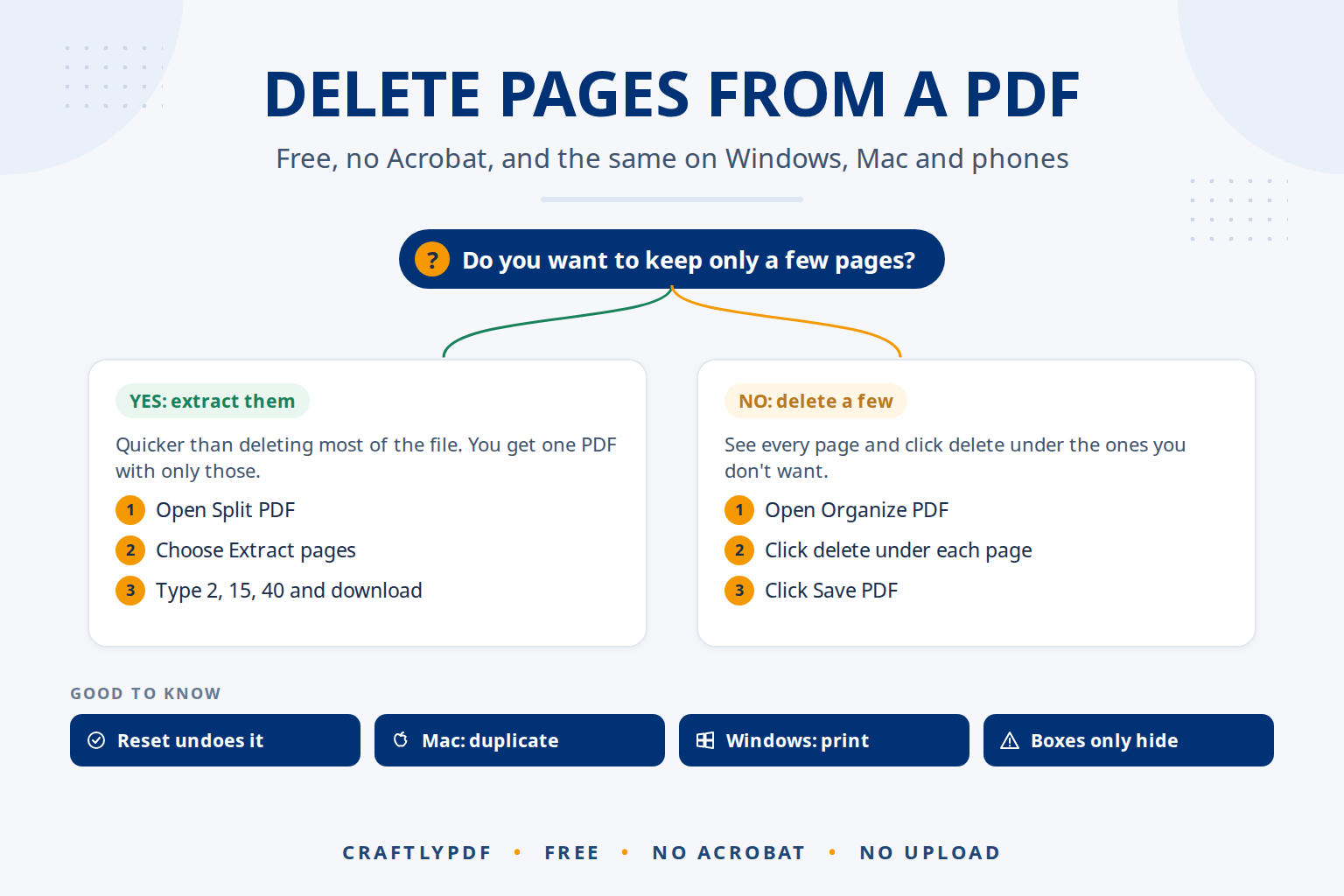
To delete pages from a PDF for free, open a page organizer in your browser, choose your PDF, click the delete button under each page you don’t want, and save. You get a new PDF without those pages, and you don’t need Adobe Acrobat. It works the same on Windows, Mac, iPhone and Android.
This guide covers the quickest way with a free tool, the built-in option on a Mac, a workaround on Windows, and what to do on a phone. It also explains why deleting a page is safer than covering it up.
Delete pages from your PDF now: free, no sign-up, and your file stays on your device.
How to delete pages from a PDF (step by step)
- Open Organize PDF in any browser and choose your PDF.
- Look through the previews. Every page is shown as a small preview, and more load as you scroll.
- Click the delete button under each page you want to remove. The counter at the top shows how many are left, for example 18 of 20 pages · 2 deleted.
- Deleted the wrong page? Click Reset to bring back the original order and all deleted pages.
- Click Save PDF. The new file downloads as
name (organized).pdf.
While you’re there, you can also drag pages into a new order or rotate sideways pages. See how to rearrange the remaining PDF pages if the order needs work too. Your original PDF is never changed.
Ways to delete PDF pages compared
| Method | Cost | Devices | Good to know |
|---|---|---|---|
| Organize PDF (browser) | Free | Any | See every page, delete, undo with Reset |
| Preview | Free, built in | Mac | Saves changes automatically, duplicate first |
| Print to PDF | Free, built in | Windows | Keeps only a page range, can lose links and form fields |
| Adobe Acrobat Reader | Free | Any | Can’t delete pages |
| Adobe Acrobat (paid) | Subscription | Windows, Mac | Can delete pages |
Delete pages from a PDF on Mac with Preview
Preview saves your changes into the file automatically, so make a copy first if you want to keep the full document.
- Open the PDF in Preview and choose File > Duplicate. Work in the copy.
- Choose View > Thumbnails to show the pages in the sidebar.
- Click a page you want to remove. Command-click to select several.
- Press Delete, or choose Edit > Delete.
- Choose File > Save and give the copy a name, or use File > Export as PDF.
As Apple’s Preview guide to deleting pages points out, notes and highlights on a deleted page are removed with it. The same sidebar also lets you move pages in a PDF on Mac by dragging thumbnails.
Delete pages from a PDF on Windows
Windows has no built-in tool to delete PDF pages. The workaround is to “print” only the pages you want to keep into a new PDF:
- Open the PDF in Edge or Chrome and press Ctrl+P.
- Choose Microsoft Print to PDF (Edge) or Save as PDF (Chrome).
- Under Pages, type the pages to keep, for example
1-4, 7-12to drop pages 5 and 6. - Click Print or Save and pick a name.
The drawbacks: you have to work out the pages to keep rather than the pages to remove, clickable links and fillable form fields can be lost, and text may not come out exactly as before. A page organizer copies the pages themselves, which avoids most of this.
Delete pages from a PDF on iPhone or Android
Open Organize PDF in Safari or Chrome, choose the PDF from Files (iPhone) or your Downloads (Android), and tap the delete button under each page. The buttons are made for touch screens. Tap Save PDF and the new file goes to your Downloads folder.
Only need to keep a few pages?
If you want 3 pages from a 60-page file, deleting 57 is slow. Use the Extract pages mode in Split PDF instead: type 2, 15, 40 and get one PDF with only those pages. See the full guide to extracting pages from a PDF.
Delete personal pages before sharing with AI
AI assistants such as ChatGPT, Claude, Gemini and Copilot can read PDFs and answer questions about them. Before you upload a document, think about what’s in it:
- Remove pages you don’t need. A tax return, contract or medical letter often has pages with ID numbers, bank details or signatures that have nothing to do with your question. Delete them first.
- Keep the question focused. Fewer, relevant pages also help the AI stay on topic.
- Check scanned pages. If you can’t select the text, run the file through OCR PDF so the AI reads real text.
Covering text is not the same as removing it
Drawing a white box or a black rectangle over text in a PDF editor hides it on screen, but the text is often still in the file underneath. Copy and paste, search, or an AI reading the file can still pick it up.
Deleting the whole page removes everything on it. If you need to hide only part of a page, such as one account number, use proper redaction software that removes the text itself, then check by searching the saved file for the hidden words.
Always check AI answers against the original document, and check the AI service’s privacy settings before uploading personal or work files. Deleting pages with ToolsCampus happens in your browser, so nothing is uploaded.
Common problems
I deleted the wrong page
Before saving, click Reset in Organize PDF to bring back every deleted page. After saving, your original file is still unchanged, so just start again from it.
Preview changed my original file
Preview saves automatically. Choose File > Revert To and pick an earlier version, if one is listed. Next time, duplicate the file first.
The scan has blank backs and pages out of order
Delete the blank pages first, then put the rest in order. For double-sided scans, there is a quick way to fix scanned pages in the wrong order by typing the right sequence.
The PDF is password-protected
Locked PDFs can’t be edited. Open the file with its password in the program that made it and save an unlocked copy, or ask the sender for one.
The form fields stopped working
Text, pictures and web links are kept, but fillable form fields and bookmarks are not. Fill the form in first, or add fields again in our PDF editor.
Frequently asked questions
How do I delete pages from a PDF without Acrobat?
Open Organize PDF in your browser, click the delete button under each page you don’t want, and click Save PDF. On a Mac you can also use Preview.
Can I delete pages in Adobe Acrobat Reader?
No. The free Acrobat Reader can’t delete pages. The paid version of Acrobat can, or you can use a free browser tool instead.
Does deleting pages reduce the PDF’s quality?
No. The remaining pages are copied exactly, so text stays sharp and pictures are not compressed again.
Can I delete several pages at once?
Yes. In Organize PDF, click delete under each page and save once. To keep only a few pages, use Extract pages in Split PDF instead.
Delete pages from your PDF now. Click the pages away, then save your new file.